Archive
SQL Server 2014 | New Features
Around 3 years back (~ Nov’2010) the first Community Test Preview (CTP-1) of SQL Server 2012 was released, and with great excitement I blogged about its new features and availability. Now after 3 years, last month-end (June’2013) the first Community Test Preview (CTP-1) of SQL Server 2014 is released, and with same great excitement here I’m with my similar blog post.
SQL Server 2014, this time mainly focuses on high performance in-Memory Operations for OLTP Databases by providing Memory Optimized Tables & Natively Compiled Stored Procedures. There is not much enhancement in T-SQL section, which was with SQL Server 2012. But with In-Memory features SQL Server 2014 has made a lot of impression and is definitely going to make a lot of impact.
Let’s see what all new features SQL Server 2014 is packed with:
.
>> Database Engine:
–> Memory-optimized tables: read more.
–> Natively Compiled Stored Procedures: read more.
-> AlwaysOn enhancements
– The maximum number of secondary replicas is increased from 4 to 8.
– When disconnected from the primary replica or during cluster quorum loss, readable secondary replicas now remain available for read workloads.
– Enhancements are made to increase the efficiency and ease of troubleshooting availability groups
– Failover cluster instances (FCIs) can now use Cluster Shared Volumes as cluster shared disks in Windows Server 2012 and above.
– The following three dynamic management views now return information for FCIs:
1. sys.dm_hadr_cluster (Transact-SQL)
2. sys.dm_hadr_cluster_members (Transact-SQL)
3. sys.dm_hadr_cluster_networks (Transact-SQL)
–> Managing the lock priority of online operations
Additional partition switching and index rebuild operations can now be performed while a table is online. The ONLINE = ON option now contains a WAIT_AT_LOW_PRIORITY option which permits you to specify how long the rebuild process should wait for the necessary locks.
–> Columnstore indexes
– Updateable Clustered Columnstore Indexes: can perform some insert, update, and delete operations, read more.
– SHOWPLAN displays information about columnstore indexes: The EstimatedExecutionMode and ActualExecutionMode properties have two possible values: Batch or Row. The Storage property has two possible values: RowStore and ColumnStore.
– Archival data compression: ALTER INDEX … REBUILD has a new COLUMNSTORE_ARCHIVE data compression option that further compresses the specified partitions of a columnstore index, read more.
–> Buffer pool extension
Provides the seamless integration of solid-state drives (SSD) as a nonvolatile random access memory (NvRAM) extension to the Database Engine buffer pool to significantly improve I/O throughput.
–> Query plans
Includes substantial improvements to the component that creates and optimized query plans.
–> Inline specification of CLUSTERED and NONCLUSTERED
Inline specification of CLUSTERED and NONCLUSTERED indexes is now allowed for disk-based tables.
–> SELECT … INTO
The SELECT … INTO statement is improved and can now operate in parallel.
–> Deployment Enhancements
Deploy a SQL Server Database to a Windows Azure Virtual Machine enables deployment of a SQL Server database to a Windows Azure VM, read more.
.
>> Analysis Services & BI
1. Updates to Design Tool installation
2. Features recently added: Power View for Multidimensional Models
… read more.
.
>> No Changes to Integration Services, Reporting Services & Replication
.
You can know more about the CTP-1 version from my previous blog post. This post provides the Download Link, Install Prerequisites, Limitations, etc for the beta product.
SQL DBA – Move tempDB to another drive in simple steps
Today we will see how to move your SQL Server tempDB database from its default location to an another drive. Reason could be anything like Disk maintenance, Failure recovery, etc. This can be done by using the normal ALTER DATABASE statement, we will see how.
–> Script: Let’s first check the location of master DB:
USE tempdb
GO

SELECT * FROM sys.database_files

–> Now execute the ALTER DATABASE statement with MODIFY FILE option:
USE master;
GO

ALTER DATABASE tempdb
MODIFY FILE (
	NAME = tempdev,
	FILENAME = 'E:\SystemDatabases\tempDB\tempdb.mdf'
);
GO

ALTER DATABASE tempdb
MODIFY FILE (
	NAME = templog,
	FILENAME = 'E:\SystemDatabases\tempDB\templog.ldf'
);
GO
The file “tempdev” has been modified in the system catalog. The new path will be used the next time the database is started.
The file “templog” has been modified in the system catalog. The new path will be used the next time the database is started.
–> Now Restart the SQL Server services from SSMS Object Explorer or by going to RUN –> services.msc.
As soon as the SQL Server services are started, the SQL engine re-creates the tempDB database files. So there is no need to physically move them to the new location.
–> To confirm the new location, just execute following query and check the path:

SQL Server 2014 CTP1 now Available… download now!!!

Finally the wait is over to get your hands dirty on SQL Server 2014 as the first Community Test Preview (CTP1) is released and is available for download form the Microsoft Official Site.
–> Download the SQL Server 2014 CTP1 [here].
You will need to login with your Windows Live ID to go to the download page.
–> Microsoft has released following Installation Limitations for SQL Server 2014 Community Technology Preview 1 (CTP1):
- Microsoft SQL Server 2014 CTP1 is pre-release software and should be installed only on a clean machine. It does not support upgrade from or side-by-side installations with any previous version of SQL Server, including SQL Server 2012. In addition it does not work with or support side by side installations with any client redistributables of SQL Server such as feature pack components, Visual Studio 2012 or earlier versions, SQL Server Data Tools, Data Tier Application Framework, etc.
- To administer Microsoft SQL Server 2014 CTP1 use only SQL Server Management Studio that ships as a part of Microsoft SQL Server 2014 CTP1.
- The Microsoft SQL Server 2014 CTP1 release is NOT supported by Microsoft Customer Services and Support (CSS).
- The Microsoft SQL Server 2014 CTP1 release is only available in the X64 architecture.
- The Microsoft SQL Server 2014 CTP1 release is a NON-PRODUCTION release and should not be installed and used in production environments.
- The Microsoft SQL Server 2014 CTP1 release does NOT have an associated Microsoft SQL Server 2014 CTP1 Feature Pack.
- The Microsoft SQL Server 2014 CTP1 release on Windows Azure VM is only intended for functional development and testing, and not for performance testing.
- The Microsoft SQL Server 2014 CTP1 release contains branding and versioning from older Microsoft SQL Server releases.
–> System Requirements to install SQL Server 2014 CTP1: [here]
- Minimum Windows 8 or Windows Server 2012
- X64 architecture only
- MS.Net Framework 3.5 SP1
–> Product Detail Page, [link].
Imp Note: As the first limitation point says to install it on a Clean Machine, this means the machine should not have any Pre-Releases of SQL Server and/or Visual Studio Installed.
So, to start with SQL Server 2014 CTP1 you need to get a clean machine, or a new machine with a freshly installed Windows OS.
Check more on SQL Server 2014 CTP1, here: http://www.microsoft.com/en-us/sqlserver/sql-server-2014.aspx
Excel pasting dataset in single column, copied from SSMS Results grid
Today while copying data from SQL Server Management Studio (SSMS) into Excel, I observed that all the data is getting copied only to the first column of Excel Sheet. The Data from SSMS in multiple columns was not getting copied to different columns in Excel.
I realized that the previous day I had splitted some comma separated data in Excel to separate columns. So I think Excel saved the same comma-separated setting and thus not allowing to split data in TAB separated format form SSMS.
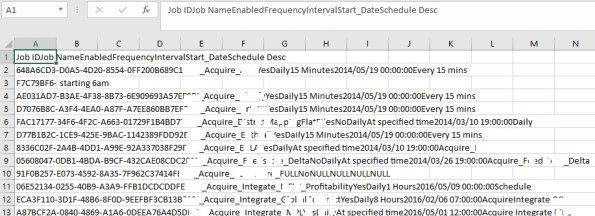
So I had to do the split of the dataset again, by going to Data ribbon –> Text to Columns option:
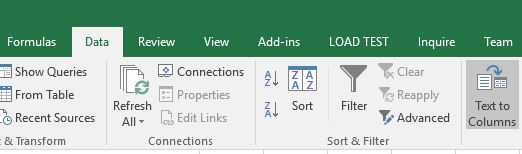
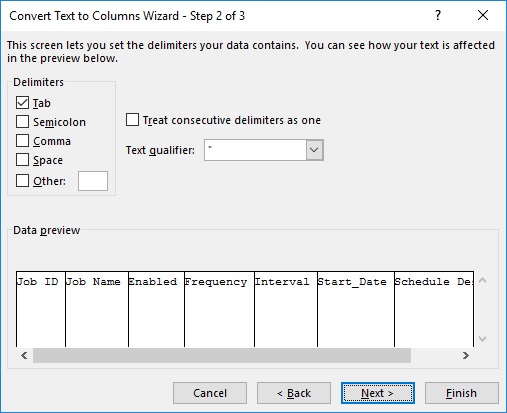
Select the Delimiter as TAB and click Next/Finish:
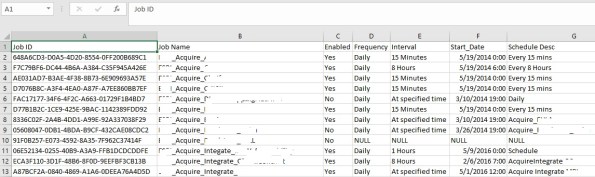
The Dataset in Excel will be separated in different columns just like in the SSMS Results grid:
Clustered Index will not always guarantee Sorted Rows
In my previous post I discussed about the how Clustered Index’s Data-Pages and Rows are allocated in memory (Disk). I tried to prove that that Clustered Indexes do not guarantee Physical Ordering of Rows. But instead they are Logically Ordered and Sorted.
As they are Logically Sorted and when you query a table without an “ORDER BY” clause you get Sorted Rows, but this is not what will happen always. You can also get rows in Unsorted Order, so to get Sorted rows always apply an “ORDER BY” clause. Here in this post we will see under what circumstances a table will not return Sorted rows:
–> Let’s create a simple table with a Clustered Index on it and add some records:
-- Create  table with 2 columns, first beign a PK and an IDENTITY column:
CREATE TABLE test2
(
	i INT IDENTITY(1,1) PRIMARY KEY NOT NULL,
	j INT
)

-- Let's insert some records in random order on second column:
INSERT INTO test2 (j)
SELECT 500 UNION ALL
SELECT 300 UNION ALL
SELECT 900 UNION ALL
SELECT 100 UNION ALL
SELECT 600 UNION ALL
SELECT 200

-- Now we will query the table without using ORDER BY clause:
SELECT * FROM test2
–> Output:

You get sorted rows, as the Execution plan shows that Clustered Index was used to fetch the records.
–> Now, what if this table also has a Non Clustered Index, let’s see:
-- We will create a Non Clustered Index on the same table on second column:
CREATE INDEX NCI_test ON test2 (j)

-- Again query the table without using ORDER BY clause:
SELECT * FROM test2
–> Following is the Output of the second SELECT query above:
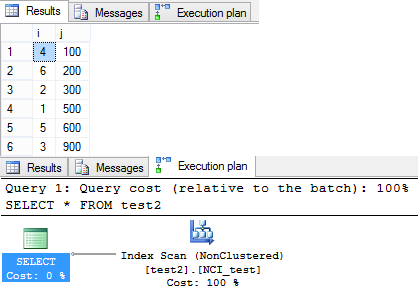
This time the query returned rows in un-ordered fashion. As you can see in the Execution plan Query optimizer preferred to do a Non Clustered Scan. Thus the records were returned in un-ordered fashion.
–> Now, If you add an ORDER BY Clause to your SELECT Query how does it return rows:
-- Added an ORDER BY Clause:
SELECT * FROM test2 ORDER BY i
–> Following is the Output of the third SELECT query above:

After adding an “ORDER BY” clause the query optimizer preferd to use the Clustered Index and returns rows in Ordered fashion again.
-- Final Cleanup
DROP TABLE test2
So, it is necessary to provide an “ORDER BY” clause to your Queries when you expect to get sorted results, even if the table has Clustered Index on it.



Current Visitors

StatCounter …since April 2012


 Leisure blog: Creek & Trails
- NMDC Hyderabad Marathon – My first 42k FM, cramps, training and fuelling
- Singapore (Part 2) – 6 days itinerary, sightseeing & attractions
- Singapore (Part 1) – Tickets, Visa, Hotel, Forex Card/Cash, Metro/Bus cards
- I got full refund of my flight tickets during COVID lockdown (AirIndia via MakeMyTrip)
- YouTube – Your Google Ads account was cancelled due to no spend
- YouTube latest update on its YPP (YouTube Partner Program) which may affect your channel
- Starting your own blog !!!
- How to file ITR (Income Tax Return) online AY 2017-18 (for simple salaried)
- Scam – Become a kin/hier and earn a fortune – via LinkedIn and Email
- Places to visit in and around Vizag (aka Visakhapatnam)
 SQL with Manoj