Archive
Start a Blog | Why, What, How, Where
I started Blogging almost 5 years back (early 2009). That time I didn’t thought to blog publicly, but just created a blog site in Google’s Blogger.com to create and track a library of technical articles that I can access anywhere. Suddenly I started getting hits on my posts and people started asking questions and suggestions. Then I thought to give my blog a professional look and add some quality content.
I was quiet impressed with WordPress.com so moved my blog to this new hosting site and SQLwithManoj.wordpress.com came into life.
Last week I thought to port my blog to a dedicated Domain name, so I upgraded my account in WordPress only rather than going with other domain registering sites. Now the blog’s new address is SQLwithManoj.com, which is maintained by WordPress only.
Lot of people ask me about Blogging, like: how to start blogging, what platform they should use, what content they should put, domain name, space, themes, etc. Here through this blog post I’m trying to answer some of the FAQs.
–> Main points to consider:
1. What do I blog:
– Think on a topic or subject you are passionate about, where you have deep/sound knowledge and can write about it very frequently, like Technology (All, or any Particular like SQL, .net, Java, etc.), Photography, Travel, Fashion, Politics, etc.
– Some people also blog to promote their own business/products/companies, etc.
– Make sure the content you put is genuine and will help people in reality.
2. How do I setup my blog:
– You can start with any of the free Blog Hosting sites, like WordPress, Google’s Blogger, Tumblr, etc.
– Or can go with Paid options for these site or other Hosts like GoDaddy, where you will get your own custom URL (Domain name) with more control.
3. How frequent should I blog: Depends upon the Topic, Time and your Passion.
– If it is current affairs and/or trending stuff, then daily, but you should have ample time.
– If automobiles/movies or similar then you should be the first and best (or amongst them) to blog them whenever they are launched.
– If its Technology then it could be daily/weekly/monthly, but at least one/two blog(s) per month to keep your readers connected with you.
4. Some Do’s & Don’ts:
– Do not copy other people’s blog posts.
– You can write about same topics what others have already posted, but make sure to give your post a different title.
– Its Ok to take tips from other Blogs, but the content should be genuinely written by you and should make a difference when compared by others.
– Use Widgets to provide more information and ease of access to your users to navigate on your blog site.
– Use Themes to beautify your blog, and can tweak CSS to give it a different look.
– Don’t forget to put a Disclaimer on the blog so that you do not come under any issues.
– Associate your blog URL or site map with Search Engines, like Bing, Google, etc. for SEO, so that you get max traffic/hits.
– Use inbuilt or third-party Stat counter, Comments, PingBacks, Rating systems/widgets to know the influence & popularity of your blog.
– Popularize your blog with Social media like a Facebook Page, LinkedIn, Twitter, etc.
Let me know if you have any questions or need clarifications on these points.
Happy Blogging !!!
Self Service BI by using Power BI – Power Query (Part 1)
In my previous posts I discussed about Power BI [link], what is it, its components, features and capabilities in the new world of Self Service IB.
Self Service BI allows end users to design & deploy their own reports, analyse within an approved & supported architecture and tools portfolios. End users do not have to worry about maintaining databases, doing integrations, creating warehouses/marts, reports, etc. The Self Service BI tool provide features which are capable enough to do all these activities in an automated, quick and efficient way, and all you have to do is learn how to configure these tools.
Power BI is one such tool offered by Microsoft, you can read about it my previous posts, [link] and Microsoft Official blog, [link].
Power BI works ONLY with Excel & Office 365. It is nothing but a collection of different components which provide features as follows:
1. Power Query
2. Power Pivot
3. Power View (aka Crescent)
4. Power Map (aka GeoFlow)
5. Power Q & A (aka Natural Language Processing)
6. Office 365
7. Windows 8 App
–> Power Query is used to easily discover or gather data from various public or corporate sources, like:
| Web page | SQL Server database | IBM DB2 database | Windows Azure Marketplace |
| Excel or CSV file | Windows Azure SQL Database | MySQL database | Active Directory |
| XML file | HDInsight | SharePoint List | |
| Text file | Access database | OData feed | SAP BusinessObjects BI Universe |
| Folder | Oracle database | Hadoop Distributed File System (HDFS) |
–> Let’s see a small demo how you can use Power Query: All you need is Excel and Power Query add-In, which you can download from Microsoft official site, [link].
Below image shows various ways you can access public or corporate data from various sources from an Excel workbook:
1. Online Search
2. From File
3. From Database
4. From Other Sources
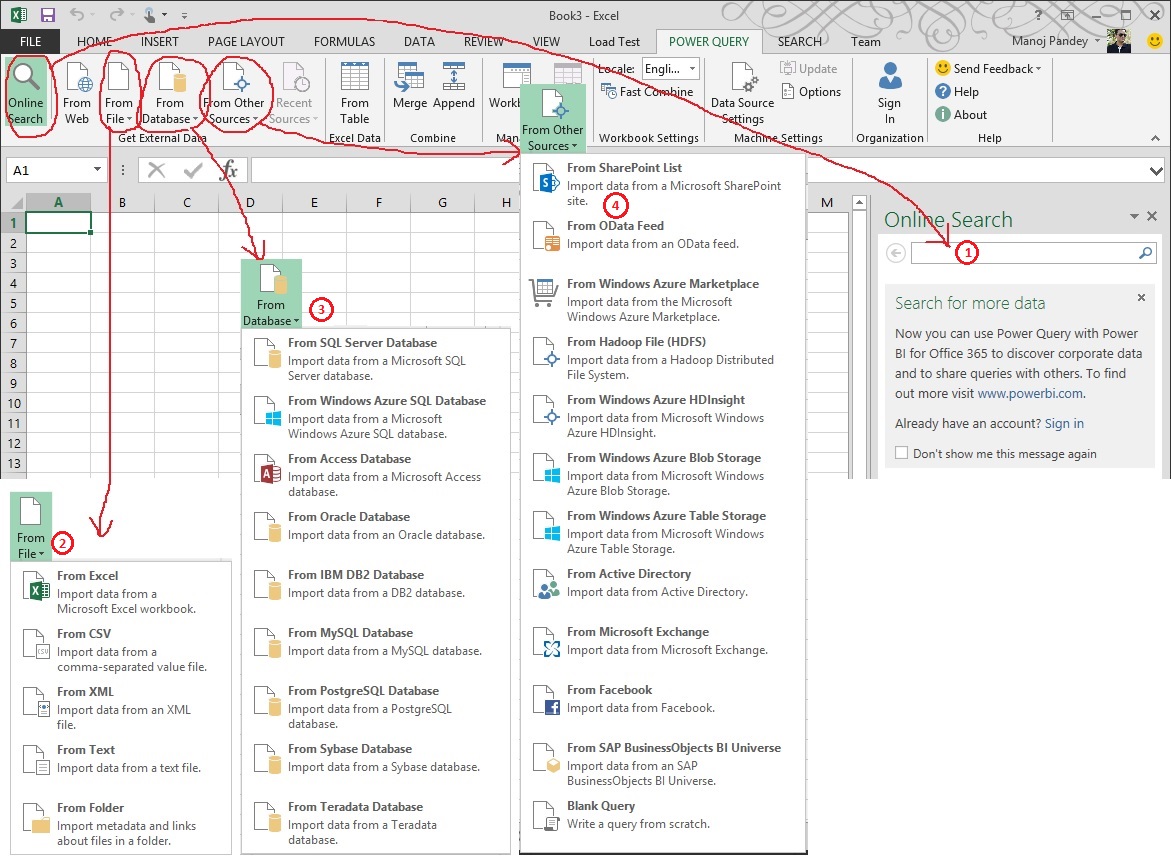
Let’s see how Online Search works. The moment you type “Olympics 2014” it populates lot of sources from where you can fetch data from:

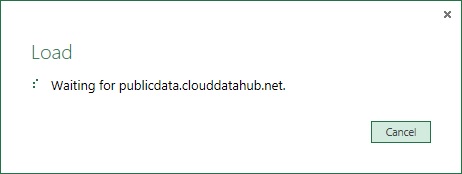
On selecting a source it tries to connect to the public portal and displays the Source URL while fetching the data:
And finally populates the data in tabular format in an Excel worksheet:
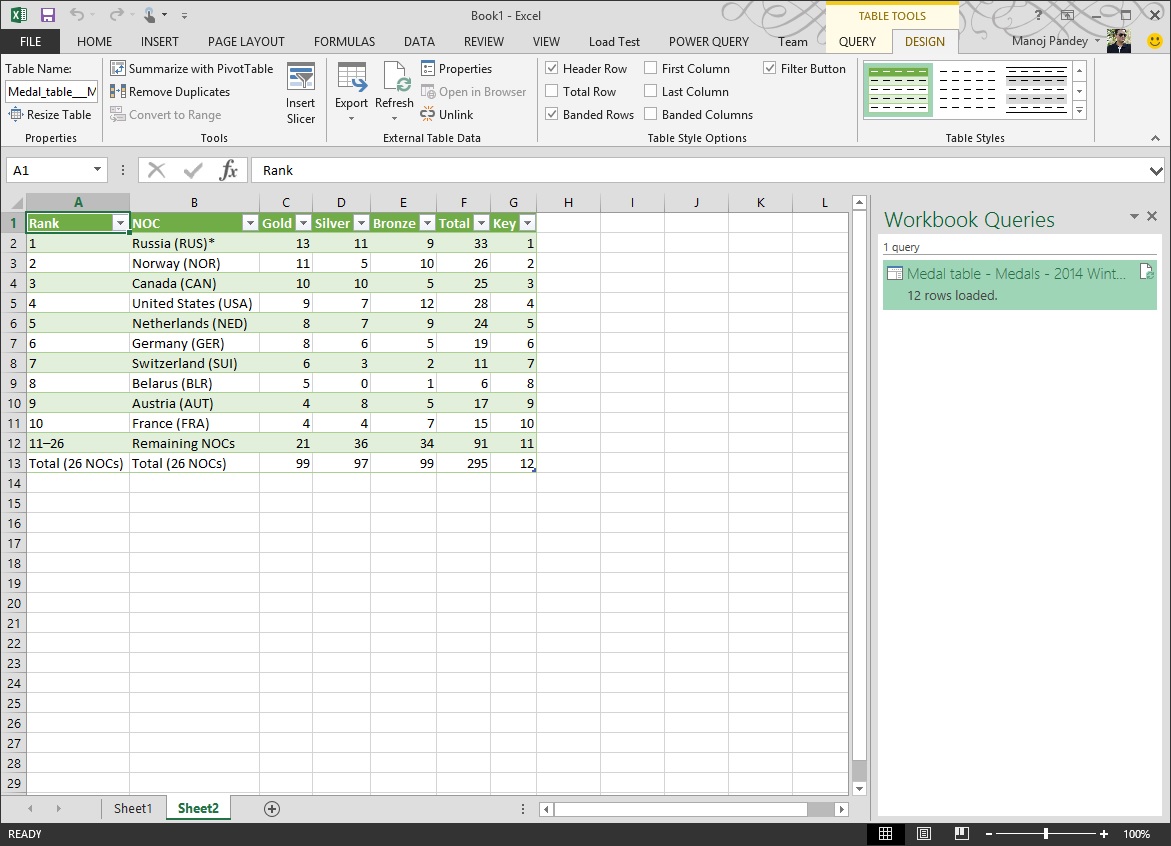
Go to Ribbon, click “Table Tools” -> Query -> Edit, this will open the “Query Editor” window where you can edit, clean the data. You can even Create Queries that you can save and use again later to refresh your data. Merge different tables in one step; rename, delete or even create fields. Transform your data before even importing it into a spreadsheet.

This way you can get your data ‘analysis ready’ with Power Query !!!
Book Review – Getting Started with SQL Server 2014 Administration
I started working on SQL Server with version 2000 (back in yr2005), then upgraded to 2005 (in yr2008), skipped 2008 version, jumped to 2008 R2 (in yr2011), then 2012 (in yr2012) and now finally 2014 very recently.
Now “SQL Server 2014” looks very competitive if you compare it with other vendors in terms of DB Engine, BI Suite, Administration, Cloud Computing, and the latest In-Memory processing, all bundled in a single suit.
–> SQL Server 2014 is packed with new and robust features like:
1. In-Memory OLTP
2. Updatable ColumnStore Indexes for Data Warehouse
3. Enhanced AlwaysOn, Azure VMs for Availability replicas
4. Managed Backup to Azure
5. SQL Server Data Files in Azure
6. Encrypted Backups
7. Delayed durability
8. Buffer Pool Extension (with SSD)
9. Incremental Stats
“Getting Started with SQL Server 2014 Administration” book is authorized by Gethyn Ellis {B|L|T} and covers most of these features in Detail and in simple steps. I’ve also talked about some of these features on my previous blog post [link], and will be writing in future also.
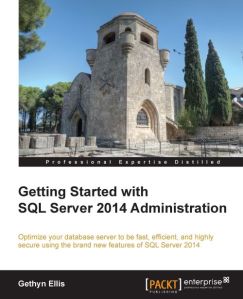
–> The book contains following chapters:
Chapter 1: SQL Server 2014 and Cloud
Chapter 2: Backup and Restore Improvements
Chapter 3: In-Memory Optimized Tables
Chapter 4: Delayed Durability
Chapter 5: AlwaysOn Availability Groups
Chapter 6: Performance Improvements
The book starts (Chapter-1) by giving an introduction to the Cloud and how Microsoft Azure SQL Database enables your SQL Server database on Cloud in easy & graphical steps, which includes:
1.1. Creating Azure SQL DB
1.2. Integrating Azure Stirage
1.3. Creating Azure VMs
On Chapter-2 its talks about Backup & Restore improvements in 2014, which includes:
2.1. Database backups/restore to a URL and Azure Storage
2.2. SQL Server Managed Backup to Microsoft Azure
2.3. Encrypted Backups
Chapter-3 tells you about new In-Memory functionality by creating:
3.1. In-Memory Tables & Indexes
3.2. Native compiled Stored Procedures
Chapter-4 discuss about Delayed Durability and how it can help improve performance by using in-memory transaction log feature, which delays writing transaction log entries to disk.
Chapter-5 talks about enhancements to AlwaysOn Availability Groups and following:
5.1. Using Microsoft Azure Virtual Machines as replicas
5.2. Building AlwaysOn Availability Groups
5.3. Creating/Troubleshooting Availability Group
Last Chapter-6 talks about lot of improvements in Performance, which includes:
6.1. Partition switching and indexing, now it is possible for individual partitions of partitioned tables to be rebuilt.
6.2. Updatable and new Clustered ColumnStore Indexes.
6.3. Buffer pool extensions, will allow you to make use of SSD (Solid-State Drives) as extra RAM on your DB server, thus by providing an extension to the Database Engine buffer pool, which can significantly improve the I/O throughput.
6.4. New Cardinality estimator and better query plans.
6.5. Update Statistics incrementally instead of a full Scan.
PROS: The book covers most of the new features in SQL Server 2014, so it is good for DBAs and Developers who already have prior experience in SQL Server 2012 Admin and Dev. Overall a good book which gives good insights into SQL Server 2014, Azure and new features.
CONS: Not on negative side, but for newbies and junior DBAs I would suggest to get hold of some basic DBA book and stuff first then graduate to this book.
Download/Buy book Here [Packt Publishing].
Top SQL Blogs – Windows 8 App | from MSDN, MVPs and Top Bloggers
Dear Readers,
After my first App [SQL with Manoj] got published on Windows 8 Store, I thought to create an another App on a broader level, which will cover latest SQL Server (TSQL) topics from MSDN blogs, MVPs and other famous Bloggers, like Paul S. Randal, Kimberly Trip, Sam Lester, Brent Ozar, etc.
And today I’m very happy to announce the release of my 2nd Windows 8 App for and its availability on Windows 8 store.

With this App you can view and read SQL Server related topics from various sources, like MSDN blogs, MVPs and other famous Bloggers at one place.
Please download this App on your Windows 8 PC or Tablet and let me know your feedback.
Thanks!!!
2013 in review
The WordPress.com stats helper monkeys prepared a 2013 annual report for this blog.

Here’s an excerpt:
The Louvre Museum has 8.5 million visitors per year. This blog was viewed about 210,000 times in 2013. If it were an exhibit at the Louvre Museum, it would take about 9 days for that many people to see it.



Current Visitors

StatCounter …since April 2012


 Leisure blog: Creek & Trails
- NMDC Hyderabad Marathon – My first 42k FM, cramps, training and fuelling
- Singapore (Part 2) – 6 days itinerary, sightseeing & attractions
- Singapore (Part 1) – Tickets, Visa, Hotel, Forex Card/Cash, Metro/Bus cards
- I got full refund of my flight tickets during COVID lockdown (AirIndia via MakeMyTrip)
- YouTube – Your Google Ads account was cancelled due to no spend
- YouTube latest update on its YPP (YouTube Partner Program) which may affect your channel
- Starting your own blog !!!
- How to file ITR (Income Tax Return) online AY 2017-18 (for simple salaried)
- Scam – Become a kin/hier and earn a fortune – via LinkedIn and Email
- Places to visit in and around Vizag (aka Visakhapatnam)
 SQL with Manoj