Archive
Python error – Length of passed values is 6, index implies 2 (while doing PIVOT with MultiIndex or multiple columns)
As I’m new to Python and these days using it for some Data Analysis & Metadata handling purpose, and also being from SQL background here I’m trying to use as many analysis features I use with SQL, like Group By, Aggregate functions, Filtering, Pivot, etc.
Now I had this particular requirement to PIVOT some columns based on multi-index keys, or multiple columns as shown below:

But while using PIVOT function in Python I was getting this weird error that I was not able to understand, because this error was not coming with the use of single index column.
ValueError: Length of passed values is 6, index implies 2.
Let’s create a sample Pandas DataFrame for our demo purpose:
import pandas as pd

sampleData = {
  'Country': ['India', 'India', 'India','India','USA','USA'],
  'State': ['UP','UP','TS','TS','CO','CO'],
  'CaseStatus': ['Active','Closed','Active','Closed','Active','Closed'],
  'Cases': [100, 150, 300, 400, 200, 300]}

df = pd.DataFrame(sampleData)

df
Problem/Issue:
But when I tried using the below code which uses pivot() function with multiple columns or multi-indexes it started throwing error. I was not getting error when I used single index/column below. So what could be the reason?
# Passing multi-index (or multiple columns) fails here:
df_pivot = df.pivot(index = ['Country','State'],
                    columns = 'CaseStatus',
                    values = 'Cases').reset_index()

df_pivot
Solution #1
Online checking I found that the pivot() function only accepts single column index key (do not accept multiple columns list as index). So, in this case first we would need to use set_index() function and set the list of columns as shown below:
# Use pivot() function with set_index() function:
df_pivot = (df.set_index(['Country', 'State'])
        .pivot(columns='CaseStatus')['Cases']
        .reset_index()
     )

df_pivot
Solution #2
There is one more simple option where you can use pivot_table() function as shown below and get the desired output:
# or use pivot_table() function:
df_pivot = pd.pivot_table(df,
                          index = ['Country', 'State'],
                          columns = 'CaseStatus',
                          values = 'Cases')

df_pivot
Cosmos DB & PySpark – Retrieve all attributes from all Collections under all Databases
In one of my [previous post] we saw how to retrieve all attributes from the items (JSON document) of all Collections under all Databases by using C# .net code.
Here in this post we will see how we can retrieve the same information in Azure Databricks environment by using Python language instead of C# .net code.
So first of all you need to make sure that you have the Azure Cosmos DB SQL API library installed in your Databricks cluster. [Link if not done]
Then use the below script which:
1. First connects to Cosmos DB by using the CosmosClient() method.
2. Then it gets list of all Databases by using list_databases() method
3. Then iterate thru all databases and get list of all Containers by using list_containers() method.
4. Now again iterating thru all Containers and querying the items using the query_items() method.
5. The “metadataInfo” dictionary object is storing all the Keys & Values present in the Container item.
6. Then the List object with name “metadataList” stores all the Database, Container & Item level details stored in “metadataInfo” dictionary.
6. Finally we used the “metadataList” object to create a DataFrame by using createDataFrame() method.
Get the Cosmos Uri & Primary Key from the Cosmos DB Overview tab and apply in the code below:
import azure.cosmos.cosmos_client as cosmos_client
import azure.cosmos.errors as errors
import azure.cosmos.exceptions as exceptions
import azure.cosmos.http_constants as http_constants
import json

cosmosUri = "https://YourCosmosDBName.documents.azure.com:443/"
pKey = "PrimaryKey=="

client = cosmos_client.CosmosClient(cosmosUri, {'masterKey': pKey})

cosmosDBsList = client.list_databases()

#Create a list to store the metadata
metadataList = []

#Iterate over all DBs
for eachCosmosDBsList in cosmosDBsList:
  #print("nDatabase Name: {}".format(eachCosmosDBsList['id']))
  dbClient = client.get_database_client(eachCosmosDBsList['id'])

  #Iterate over all Containers
  for containersList in dbClient.list_containers():
    #print("n- Container Name: {}".format(containersList['id']))
    conClient = dbClient.get_container_client(containersList['id'])

    #Query Container and read just TOP 1 row
    for queryItems in conClient.query_items("select top 1 * from c",
                                            enable_cross_partition_query=True):
      for itemKey, itemValue in queryItems.items():
        #print(itemKey, " = ", itemValue)

        #Create a dictionary to store metedata info at attribute/field level
        metadataInfo = {}
        metadataInfo["Source"] = eachCosmosDBsList['id']
        metadataInfo["Entity"] = containersList['id']
        metadataInfo["Attribute"] = itemKey
        metadataInfo["Value"] = itemValue

        metadataList.append(metadataInfo)

#print(metadataList)

from pyspark.sql.types import *

mySchema = StructType([ StructField("Source", StringType(), True)
                       ,StructField("Entity", StringType(), True)
                       ,StructField("Attribute", StringType(), True)
                       ,StructField("Value", StringType(), True)])

df = spark.createDataFrame(metadataList, schema=mySchema)

df.createOrReplaceTempView("metadataDF")

display(df)
Using Python in Azure Databricks with Cosmos DB – DDL & DML operations by using “Azure-Cosmos” library for Python
In one of my [previous post] we saw how to connect to Cosmos DB from Databricks by using the Apache Spark to Azure Cosmos DB connector. But that connector is limited to read and write data in Cosmos DB from Databricks compute using Scala language.
Here in this post we will see how can we do more in terms of managing the whole Cosmos DB databases, containers/collections and the items (JSON documents) from Databricks by using the Azure Cosmos DB SQL API SDK for Python.
Here we will perform some DDL & DML operations on Cosmos DB such as:
– Creating a new Database
– Creating a new Container
– Inserting new items
– Read items from Container
– Upserting/Updating items in Container
– Deleting items from Container
– Finally deleting the Container and Database
So first go to your Azure Databricks cluster, Libraries tab, click on Install New, on the popup select PyPI, and type “azure-cosmos” under Package text box, finally click the Install button. This will install the Azure Cosmos DB SQL API library and will show up in the Libraries tab.

Use the below sample code to import the required libraries and establish connection with Cosmos DB. You need to get the Cosmos Uri & Primary Key from the Cosmos DB Overview tab and apply in the code below:
import azure.cosmos.cosmos_client as cosmos_client
from azure.cosmos import CosmosClient, PartitionKey, exceptions

cosmosUri = 'https://YourCosmosDBName.documents.azure.com:443/'
pKey = 'MasterPrimaryKey'

client = cosmos_client.CosmosClient(cosmosUri, {'masterKey': pKey})


# 1. Create a new Database:
newDatabaseName = 'ManojDB'

newDatabase = client.create_database(newDatabaseName)
print('\n1. Database created with name: ', newDatabase.id)


# 2. Get Database properties
dbClient = client.get_database_client(newDatabaseName)

dbProperties = dbClient.read()
print('\n2. DB Properties: ', dbProperties)


# 3. Create a new Container:
newContainerName = 'ManojContainer'

newContainer = dbClient.create_container(id=newContainerName,
                                         partition_key=PartitionKey(path="/id"))
print('\n3. Container created with name: ', newContainer.id)


# 4. Create items in the Container:
containerClient = dbClient.get_container_client(newContainerName)

item1 = {'id' : '101', 'empId': 101,
         'empFirstName': 'Manoj', 'empLastName': 'Pandey'}
containerClient.create_item(item1)

item2 = {'id' : '102', 'empId': 102,
         'empFirstName': 'Saurabh', 'empLastName': 'Sharma'}
containerClient.create_item(item2)

item3 = {'id' : '103', 'empId': 103,
         'empFirstName': 'Hitesh', 'empLastName': 'Kumar'}
containerClient.create_item(item3)

print('\n4. Inserted 3 items in ', newContainer.id)


# 5. Read items from Container:
print('\n5. Get all 3 items from Container:')

for items in containerClient.query_items(
        query='SELECT * FROM c',
        enable_cross_partition_query = True):
    print(items)
So till here we’ve created a Database & a Container in Cosmos DB, and inserted few items/records in it, as shown below:

Now we will do some more DML operations like UPSERT/UPDATE & DELETE items from the collections:
# 6. Update/Upsert a item in Container:

updateItem = {'id' : '103', 'empId': 103,
              'empFirstName': 'Hitesh', 'empLastName': 'Chouhan'}

containerClient.upsert_item(updateItem)

print('\n6. Updated LastName of EmpId = 103:')

for items in containerClient.query_items(
        query='SELECT * FROM c WHERE c.empId = 103',
        enable_cross_partition_query = True):
    print(items)


# 7. Delete an item from Container:

print('\n7. Delete item/record with EmpId = 103:')

for items in containerClient.query_items(
        query='SELECT * FROM c WHERE c.empId = 103',
        enable_cross_partition_query = True):
    containerClient.delete_item(items, partition_key='103')

for items in containerClient.query_items(
        query='SELECT * FROM c',
        enable_cross_partition_query = True):
    print(items)
Finally we will clean up all the stuff by deleting the Container and Databases that we created initially:
# 8. Delete Container

dbClient.delete_container(newContainer)

print('\n8. Deleted Container ', newContainer)


# 9. Delete Database

client.delete_database(newDatabaseName)

print('\n9. Deleted Database ', newDatabaseName)
Python error: while converting Pandas Dataframe or Python List to Spark Dataframe (Can not merge type)
Data typecasting errors are common when you are working with different DataFrames across different languages, like here in this case I got datatype mixing error between Pandas & Spark dataframe:
import pandas as pd
pd_df = pd.DataFrame([(101, 'abc'),
                      ('def', 201),
                      ('xyz', 'pqr')],
                     columns=['col1', 'col2'])

df = spark.createDataFrame(pd_df)
display(df)
TypeError:
field col1: Can not merge type <class 'pyspark.sql.types.longtype'> and
<class 'pyspark.sql.types.stringtype'>
While converting the Pandas DataFrame to Spark DataFrame its throwing error as Spark is not able to infer correct data type for the columns due to mix type of data in columns.
In this case you just need to explicitly tell Spark to use a correct datatype by creating a new schema and using it in createDataFrame() definition shown below:
import pandas as pd
pd_df = pd.DataFrame([(101, 'abc'),
                      ('def', 201),
                      ('xyz', 'pqr')],
                     columns=['col1', 'col2'])

from pyspark.sql.types import *
df_schema = StructType([StructField("col1", StringType(), True)\
                       ,StructField("col2", StringType(), True)])

df = spark.createDataFrame(pd_df, schema=df_schema)
display(df)
2020 blogging in review (Thank you & Happy New Year 2021 !!!)
Happy New Year 2021… from SQL with Manoj !!!
As WordPress.com Stats helper monkeys have stopped preparing annual report from last few years for the blogs hosted on their platform. So I started preparing my own Annual Report every end of the year to thank my readers for their support, feedback & motivation, and also to check & share the progress of this blog.
In year 2019 & 2020 I could not dedicated much time here, so there were very few blogs posted by me. In mid 2019 something strange happened and my blog hits started declining day by day. Usually I used to get daily ~3.5k hits and within few months hits were reduced to just half. As the daily hits were under ~1.5k so I checked the SEO section in WordPress-admin, and I was surprised to discover that my blog & meta info was missing in Google webmaster.
I re-entered the meta info and since last 1 year the blog hits are stable at ~1k hits per day which is very low from what I was getting ~2 years back. Thus, you can see a drastic decline of hits in 2020 year below.
–> Here are some Crunchy numbers from 2020

The Louvre Museum has 8.5 million visitors per year. This blog was viewed about 281,285 times by 213,447 unique visitors in 2020. If it were an exhibit at the Louvre Museum, it would take about 40 days for that many people to see it.
There were 22 pictures uploaded, taking up a total of ~1 MB. That’s about ~2 pictures every month.
–> All-time posts, views, and visitors
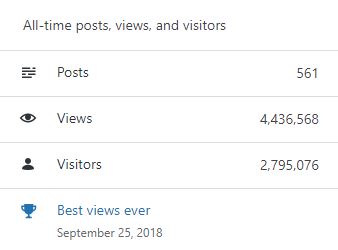
SQL with Manoj all time views
–> Posting Patterns
In 2020, there were 10 new posts, growing the total archive of this blog to 561 posts.
LONGEST STREAK: 4 post in Oct 2020
–> Attractions in 2020
These are the top 5 posts that got most views in 2020:
0. Blog Home Page (49,287 views)
1. The server may be running out of resources, or the assembly may not be trusted with PERMISSION_SET = EXTERNAL_ACCESS or UNSAFE (12,870 views)
2. Windows could not start SQL Server, error 17051, SQL Server Eval has expired (8,498 views)
3. Reading JSON string with Nested array of elements (8,016 views)
4. SQL Server 2016 RTM full and final version available (7,714 views)
5. Windows could not start SQL Server (moved Master DB) (6,988 views)
–> How did they find me?
The top referring sites and search engines in 2020 were:
SQL with Manoj 2020 Search Engines and other referrers
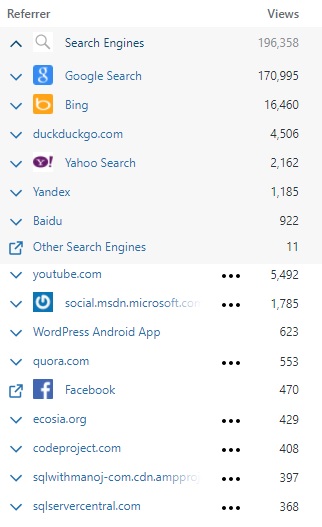
–> Where did they come from?
Out of 210 countries, top 5 visitors came from United States, India, United Kingdom, Canada and Australia:
SQL with Manoj 2020 top Countries visitors
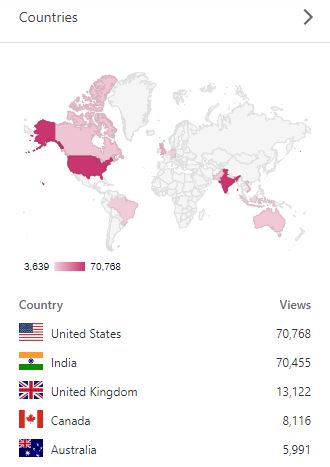
–> Followers: 442
WordPress.com: 180
Email: 262
Facebook Page: 1,480
–> Alexa Rank (lower the better)
Global Rank: 835,163 (as of 31st DEC 2020)
Previous rank: 221,534 (back in 2019)
–> YouTube Channel:
– SQLwithManoj on YouTube
– Total Subscribers: 17,1700
– Total Videos: 70
–> 2021 New Year Resolution
– Write at least 1 blog post every week
– Write on new features in SQL Server 2019
– I’ve also started writing on Microsoft Big Data Platform, related to Azure Data Lake and Databricks (Spark/Scala), so I will continue to explore more on this area.
– Post at least 1 video every week on my YouTube channel
That’s all for 2020, see you in year 2021, all the best !!!
Connect me on Facebook, Twitter, LinkedIn, YouTube, Google, Email



Current Visitors

StatCounter …since April 2012


 Leisure blog: Creek & Trails
- NMDC Hyderabad Marathon – My first 42k FM, cramps, training and fuelling
- Singapore (Part 2) – 6 days itinerary, sightseeing & attractions
- Singapore (Part 1) – Tickets, Visa, Hotel, Forex Card/Cash, Metro/Bus cards
- I got full refund of my flight tickets during COVID lockdown (AirIndia via MakeMyTrip)
- YouTube – Your Google Ads account was cancelled due to no spend
- YouTube latest update on its YPP (YouTube Partner Program) which may affect your channel
- Starting your own blog !!!
- How to file ITR (Income Tax Return) online AY 2017-18 (for simple salaried)
- Scam – Become a kin/hier and earn a fortune – via LinkedIn and Email
- Places to visit in and around Vizag (aka Visakhapatnam)
 SQL with Manoj