New built-in function TRIM() in SQL Server 2017
If you are thinking the new TRIM() function in SQL Server 2017 is just a combination of LTRIM() & RTRIM() functions, then you are wrong :). It’s more than that and we will check it today !
– LTRIM() function is used to truncate all leading blanks, or white-spaces from the left side of the string.
– RTRIM() function is used to truncate all trailing blanks, or white-spaces from the right side of the string.
–> Now, with teh new TRIM() function you can do both, but more than that.
Usage #1: TRIM() function will truncate all leading & trailing blanks from a String:
SELECT
	TRIM ('  Manoj Pandey     ') as col1,
	LTRIM(RTRIM('  Manoj Pandey     ')) as col2

Usage #2: Plus it can be used to remove specific characters from both sides of a String, like below:
SELECT
	TRIM ( 'm,y' FROM 'Manoj Pandey') as col1,
	TRIM ( 'ma,ey' FROM 'Manoj Pandey') as col2,
	TRIM ( 'm,a,e,y' FROM 'Manoj Pandey') as col3

Thus with the above query you can see that you can trim characters too, by providing leading & trailing characters, but should be in same sequence as your string is.
Also for Col2 & Col3 we have provided Trimming Characters in 2 different ways, but got the same output.
–> Note: I just mentioned above that the leading & trailing characters should be in same sequence. If you provide in different sequence like below you won’t get desired results.
SELECT 'Manoj Pandey' as st,
	TRIM ( 'a,n' FROM 'Manoj Pandey') as Col1,
	TRIM ( 'm,e' FROM 'Manoj Pandey') as Col2,
	TRIM ( 'm,o,y,e' FROM 'Manoj Pandey') as Col3

Like for Col3 you cannot get rid of middle characters (like ‘o’ and ‘n’) until and unless they become leading or trailing characters.
SQL Error – SQL Server blocked access to STATEMENT ‘OpenRowset/ OpenDatasource’ of component ‘Ad Hoc Distributed Queries’
Today while executing a Stored Procedure which internally executes a remote query via Linked Server, I got following error:
Msg 50000, Level 16, State 127, Procedure spExecureRemoteQuery, Line 50
SQL Server blocked access to STATEMENT ‘OpenRowset/OpenDatasource’ of component ‘Ad Hoc Distributed Queries’ because this component is turned off as part of the security configuration for this server. A system administrator can enable the use of ‘Ad Hoc Distributed Queries’ by using sp_configure. For more information about enabling ‘Ad Hoc Distributed Queries’, search for ‘Ad Hoc Distributed Queries’ in SQL Server Books Online.
The above clearly means that the “Ad Hoc Distributed Queries” option is disabled on the database instance.
–> Run below Query to check if this property is disabled, if will show you 0 value under Config & Run value columns:
sp_configure 'show advanced options', 1
GO
EXEC sp_configure
GO

–> To enable it run the below Query:
sp_configure 'Ad Hoc Distributed Queries', 1
GO
RECONFIGURE WITH OverRide
GO
EXEC sp_configure
GO

…the value under Config & Run value columns shows 1, means that now the Property is enabled and you can execute your Remote/Linked-Server queries.
SQL Error – The ‘Microsoft.ACE.OLEDB.12.0’ provider is not registered on the local machine. (System.Data)
I was trying to export a SQL table to Excel and I got below error:
TITLE: SQL Server Import and Export Wizard
——————————
The operation could not be completed.
——————————
The ‘Microsoft.ACE.OLEDB.12.0’ provider is not registered on the local machine. (System.Data)
——————————

After searching a bit I came to know that the above provider is not installed, and I need to install the Microsoft Access Database Engine setup, to facilitate the transfer of data between existing Microsoft Office files such as “Microsoft Office Access 2010” (*.mdb and *.accdb) files and “Microsoft Office Excel 2010” (*.xls, *.xlsx, and *.xlsb) files to other data sources such as “Microsoft SQL Server”.
–> Get the Microsoft Access Database Engine 2010 Redistributable, [link].
There will be two files:
1. AccessDatabaseEngine (for. 32-bit)
2. AccessDatabaseEngine_x64 i.e. 64-bit
If your SQL Server is 32 bit, then install just the first one.
But if its 64 bit, then install both, first 32 bit & then 64 bit.
New built-in function STRING_AGG() with option “WITHIN GROUP” – SQL Server 2017
In one of my [previous post] I discussed about a new function STRING_SPLIT() introduced in SQL Server 2016, which splits a Sentence or CSV String to multiple values or rows.
Now with the latest CTP 1.x version of SQL Server vNext (I’m calling it “SQL Server 2017”) a new function is introduced to just do its reverse, i.e. Concatenate string values or expressions separated by any character.
The STRING_AGG() aggregate function takes all expressions from rows and concatenates them into a single string in a single row.
It implicitly converts all expressions to String type and then concatenates with the separator defined.
–> In the example below I’ll populate a table with States and Cities in separate rows, and then try to Concatenate Cities belonging to same States:
USE tempdb
GO

CREATE TABLE #tempCityState (
    [State] VARCHAR(5),
    [Cities] VARCHAR(50)
)
GO

INSERT INTO #tempCityState

SELECT 'CA', 'Hanford'
UNION ALL
SELECT 'CA', 'Fremont'
UNION ALL
SELECT 'CA', 'Los Anggeles'
UNION ALL
SELECT 'CO', 'Denver'
UNION ALL
SELECT 'CO', 'Aspen'
UNION ALL
SELECT 'CO', 'Vail'
UNION ALL
SELECT 'CO', 'Teluride'
UNION ALL
SELECT 'WA', 'Seattle'
UNION ALL
SELECT 'WA', 'Redmond'
UNION ALL
SELECT 'WA', 'Bellvue'
GO

SELECT * FROM #tempCityState
State	Cities
CA	Hanford
CA	Fremont
CA	Los Anggeles
CO	Denver
CO	Aspen
CO	Vail
CO	Teluride
WA	Seattle
WA	Redmond
WA	Bellvue
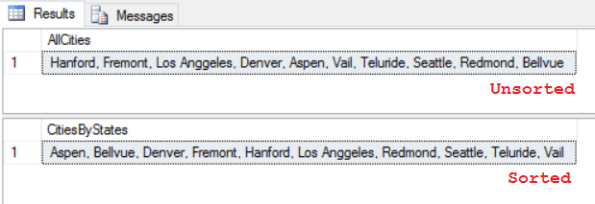
–> To comma separate values under a single row you just need to apply the STRING_AGG() function:
SELECT
	STRING_AGG(Cities, ', ') as AllCities
FROM #tempCityState

-- Use "WITHIN GROUP (ORDER BY ...)" clause to concatenate them in an Order:
SELECT
	STRING_AGG(Cities, ', ') WITHIN GROUP (ORDER BY Cities) as AllCitiesSorted
FROM #tempCityState
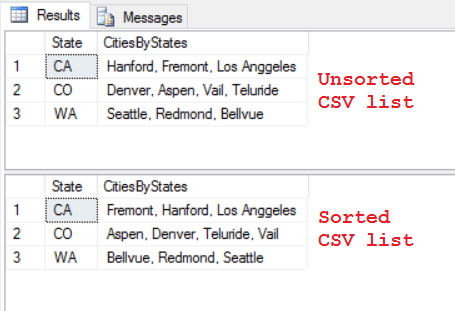
–> Now to Concatenate them by States, you just need to group them by the State, like any other aggregate function:
SELECT
	State,
	STRING_AGG(Cities, ', ') as CitiesByStates
FROM #tempCityState
GROUP BY State

-- Use "WITHIN GROUP (ORDER BY ...)" clause to concatenate them in an Order:
	State,
	STRING_AGG(Cities, ', ') WITHIN GROUP (ORDER BY Cities) as CitiesByStatesSorted
FROM #tempCityState
GROUP BY State
You can check more about STRING_AGG() on MSDN.
SQL DBA – Quickly Clone a Database in SQL Server (2016 SP1 & 2014 SP2) with DBCC CLONEDATABASE command
Have you ever been in a similar situation where your PROD database size is in GBs or TBs, and for a code-release validation or some performance-fix you need to restore it on an Dev or Test server? You know that taking backup & restore will take lot of time, but you have no other option.
We also face this many a times as our PROD database size ranges from 500 GB to 1-2 TB, and we end up waiting 4-5 hrs in this activity.
There are even third party tools, but they also take good time and have their own pros & cons.
Now SQL Server brings a new feature with SQL Server 2016 SP1 & 2014 SP2, i.e. DBCC CLONEDATABASE, to create a new database clone of an existing database within seconds. The new cloned database created is ReadOnly, with no data, but with Statistics.
With DBCC CLONEDATABASE feature you can generate a clone of a database in order to investigate a performance issue related to a Query or Workload.
Note: As best practice suggested by Microsoft product team this clone Database is not supposed to remain in PROD database, but can be moved to a Dev or Test box for further troubleshooting and diagnostic purposes.
–> Syntax:
DBCC CLONEDATABASE (source_db_name, target_clone_db_name)
[WITH [NO_STATISTICS][,NO_QUERYSTORE]]
–> The above statement creates Clone of the source database in following operations:
1. Validate the source database.
2. Get S lock for the source database.
3. Create snapshot of the source database.
4. Create an empty database by inheriting from “model” database, and using the same file layout as the source but with default file sizes as the “model” database.
5. Get X lock for the clone database.
6. Copies the system metadata from the source to the destination database.
7. Copies all schema for all objects from the source to the destination database.
8. Copies statistics for all indexes from the source to the destination database.
9. Release all DB locks.
–> Now let’s create a Clone Database on AdvantureWorks database:
-- With Stats

DBCC CLONEDATABASE ('AdventureWorks2014', 'AdventureWorks2014_CloneDB')
Message:
Database cloning for ‘AdventureWorks2014’ has started with target as ‘AdventureWorks2014_CloneDB’.
Database cloning for ‘AdventureWorks2014’ has finished. Cloned database is ‘AdventureWorks2014_CloneDB’.
Database ‘AdventureWorks2014_CloneDB’ is a cloned database. A cloned database should be used for diagnostic purposes only and is not supported for use in a production environment.
DBCC execution completed. If DBCC printed error messages, contact your system administrator.
–> I’ll create one more Clone Database without Stats:
-- Without Stats

DBCC CLONEDATABASE ('AdventureWorks2014', 'AdventureWorks2014_CloneDB_No_Stats')
WITH NO_STATISTICS, NO_QUERYSTORE

–> Let’s check the file size of all 3 Databases:
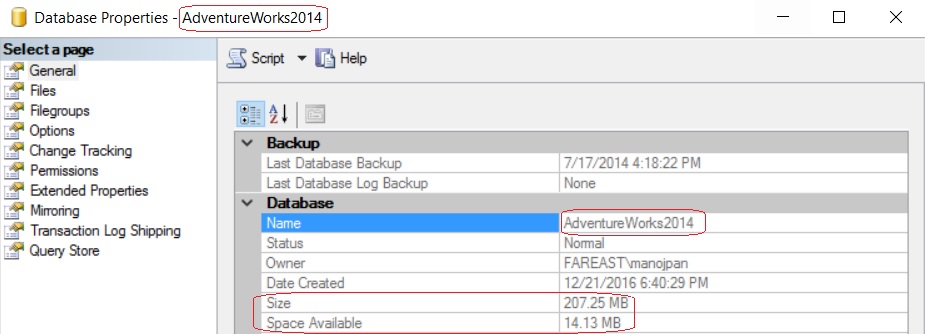
– The 1st image shows the size of original AdventureWorks2014 database i.e. 207 MB
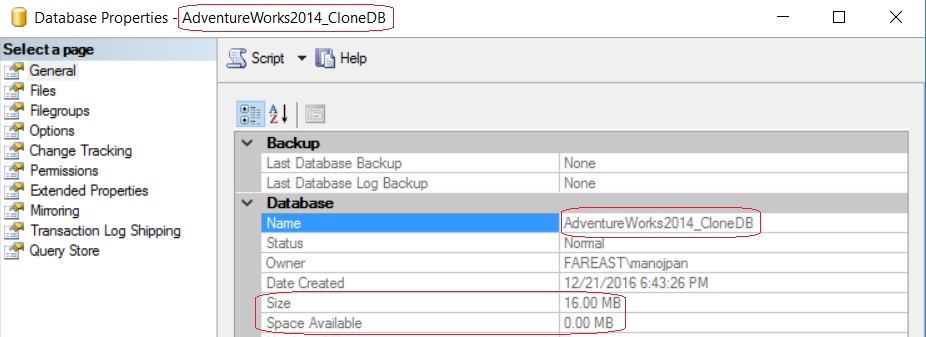
– And 2nd and 3rd shows the size of other two Clone Databases i.e. just 16 MB.

–> Now we will check the Execution Plans of a query on all these three databases:
-- Check Execution plan on below T-SQL query in all 3 databases:

SELECT
	P.BusinessEntityID, P.Title, P.FirstName, P.MiddleName, P.LastName,
	E.BirthDate, E.Gender, E.HireDate, E.JobTitle, E.MaritalStatus,
	D.Name
FROM [Person].[Person] P
INNER JOIN [HumanResources].[Employee] E ON E.BusinessEntityID = P.BusinessEntityID
CROSS APPLY (
	SELECT TOP 1 DepartmentID
	FROM [HumanResources].[EmployeeDepartmentHistory] DH
	WHERE DH.BusinessEntityID = E.BusinessEntityID
	ORDER BY StartDate DESC) EDH
INNER JOIN [HumanResources].[Department] D ON D.DepartmentID = EDH.DepartmentID
– On executing the above query on original AdventureWorks2014 database & AdventureWorks2014_CloneDB it shows same execution plan, like it shows:
1. Hash Match operator
2. 72% cost on Person PK
3. 18% cost on EmployeeDepartmentHistory PK

(click on the image to expand)
– But on executing the same query on AdventureWorks2014_CloneDB_No_Stats it shows different execution plan, here it shows:
1. Nested Loop operator
2. 92% cost on Person PK
3. 5% cost on EmployeeDepartmentHistory PK

(click on the image to expand)



Current Visitors

StatCounter …since April 2012


 Leisure blog: Creek & Trails
- NMDC Hyderabad Marathon – My first 42k FM, cramps, training and fuelling
- Singapore (Part 2) – 6 days itinerary, sightseeing & attractions
- Singapore (Part 1) – Tickets, Visa, Hotel, Forex Card/Cash, Metro/Bus cards
- I got full refund of my flight tickets during COVID lockdown (AirIndia via MakeMyTrip)
- YouTube – Your Google Ads account was cancelled due to no spend
- YouTube latest update on its YPP (YouTube Partner Program) which may affect your channel
- Starting your own blog !!!
- How to file ITR (Income Tax Return) online AY 2017-18 (for simple salaried)
- Scam – Become a kin/hier and earn a fortune – via LinkedIn and Email
- Places to visit in and around Vizag (aka Visakhapatnam)
 SQL with Manoj