Cosmos DB – Get record COUNT from all Collections in all Databases (using .net)
Here in this post we will use C# .net code (for beginners like me) to see how to:
1. Connect to a Cosmos DB instance
2. Get list of all Databases in a Cosmos DB
3. Iterate through all the Databases and get the list of all Collections (or Tables)
4. Get COUNT of all documents/items (or records) in these Collections
On Azure portal go to your Azure Cosmos DB instance, from Overview tab go to Keys tab and copy the “URI” & “PRIMARY READ-ONLY KEY” key values:
1. First we will use the Uri & Primary Key to connect to CosmosDB service by using DocumentClient() method.
2. Then we will form a simple query to retrieve all Databases, will use with CreateDatabaseQuery() method to retrieve list of all databases.
3. Now to get list of all Collections present in each Database we will iterate through each Database, use the CreateDocumentCollectionQuery() method using the Database instance with Self link property.
4. Now to get the Document link we will also iterate through each Collection by using CreateDocumentQuery() method.
using System;
using System.Collections.Generic;
using System.Linq;
using System.Text;
using System.Threading.Tasks;
using Microsoft.Azure.Documents;
using Microsoft.Azure.Documents.Client;
using Microsoft.Azure.Documents.Linq;

namespace CosmosTables
{
    class ReadCosmosDB
    {
        static void Main(string[] args)
        {
            string EndPointUri = "https://YourCosmosDBname.documents.azure.com:443/";
            string PK = "YourPrimaryKey==";

            DocumentClient cosmosClient = new DocumentClient(new Uri(EndPointUri), PK);

            string sqlQuery = "SELECT * FROM d";
            var dbs = cosmosClient.CreateDatabaseQuery(sqlQuery).ToList();

            foreach (var db in dbs)
            {
                Console.WriteLine("Database: " + db.id);
                Console.WriteLine("- Collections: ");

                List<DocumentCollection> collections = cosmosClient.CreateDocumentCollectionQuery((String)db._self).ToList();

                foreach (var collection in collections)
                {

                    var count = cosmosClient.CreateDocumentQuery<int>(collection.SelfLink, $"SELECT value count(1) FROM c",
                                    new FeedOptions(){EnableCrossPartitionQuery = true, MaxItemCount = 1,}).AsEnumerable().First();

                    Console.WriteLine("  - " + collection.Id + $", Count: " + count);
                }
                Console.WriteLine(Environment.NewLine);
            }
            Console.WriteLine("Finished reading all DB Collections");
        }
    }
}
Access VSO Work Items in Postman, by using Azure DevOps REST APIs, using PAT (Personal Access Token) authentication
Here in this post we will try to access VSO Work Items from Postman tool by using Azure DevOps REST APIs. To access and authenticate into Azure DevOps we will first create PAT (Personal Access Token) and then use it in the Postman tool.
Create Token in Azure DevOps portal:
1. Go to https://dev.azure.com/{YourOrg}/. On the top-right corner of the browser click on “User Settings” icon, and select “Personal access token” option from the drop down.

2. Now on the settings page click on the + icon to create a new Token, provide a new Name and Expiry Date of the Token, and scroll down.

3. At the bottom of the page you will see “Work Items” section, just select the “Read & write” check box, and click Create.

4. Now your Token is created, just copy it by clicking on the Copy button and save it somewhere securely. Otherwise you won’t be seeing it again on the portal for security reasons.

Using Postman to access VSO Work Items:
5. Download & Install Postman from here [link]
6. Open Postman tool, create a new Collection and add a new Request of type GET.
Populate following URL: https://dev.azure.com/{{YourOrg}}/{{YourProject}}/_apis/wit/workitems/
{{workitemId}}?api-version=6.0Auth Tab:
— Type = “Basic Auth”
— UserName: {{PAT name}}
— Password: {{Copied PAT secret from Azure DevOps portal}}

6. Now clicking on Send button will return you the Response with all the VSO Work Item attributes and details.

REST API, PATCH request error, Postman – Valid content types for this method are: application/json-patch+json
I was trying to use the Azure DevOps REST APIs to get some details of VSO WorkItems by using Postman tool. Doing GET-Request was not a problem and it returned the expected JSON response body with all attributes and details.
But when I tried to update the same VSO WorkItem by using POST request it resulted in below error:

{
“$id”: “1”,
“innerException”: null,
“message”: “The request indicated a Content-Type of \”application/json\” for method type \”PATCH\” which is not supported. Valid content types for this method are: application/json-patch+json.“,
“typeName”: “Microsoft.VisualStudio.Services.WebApi.VssRequestContentTypeNotSupportedException, Microsoft.VisualStudio.Services.WebApi”,
“typeKey”: “VssRequestContentTypeNotSupportedException“,
“errorCode”: 0,
“eventId”: 3000
}
Solution:
As the above error mentions to use “application/json-patch+json” as the Content Type, so the same has to be added under the Headers tab as Key Value, like:
KEY: Content-Type
VALUE: application/json-patch+json

If you observe similar error while working with PowerShell, you’ve to pass the same value with ContentType parameter in the Invoke-RestMethod command:
Invoke-RestMethod -Method Post -Uri $theUri -Headers $theHeader -ContentType “application/json-patch+json” -Body $theBody
Database backup to Azure blob storage with SQL Server 2016+
Backup to Azure was made available with SQL Server 2012 SP1 CU2. It provided significant cost savings versus on-premises costs of onsite/offsite storage, and device maintenance and better scalability than logical drives connected to Azure machines.
But backup to Azure was comparatively slow, and the maximum backup size was 1 TB, till SQL Server 2014.
Now with SQL Server 2016+ backup to block blobs offers more cost-effective storage, performance increases with backup striping and a faster restore process, support for larger backups, up to 12 TB, as well as granular access and a unified credential story.
Backup to block blobs also supports all of the existing backup and restore features, with the exception that appends are not supported.

For detailed information please check the Quickstart guide to SQL backup and restore to Azure Blob storage service
2020 blogging in review (Thank you & Happy New Year 2021 !!!)
Happy New Year 2021… from SQL with Manoj !!!
As WordPress.com Stats helper monkeys have stopped preparing annual report from last few years for the blogs hosted on their platform. So I started preparing my own Annual Report every end of the year to thank my readers for their support, feedback & motivation, and also to check & share the progress of this blog.
In year 2019 & 2020 I could not dedicated much time here, so there were very few blogs posted by me. In mid 2019 something strange happened and my blog hits started declining day by day. Usually I used to get daily ~3.5k hits and within few months hits were reduced to just half. As the daily hits were under ~1.5k so I checked the SEO section in WordPress-admin, and I was surprised to discover that my blog & meta info was missing in Google webmaster.
I re-entered the meta info and since last 1 year the blog hits are stable at ~1k hits per day which is very low from what I was getting ~2 years back. Thus, you can see a drastic decline of hits in 2020 year below.
–> Here are some Crunchy numbers from 2020

The Louvre Museum has 8.5 million visitors per year. This blog was viewed about 281,285 times by 213,447 unique visitors in 2020. If it were an exhibit at the Louvre Museum, it would take about 40 days for that many people to see it.
There were 22 pictures uploaded, taking up a total of ~1 MB. That’s about ~2 pictures every month.
–> All-time posts, views, and visitors
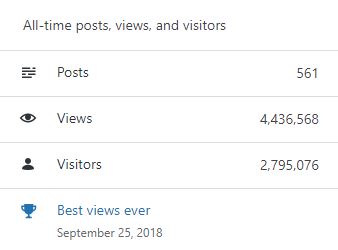
SQL with Manoj all time views
–> Posting Patterns
In 2020, there were 10 new posts, growing the total archive of this blog to 561 posts.
LONGEST STREAK: 4 post in Oct 2020
–> Attractions in 2020
These are the top 5 posts that got most views in 2020:
0. Blog Home Page (49,287 views)
1. The server may be running out of resources, or the assembly may not be trusted with PERMISSION_SET = EXTERNAL_ACCESS or UNSAFE (12,870 views)
2. Windows could not start SQL Server, error 17051, SQL Server Eval has expired (8,498 views)
3. Reading JSON string with Nested array of elements (8,016 views)
4. SQL Server 2016 RTM full and final version available (7,714 views)
5. Windows could not start SQL Server (moved Master DB) (6,988 views)
–> How did they find me?
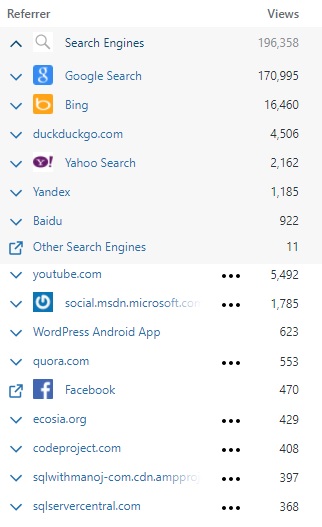
The top referring sites and search engines in 2020 were:
SQL with Manoj 2020 Search Engines and other referrers
–> Where did they come from?
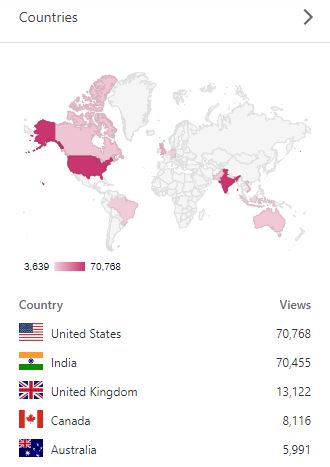
Out of 210 countries, top 5 visitors came from United States, India, United Kingdom, Canada and Australia:
SQL with Manoj 2020 top Countries visitors
–> Followers: 442
WordPress.com: 180
Email: 262
Facebook Page: 1,480
–> Alexa Rank (lower the better)
Global Rank: 835,163 (as of 31st DEC 2020)
Previous rank: 221,534 (back in 2019)
–> YouTube Channel:
– SQLwithManoj on YouTube
– Total Subscribers: 17,1700
– Total Videos: 70
–> 2021 New Year Resolution
– Write at least 1 blog post every week
– Write on new features in SQL Server 2019
– I’ve also started writing on Microsoft Big Data Platform, related to Azure Data Lake and Databricks (Spark/Scala), so I will continue to explore more on this area.
– Post at least 1 video every week on my YouTube channel
That’s all for 2020, see you in year 2021, all the best !!!
Connect me on Facebook, Twitter, LinkedIn, YouTube, Google, Email



Current Visitors

StatCounter …since April 2012


 Leisure blog: Creek & Trails
- NMDC Hyderabad Marathon – My first 42k FM, cramps, training and fuelling
- Singapore (Part 2) – 6 days itinerary, sightseeing & attractions
- Singapore (Part 1) – Tickets, Visa, Hotel, Forex Card/Cash, Metro/Bus cards
- I got full refund of my flight tickets during COVID lockdown (AirIndia via MakeMyTrip)
- YouTube – Your Google Ads account was cancelled due to no spend
- YouTube latest update on its YPP (YouTube Partner Program) which may affect your channel
- Starting your own blog !!!
- How to file ITR (Income Tax Return) online AY 2017-18 (for simple salaried)
- Scam – Become a kin/hier and earn a fortune – via LinkedIn and Email
- Places to visit in and around Vizag (aka Visakhapatnam)
 SQL with Manoj