Archive
SQL Error – Logical file ‘XYZ_Log2’ is not part of database ‘XYZ’. Use RESTORE FILELISTONLY to list the logical file names.
I was restoring Databases as a routine monthly job. Suddenly in between I came across an error which didn’t let me restore a Database. I restored other Databases and left this one to do at the end. Finally I picked it up again and saw that some new kind of error I was facing. The error message says to use “RESTORE FILELISTONLY”, I check the syntax on MSDN and found that this Database had two log files (LDF) earlier, but now configured for only one. And as I was using the same old script to Restore it, I was getting this error.
Let’s try to reproduce it in a standalone box:
–> I took a backup of AdventureWorks2012 Database on my machine.
I created the RESTORE script and added another line of log file at line 8 below:
USE [master]
GO

RESTORE DATABASE [AdventureWorks2012]
FROM DISK = N'E:\Softwares\MS_bits\AdventureWorks2012.bak' WITH  FILE = 1,
MOVE N'AdventureWorks2012_Data' TO N'E:\MSSQL11\DATA\AdventureWorks2012_Data.mdf',
MOVE N'AdventureWorks2012_Log' TO N'E:\MSSQL11\Log\AdventureWorks2012_Log.ldf',
MOVE N'AdventureWorks2012_Log2' TO N'E:\MSSQL11\Log\AdventureWorks2012_Log2.ldf',
NOUNLOAD,  REPLACE,  NOUNLOAD,  STATS = 5
GO
On executing I got an error as expected, shown below:
Msg 3234, Level 16, State 2, Line 1
Logical file ‘AdventureWorks2012_Log2’ is not part of database ‘AdventureWorks2012’. Use RESTORE FILELISTONLY to list the logical file names.
Msg 3013, Level 16, State 1, Line 1
RESTORE DATABASE is terminating abnormally.
As suggested in the Error Message, I used the “RESTORE FILELISTONLY” command to check what all files this Database is using:
RESTORE FILELISTONLY from disk=N'E:\Softwares\MS_bits\AdventureWorks2012.bak'
And I could see only two, one MDF & one LDF, as shown below:
LogicalName		PhysicalName					Type	FileGroupName
AdventureWorks2012_Data	E:\MSSQL11\DATA\AdventureWorks2012_Data.mdf	D	PRIMARY
AdventureWorks2012_Log	E:\MSSQL11\Log\AdventureWorks2012_log.ldf	L	NULL
So, I removed the extra LDF log file option from the RESTORE script, as shown below:
RESTORE DATABASE [AdventureWorks2012x]
FROM  DISK = N'E:\Softwares\MS_bits\AdventureWorks2012.bak' WITH  FILE = 1,
MOVE N'AdventureWorks2012_Data' TO N'E:\MSSQL11\DATA\AdventureWorks2012_Data.mdf',
MOVE N'AdventureWorks2012_Log' TO N'E:\MSSQL11\Log\AdventureWorks2012_Log.ldf',
--MOVE N'AdventureWorks2012_Log2' TO N'E:\MSSQL11\Log\AdventureWorks2012_Log2.ldf',
NOUNLOAD,  REPLACE,  NOUNLOAD,  STATS = 5
GO
The above statement executed fine and the Database restored successfully.
So, I learnt a new thing here about the “RESTORE FILELISTONLY” command. This command tell us what all Database files (MDF, NDF, LDF) a Backup file contains without actually Restoring the Database.
Off topic | ERROR: The RPC server is unavailable. (Exception from HRESULT: 0x800706BA)
Today while setting up the DEV Environment as part of Windows Server 2012 & SQL Server 2012 upgrade I faced this error.
I was installing an MSI from one system via a client (MSI deployment tool) to another remote system (on same domain) and was getting this error:
The RPC server is unavailable. (Exception from HRESULT: 0x800706BA)
I checked on internet all possible options to resolve this error, which were:
1. “Remote Procedure Call (RPC)” service should be running on the remote computer.
2. “Windows Management Instrumentation” service should be running on the remote computer.
3. “TCP/IP NetBIOS Helper” service should be running on the remote computer.
4. “DCOM Server Process Launcher” service should be running.
5. File and printer sharing should be enabled, on LAN properties.
I checked all the above options and lot of other suggestions available on internet forums and they were all set correctly.
–> Finally my colleague suggested me to check the “Group Policy Object Editor”, and check the firewall properties “Remote Administration Exception” and “File and Printer Sharing Exception”. And yes he was right, they were not enabled.
So to enable the properties you have to go to “Group Policy Object Editor” by executing gpedit.msc command. A winodw will open, goto: Computer Configuration -> Administrative Templates -> Network -> Network Connections -> Windows Firewall -> Domain Profile:
Here, enable the following properties:
– Allow inbound remote administration exception
– Allow inbound file and printer sharing exception

And when I enabled these two, the MSI deployed successfully without any error!!!
SQLwithManoj now on Windows 8 Store
Dear Readers,
Today I’m very happy to announce the release of Windows 8 App for this blog and its availability on Windows 8 store.
I’ve created this Windows 8 App and published to the Windows 8 Marketplace.
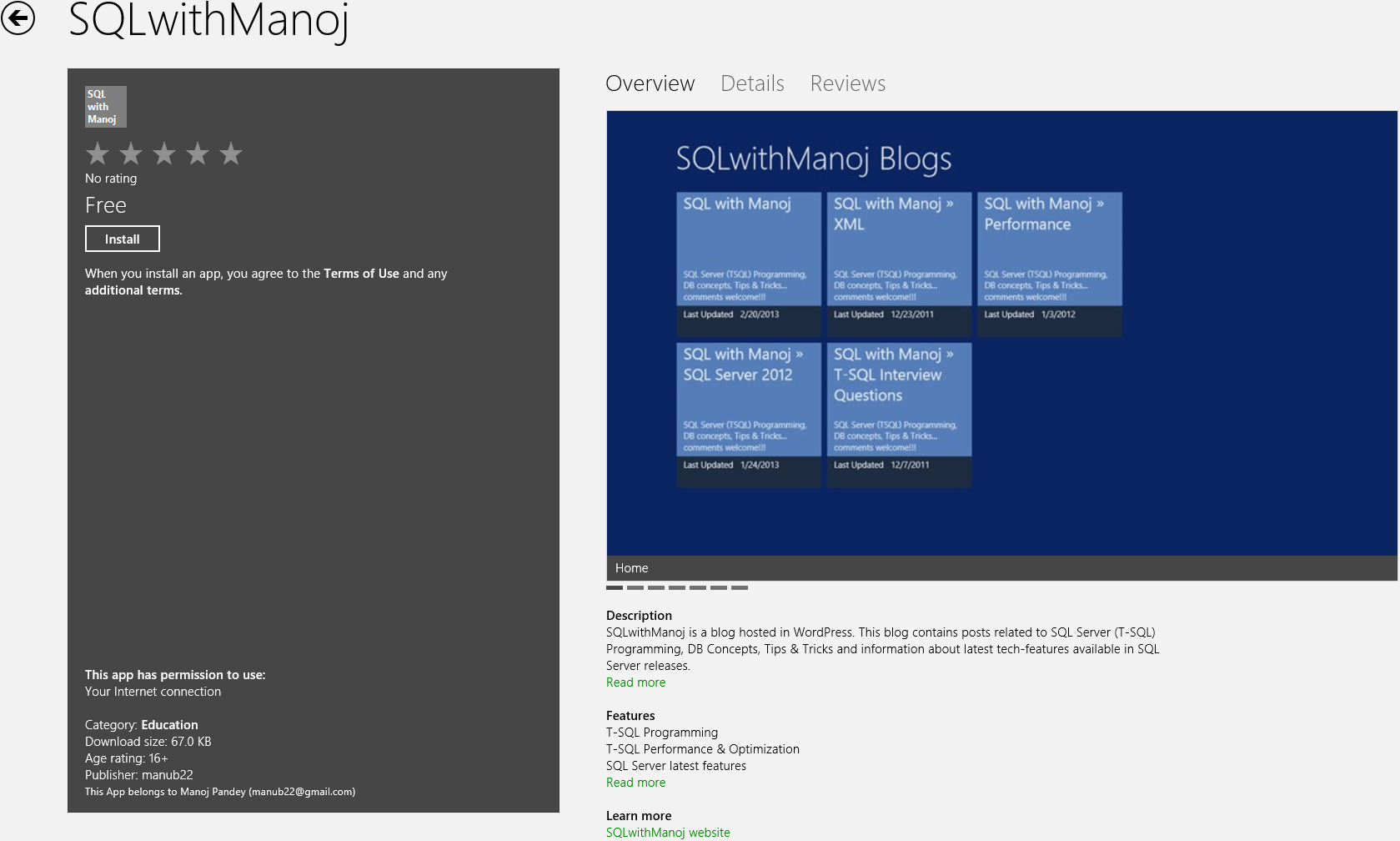
SQLwithManoj Windows 8 App
This is first Windows 8 App developed by me and I faced lot of challenges while developing and deploying it to the Marketplace.
Please download this App on your Windows 8 PC and let me know your feedback.
Thanks!!!
SQL DBA – Disable/Enable multiple SQL Jobs at once
Seems to be a simple topic. But yes when it comes to do these type of tasks we tend to recall the syntax and end up searching internet (bing/google) for the solution.
–> Disabling a single SQL Job can be done simply through SSMS. Right click on the SQL Job and select Disable. To enable it back simply select Enable for a disabled Job.
This can also be done by a TSQL query as shown below:
USE msdb;
GO

-- Disable a SQL Job:
EXEC dbo.sp_update_job
    @job_name = N'syspolicy_purge_history',
    @enabled = 0 ;
GO

select enabled, * from sysjobs where name = 'syspolicy_purge_history'
GO
–> Now if you’ve to Disable Multiple or All the Jobs in SQL Agent, how will you do it?
Selecting All SQL Jobs on SSMS and right clicking won’t give you the Disable option. And here it become more tricky as there is only way to do this by TSQL query. But there is no single TSQL query defined in SQL Server to Disable all SQL Jobs at once. So, we will have to create a Dynamic SQL which will create Script for all SQL Jobs dynamically to Disable each and every SQL Job. Let’s see how:
USE msdb;
GO

-- Disable Multiple SQL Jobs at once:
DECLARE @dynSql NVARCHAR(MAX) = ''

SELECT @dynSql += N'exec msdb.dbo.sp_update_job @job_name = ''' + name + N''', @enabled = 0;' + CHAR(10) + CHAR(13)
FROM msdb.dbo.sysjobs
WHERE enabled = 1
ORDER BY name;

PRINT @dynSql;
-- Here is the output of above PRINT statement:
exec msdb.dbo.sp_update_job @job_name = 'ExecuteSPuspGetBillOfMaterials', @enabled = 0;

exec msdb.dbo.sp_update_job @job_name = 'syspolicy_purge_history', @enabled = 0;
Simple Copy-Paste the the above Dynamically generated SQL Script and Execute it, it will Disable all SQL Jobs at once.
Database TRIGGER on delete – MSDN TSQL forum
–> Question:
Today we saw that some rows got deleted in our Dataware House. Normally rows are never deleted, they are just marked as deleted because we want to keep the history. Now there are two important questions :
How can we detect who or what deleted this rows ?
How can we prevent that they are being deleted ?
We have around 450 tables and I think around 250 ETL packages.
–> My Answer:
You can create a INSTEAD OF DELETE (DML) TRIGGER on that table, and inside this trigger apply UPDATE statement to soft-delete the records.
With this every DELETE statement fired on that particular table will be an UPDATE.
To Track who deleted those records you can create a DDL TRIGGER that will identify and log the users who issued DELETE statement.
Ref Link.



Current Visitors

StatCounter …since April 2012


 Leisure blog: Creek & Trails
- NMDC Hyderabad Marathon – My first 42k FM, cramps, training and fuelling
- Singapore (Part 2) – 6 days itinerary, sightseeing & attractions
- Singapore (Part 1) – Tickets, Visa, Hotel, Forex Card/Cash, Metro/Bus cards
- I got full refund of my flight tickets during COVID lockdown (AirIndia via MakeMyTrip)
- YouTube – Your Google Ads account was cancelled due to no spend
- YouTube latest update on its YPP (YouTube Partner Program) which may affect your channel
- Starting your own blog !!!
- How to file ITR (Income Tax Return) online AY 2017-18 (for simple salaried)
- Scam – Become a kin/hier and earn a fortune – via LinkedIn and Email
- Places to visit in and around Vizag (aka Visakhapatnam)
 SQL with Manoj