Archive
Querying Excel 2010 from SQL Server in 64-bit environment
In my previous post I discussed about querying Excel files with both 2003 & 2007 versions from SQL Server.
Here we will see how can we query Excel 2010 files. Will use the same scripts from my previous post to create Linked Server to point to the Excel source. We don’t need to do any change in the scripts for this version, but we will require some additional steps to do, that we’ll see later on.
Please Note: To use a Linked server for fetching records from a particular source first you have to enable the “Ad Hoc Distributed Queries” configuration setting. This is disabled by default, if not enabled you will see the following error message:
Msg 15281, Level 16, State 1, Line 1
SQL Server blocked access to STATEMENT ‘OpenRowset/OpenDatasource’ of component ‘Ad Hoc Distributed Queries’ because this component is turned off as part of the security configuration for this server. A system administrator can enable the use of ‘Ad Hoc Distributed Queries’ by using sp_configure. For more information about enabling ‘Ad Hoc Distributed Queries’, see “Surface Area Configuration” in SQL Server Books Online.
–> So let’s first of all enable this:
USE [MSDB]
GO

sp_configure 'show advanced options', 1
GO
RECONFIGURE WITH OverRide
GO
sp_configure 'Ad Hoc Distributed Queries', 1
GO
RECONFIGURE WITH OverRide
GO
You can also enable this setting graphically by going to “Surface Area Configuration” and enable it.
–> Now, to access the Excel file there are 2 ways:
1. Directly fetch records from Excel by using the OPENROWSET() function by providing the providers and other options
2. Indirectly by creating a Linked Server first of all, then:
2.a. fetching records from Excel by using OPENQUERY() function or
2.b. by using the Linked Server name within the SELECT query
-- 1. Directly, by using OPENROWSET() function
SELECT * FROM OPENROWSET (
	'Microsoft.ACE.OLEDB.12.0',
	'Excel 12.0;Database=E:\SQL Server - Blogs\LinkedServer2010.xlsx;HDR=YES;IMEX=1',
	'SELECT * FROM [Sheet1$]'
);

-- OR --

-- 2. Indirectly, by Creating Linked Server & using OPENQUERY:
EXEC sp_addLinkedServer
	@server= N'XLSX_2010',
	@srvproduct = N'Excel',
	@provider = N'Microsoft.ACE.OLEDB.12.0',
	@datasrc = N'E:\SQL Server - Blogs\LinkedServer2010.xlsx',
	@provstr = N'Excel 12.0; HDR=Yes';
GO

-- 2.a. Using OPENQUERY() function:
SELECT * FROM OPENQUERY (XLSX_2010, 'Select * from [Sheet1$]')

-- 2.b. Using the Linked Server name within the SELECT query:
SELECT * FROM XLSX_2010...[Sheet1$]
Neither of the above options runs and ends up in following error:
Msg 7302, Level 16, State 1, Line 1
Cannot create an instance of OLE DB provider “Microsoft.ACE.OLEDB.12.0” for linked server “XLSX_2010”.
–> I searched on net and I got following solution in MSDN forums to register the ACE OLEDB 12.0 provider:
USE [master]
GO

EXEC master . dbo. sp_MSset_oledb_prop N'Microsoft.ACE.OLEDB.12.0' , N'AllowInProcess' , 1
GO

EXEC master . dbo. sp_MSset_oledb_prop N'Microsoft.ACE.OLEDB.12.0' , N'DynamicParameters' , 1
GO
The previous error was gone, but this new error surfaced:
Msg 7438, Level 16, State 1, Line 1
The 32-bit OLE DB provider “Microsoft.ACE.OLEDB.12.0” cannot be loaded in-process on a 64-bit SQL Server.
To resolve this error you need to get the “Access Database Engine 2010” to facilitate the transfer of data between existing Microsoft Office files such as “Microsoft Office Access 2010” (*.mdb and *.accdb) files and “Microsoft Office Excel 2010” (*.xls, *.xlsx, and *.xlsb) files to other data sources such as “Microsoft SQL Server”.
–> Get the Microsoft Access Database Engine 2010 Redistributable [http://www.microsoft.com/en-us/download/details.aspx?id=13255]
There will be two files:
1. AccessDatabaseEngine i.e. 32-bit and
2. AccessDatabaseEngine_x64 i.e. 64-bit
My machine is 64 bit and the SQL Server is also 64 bit, but let’s just check it:
select @@VERSION
Microsoft SQL Server 2008 R2 (RTM) - 10.50.1617.0 (X64)
	Apr 22 2011 19:23:43
	Copyright (c) Microsoft Corporation
	Data Center Edition (64-bit) on Windows NT 6.1  (Build 7601: Service Pack 1)
So, download and install the second “AccessDatabaseEngine_x64.exe” file.
While installing the 64-bit EXE it gives following error:
You cannot install the 64-bit version of Microsoft Access Database Engine 2010 because you currently have 32-bit Office products installed. If you want to install 64-bit Microsoft Access Database Engine 2010, you will first need to remove the 32-bit installation of Office products. After uninstalling the following product(s), rerun setup in order to install 64-bit version of Microsoft Access Database Engine 2010:
Microsoft Office Professional Plus 2010, Microsoft Office Visio 2010
So, this error tells that the MS Office product installed in my system is 32-bit, that I was not aware of.
To get this resolved you need to have everything in 64-bit environment. So, I will uninstall the 32-bit version of MS Office and re-install MS Office with 64-bit version.
Now if you again run the above queries, you will see them running successfully and pulling records from Excel file.
–> So, what additional steps we did for Excel 2010 to work?
Step 1:
Registered the Microsoft.ACE.OLEDB.12.0 provider for AllowInProcess & DynamicParameters properties.
This option registeres the provider and both the properties in registry. You can check what system stored procedure [sp_MSset_oledb_prop] does with sp_helptext SP.
Like:
EXEC sp_helptext 'sp_MSset_oledb_prop'
You can also go and check the registry by typing “regedit” in RUN.
Go to HKEY_LOCAL_MACHINE -> SOFTWARE -> Microsoft -> Microsoft SQL Server -> MSSQL10_50.MSSQLSERVER08R2 -> Providers
A new folder entry is made for “Microsoft.ACE.OLEDB.12.0” provider.
And Inside this folder 2 new entries are created for both the properties.
Check the image below:

Step 2:
We installed the “Access Database Engine 2010” drivers to setup a link between MS Office 2010 products and MS SQL Server.
>> Check & Subscribe my [YouTube videos] on SQL Server.
Microsoft Deployment Toolkit (MDT) 2012 Now Available | Reliable and flexible OS deployment

The latest version of the Microsoft Deployment Toolkit—version 2012— is now available for download.
Visit the Download Center to download MDT 2012.
Deploy Windows 7, Office 2010, Windows 8 Consumer Preview, Windows Server “8” Beta and Windows Server 2008 R2 with the newly released Microsoft Deployment Toolkit (MDT) 2012. MDT 2012 is the newest version of Microsoft Deployment Toolkit, a Solution Accelerator for operating system and application deployment. MDT is the recommended process and toolset for automating Windows 7 and Office 365 deployments.
The Solution Accelerators Team added new features to MDT 2012 that include the ability for users to initiate and customize their own deployments using System Center Configuration Manager 2012, key enhancements in Windows 7 driver support, and much more.
MDT 2012 will provide new benefits such as:
• Comprehensive tools and guidance to efficiently manage large-scale deployments of Microsoft Office 2010.
• An enhanced User-Driven Installation (UDI) deployment method that utilizes System Center Configuration Manager 2012. UDI lets end users initiate and customize an OS deployment on their PCs—via an easy-to-use wizard.
• Ease Lite Touch installation with new capabilities to check on the status of currently running deployments.
• This release provides support for deploying Windows 8 Consumer Preview in a lab environment.
These features, combined with many bug fixes and other improvements, make MDT 2012 more reliable and flexible than ever.
Support for Configuration Manager 2012: MDT 2012 provides support for Configuration Manager 2012 releases. MDT 2012 fully leverages the capabilities provided by Configuration Manager 2012 for OS deployment. Users now also have the ability to migrate MDT 2012 task sequences from Configuration Manager 2007 to Configuration Manager 2012.
Customize deployment questions: For System Center Configuration Manager customers, MDT 2012 provides an improved, extensible wizard and designer for customizing deployment questions.
Ease Lite Touch installation: The Microsoft Diagnostics and Recovery Toolkit (DaRT) is now integrated with Lite Touch Installation, providing remote control and diagnostics. New monitoring capabilities are available to check on the status of currently running deployments. LTI now has an improved deployment wizard user experience. Enhanced partitioning support ensures that deployments work regardless of the current structure.
Secure Deployments: MDT 2012 offers integration with the Microsoft Security Compliance Manager (SCM) tool to ensure a secure Windows deployment from the start.
Reliability and flexibility: Existing MDT users will find more reliability and flexibility with the many small enhancements and bug fixes and a smooth and simple upgrade process.
Support for Windows 8: MDT 2012 provides support for deploying Windows 8 Consumer Preview and Windows Server “8” Beta in a lab environment.
Next steps:
• Download MDT 2012.
• Send your comments to the MDT Team.
• Learn more about the MDT.
Get the latest tips from Microsoft Solution Accelerators—in 140 characters or less! Follow us on Twitter: @MSSolutionAccel.
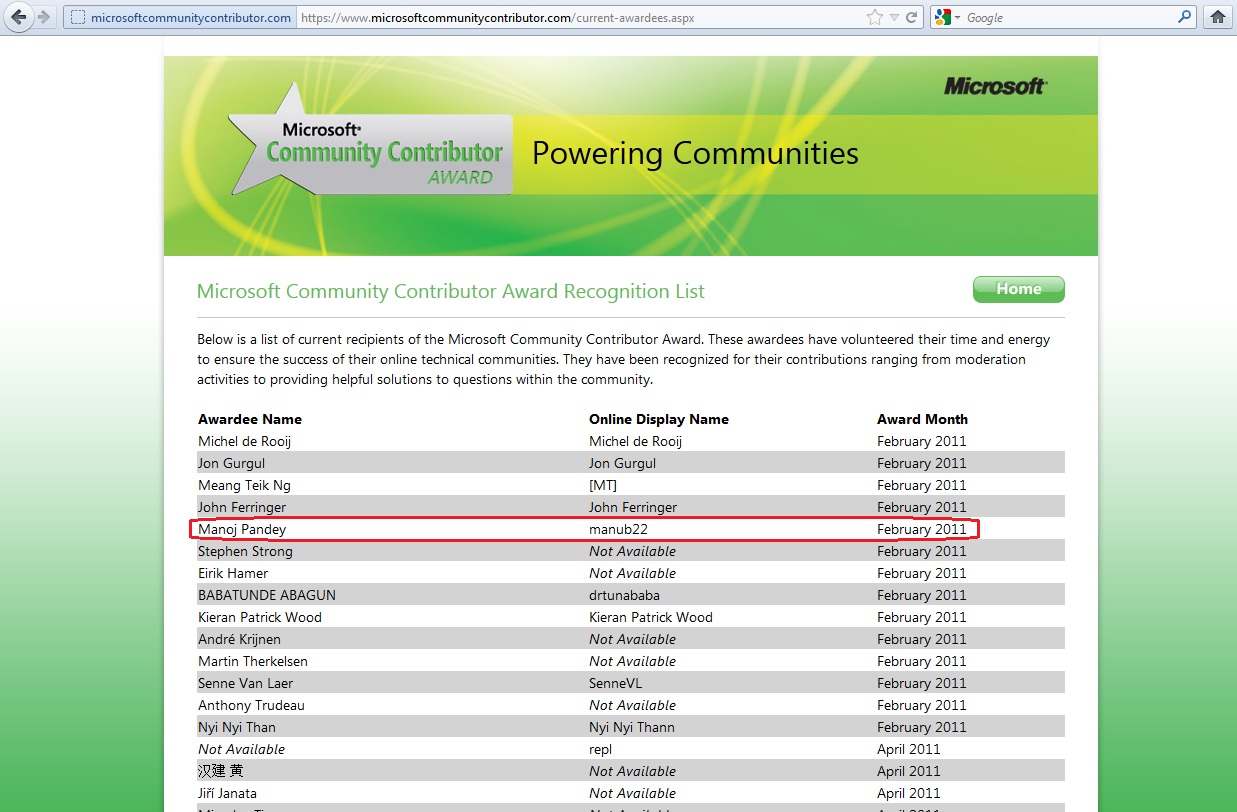
manub22 (me) on MCC 2011 awardee list
Just about a year back in Feb-2011, I was awarded by “Microsoft Community Contributor” (MCC) Award for my contributions in Microsoft’s online technical community “MSDN Transact SQL” forum. Check here for more information.
This was a kind gesture from Microsoft to award people for dedicating their precious time for the community. The award includes MCC logo, badge, Safari BOL 1 year free subscription & access to some MSDN’s knowledge bank.
Microsoft has also put a list of all awardees on their MCC site with their Names and date of award, link: https://www.microsoftcommunitycontributor.com/current-awardees.aspx
And below is the snapshot of the page where my name appears:
I started following up MSDN forums at the very start of my carrier (around mid of 2006) when I was learning SQL Server. I used to put up my queries there and was very satisfied with the kind of response I used to get. I also used to browse through other questions to see what other techies are asking & are stuck upon, and sometimes try to answer those questions. This started becoming a good learning source and encouraged me to dedicate my time here. And I remember at around year 2010 Nov-Dec I was kind of addicted to this. Now whenever I get time I check the forum and answer the questions where I can add some value.
You can see my activity and contributions on my MSDN profile at following link: http://social.msdn.microsoft.com/Profile/manub22
2011 in review
The WordPress.com stats helper monkeys prepared a 2011 annual report for this blog.
Here’s an excerpt:
Madison Square Garden can seat 20,000 people for a concert. This blog was viewed about 64,000 times in 2011. If it were a concert at Madison Square Garden, it would take about 3 sold-out performances for that many people to see it.
Programming is like a Dream… by Lisa
This post is different from my other previous posts as it does not talks about SQL or anything near to it. But it talks about the Progmmers who code not only in SQL but other programming languages too.
I stumbled into Lisa’s post which talks about Programming as a Dream. I liked this article very much and the illustration given by her really fits in each and every scenario in one’s day today life and specially in dreams.
An excerpt from her post:
“If you think about programming like dreaming, you’ll realize that programmers remember more if you interrupt them gently than if you barrage them. If someone wakes you out of bed and starts shouting a long list of things at you to remember, you’ll almost certainly forget what you were dreaming. However, if someone shakes you gently and gives you a few seconds to open your eyes and look around before they start talking, it’s a lot easier to remember the dream for later. The same works for programmers. If you just walk into their office and start talking, one of two things will happen: they’ll completely forget what they were coding, or they won’t really be paying attention to you. However, if you quietly walk up to them and let them know you are there but say nothing until they are ready, the programmer can come to the end of the thought they are on. Once they’ve finished their thought, it will be easier for them to pick up next time and still pay attention to what you have to say.”
To read the whole post here is the link for you to go thru: http://www.independentdeveloper.com/archive/2009/03/17/programming-is-like-a-dream



Current Visitors

StatCounter …since April 2012


 Leisure blog: Creek & Trails
- NMDC Hyderabad Marathon – My first 42k FM, cramps, training and fuelling
- Singapore (Part 2) – 6 days itinerary, sightseeing & attractions
- Singapore (Part 1) – Tickets, Visa, Hotel, Forex Card/Cash, Metro/Bus cards
- I got full refund of my flight tickets during COVID lockdown (AirIndia via MakeMyTrip)
- YouTube – Your Google Ads account was cancelled due to no spend
- YouTube latest update on its YPP (YouTube Partner Program) which may affect your channel
- Starting your own blog !!!
- How to file ITR (Income Tax Return) online AY 2017-18 (for simple salaried)
- Scam – Become a kin/hier and earn a fortune – via LinkedIn and Email
- Places to visit in and around Vizag (aka Visakhapatnam)
 SQL with Manoj