Archive
Seeking response on: LDAP Authentication with SQL Server 2017 on Linux
Few days back I got an email from one of the reader of this blog “Amit Bhatt”. As I haven’t worked much with the AD/LDAP stuff, thus I thought to throw this question to you guys thru this blog post. I also feel this may also help other Developers/DBAs hunting for similar stuff.
Here he goes:
We have installed SQL Server 2017 on Linux server. I am able to connect SQL Server locally as well remotely but with local user access.
I have my AD account created and have AD server information. Can you please help me how can I connect using my AD account to SQL Server 2017 on Linux remotely?
I heard something about LDAP Authentication. Is it possible to use this concept without adding Linux server to AD domain? Our security team does not allow to add Linux server in Active Directory group.
I am stucked here since last many days, requesting assistance on urgent basis.
Please provide your suggestion on the comment section below.
–> Responses:
1. To support AD Authentication, SQL depends on SSSD, SPN and a keytab file which have the required tokens to talk to AD. Without these in place SQL cannot talk to AD which is necessary for AD authentication.
Ref: https://docs.microsoft.com/en-us/sql/linux/sql-server-linux-active-directory-authentication
2. If you are looking to login to SQL Server on linux with Windows authentication the linux server should be joined to the domain. If the server cannot be added to domain then SQL authentication is the way to go. The below link has more details to configure windows authentication, https://docs.microsoft.com/en-us/sql/linux/sql-server-linux-active-directory-authentication
–> Videos on Linux:
2. Install SQL Server on Linux Azure VM
3. Connect SQL Server on Linux VM from SSMS
2017 blogging in review
Happy New Year 2018 from SQLwithManoj !!!
This time again like previous year (in 2016) WordPress.com stats helper monkeys didn’t prepare annual report for any of their blogs for year 2017. So I prepared my own Annual Report.
–> Here are some Crunchy numbers from 2017
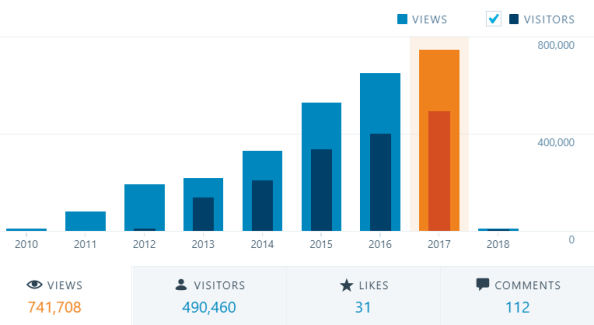
The Louvre Museum has 8.5 million visitors per year. This blog was viewed about 741,708 times by 490,460 unique visitors in 2017. If it were an exhibit at the Louvre Museum, it would take about 17 days for that many people to see it.
There were 38 pictures uploaded, taking up a total of 3.1 MB. That’s about 3 pictures every month.
This blog also got its highest ever hits/views per day (i.e. 3295) on Nov 16th this year.
–> All-time posts, views, and visitors
–> Posting Patterns
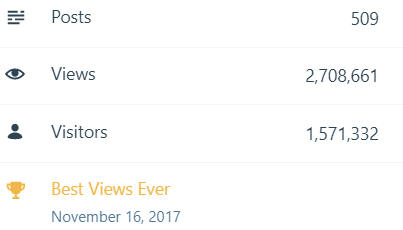
In 2017, there were 30 new posts, growing the total archive of this blog to 509 posts.
LONGEST STREAK: 8 post each day, in June 2017
–> Attractions in 2017
These are the top 5 posts that got most views in 2017:
1. Download & Install SQL Server Management Studio (SSMS) 2016 (61,566 views)
2. SQL Server 2016 RTM full & final version available – Download now (38,368 views)
3. SQL Basics – Difference b/w TRUNCATE, DELETE and DROP? (15,407 views)
4. SQL Basics – Difference b/w WHERE, GROUP BY and HAVING clause (15,378 views)
5. Passed 70-461 Exam : Querying Microsoft SQL Server 2012 (13,022 views)
–> How did they find me?
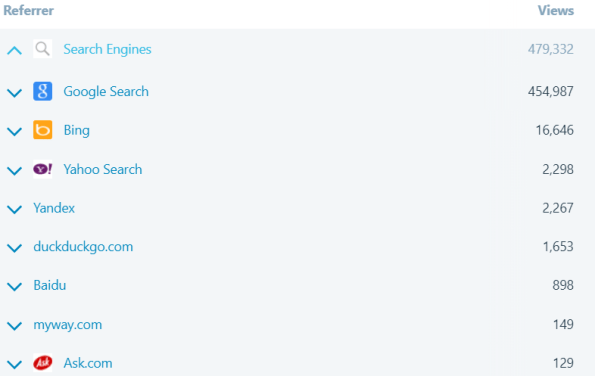
The top referring sites and search engines in 2016 were:
–> Where did they come from?
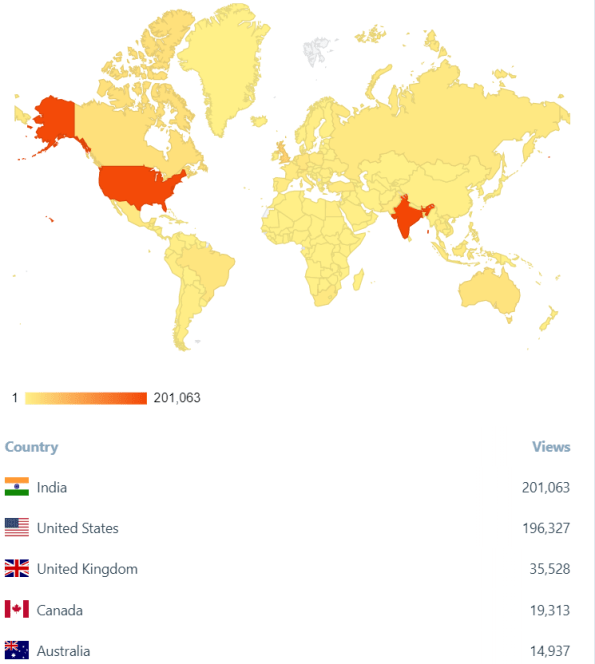
Out of 210 countries, top 5 visitors came from India, United States, United Kingdom, Canada and Australia:
–> Followers: 352
Wordpress.com: 138
Email: 214
Facebook Page: 1,180
–> Alexa Rank (lower the better)
Global Rank: 236,536
India Rank: 44,871
Estimated Monthly Revenue: $172
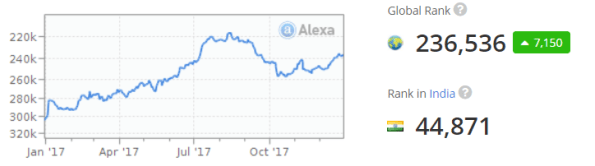
Alexa history shows how the alexa rank of sqlwithmanoj.com has varied in the past, which in turn also tells about the site visitors.
That’s all for 2017, see you in year 2018, all the best !!!
Connect me on Facebook, Twitter, LinkedIn, YouTube, Google, Email
SSMS Installation Error – This version of SSMS cannot be installed because a xyz version of SSMS 17.0 was detected
So, today I tried to install SSMS 17.3 version, and got following error:
This version of ssms cannot be installed because a release candidate version of ssms 17.0 was detected.
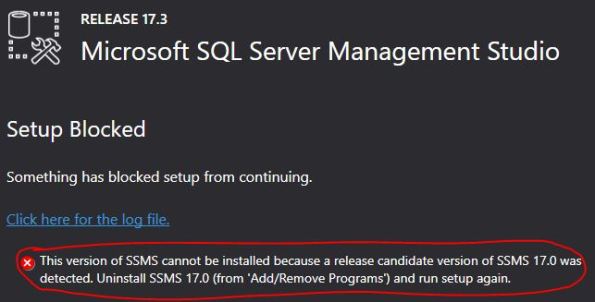
This is because if you had installed SSMS previously and uninstalled it and because of some files were not cleaned up properly, you will get this kind of message while installing SSMS separately.
–> The solution is to remove the previously installed SSMS related files from the respective version folder:
Go to following folder and remove all folders and files: C:\Program Files (x86)\Microsoft SQL Server\140\Tools\
Now try installing SSMS again and you won’t get any error !!!
Migrate from Oracle to SQL Server for free !!!
Microsoft is encouraging people/customers who are currently using Oracle, IBM Db2, Sybase, or Netezza database, to migrate to SQL Server 2017 for free (free license), get subsidized migration support services, hands-on labs, and instructor-led demos as part of this offer.

With SQL Server 2017 not only its available in Windows, but also on Linux, Mac & Docker too, you get in-memory performance across workloads, mission-critical high availability, end-to-end mobile BI, and in-database advanced analytics with security features to protect your data at rest and in motion, all on your choice of language and platform – now including Linux and Docker.
– Migration Offer Broucher Details
– Download the Microsoft SQL Server Migration Assistant v7.8 for Oracle

DACPAC – Could not deploy package, the database platform service with type Sql130DatabaseSchemaProvider is not valid
So, today while deploying a DACPAC file by using SqlPackage.exe utility I faced an error:
*** Could not deploy package
Internal error. The database platform service with type Microsoft.Data.Tools.Schema.Sql.Sql130DatabaseSchemaProvider is not valid. You must make sure the service is loaded, or you must provide the full type name of a valid database platform service.

For few minutes I was wondering why this error was coming, but when I saw the version number in above error message it became clear. The version number 130 highlighted above belongs to SQL Server 2016, and the database where I need to deploy DACPAC was SQL Server 2012. So, its clear that the DACPAC was built in Visual Studio with SQL Server 2016 setting.
So I went back to Visual Studio – Project Settings and changed the version to SQL Server 2012, and re-build the Project, and got the correct DACPAC file.




Current Visitors

StatCounter …since April 2012


 Leisure blog: Creek & Trails
- NMDC Hyderabad Marathon – My first 42k FM, cramps, training and fuelling
- Singapore (Part 2) – 6 days itinerary, sightseeing & attractions
- Singapore (Part 1) – Tickets, Visa, Hotel, Forex Card/Cash, Metro/Bus cards
- I got full refund of my flight tickets during COVID lockdown (AirIndia via MakeMyTrip)
- YouTube – Your Google Ads account was cancelled due to no spend
- YouTube latest update on its YPP (YouTube Partner Program) which may affect your channel
- Starting your own blog !!!
- How to file ITR (Income Tax Return) online AY 2017-18 (for simple salaried)
- Scam – Become a kin/hier and earn a fortune – via LinkedIn and Email
- Places to visit in and around Vizag (aka Visakhapatnam)
 SQL with Manoj