Archive

Archive for the ‘SQL Server Versions’ Category

SQL Server 2014 | New Features

July 5, 2013 1 comment

Around 3 years back (~ Nov’2010) the first Community Test Preview (CTP-1) of SQL Server 2012 was released, and with great excitement I blogged about its new features and availability. Now after 3 years, last month-end (June’2013) the first Community Test Preview (CTP-1) of SQL Server 2014 is released, and with same great excitement here I’m with my similar blog post.

SQL Server 2014, this time mainly focuses on high performance in-Memory Operations for OLTP Databases by providing Memory Optimized Tables & Natively Compiled Stored Procedures. There is not much enhancement in T-SQL section, which was with SQL Server 2012. But with In-Memory features SQL Server 2014 has made a lot of impression and is definitely going to make a lot of impact.

Let’s see what all new features SQL Server 2014 is packed with:

.
>> Database Engine:

–> Memory-optimized tables: read more.

–> Natively Compiled Stored Procedures: read more.

-> AlwaysOn enhancements
– The maximum number of secondary replicas is increased from 4 to 8.
– When disconnected from the primary replica or during cluster quorum loss, readable secondary replicas now remain available for read workloads.
– Enhancements are made to increase the efficiency and ease of troubleshooting availability groups
– Failover cluster instances (FCIs) can now use Cluster Shared Volumes as cluster shared disks in Windows Server 2012 and above.
– The following three dynamic management views now return information for FCIs:
1. sys.dm_hadr_cluster (Transact-SQL)
2. sys.dm_hadr_cluster_members (Transact-SQL)
3. sys.dm_hadr_cluster_networks (Transact-SQL)

–> Managing the lock priority of online operations
Additional partition switching and index rebuild operations can now be performed while a table is online. The ONLINE = ON option now contains a WAIT_AT_LOW_PRIORITY option which permits you to specify how long the rebuild process should wait for the necessary locks.

–> Columnstore indexes
– Updateable Clustered Columnstore Indexes: can perform some insert, update, and delete operations, read more.
– SHOWPLAN displays information about columnstore indexes: The EstimatedExecutionMode and ActualExecutionMode properties have two possible values: Batch or Row. The Storage property has two possible values: RowStore and ColumnStore.
– Archival data compression: ALTER INDEX … REBUILD has a new COLUMNSTORE_ARCHIVE data compression option that further compresses the specified partitions of a columnstore index, read more.

–> Buffer pool extension
Provides the seamless integration of solid-state drives (SSD) as a nonvolatile random access memory (NvRAM) extension to the Database Engine buffer pool to significantly improve I/O throughput.

–> Query plans
Includes substantial improvements to the component that creates and optimized query plans.

–> Inline specification of CLUSTERED and NONCLUSTERED
Inline specification of CLUSTERED and NONCLUSTERED indexes is now allowed for disk-based tables.

–> SELECT … INTO
The SELECT … INTO statement is improved and can now operate in parallel.

–> Deployment Enhancements
Deploy a SQL Server Database to a Windows Azure Virtual Machine enables deployment of a SQL Server database to a Windows Azure VM, read more.

.
>> Analysis Services & BI

1. Updates to Design Tool installation

2. Features recently added: Power View for Multidimensional Models

read more.

.
>> No Changes to Integration Services, Reporting Services & Replication

.
You can know more about the CTP-1 version from my previous blog post. This post provides the Download Link, Install Prerequisites, Limitations, etc for the beta product.

SQL Server 2014 CTP1 now Available… download now!!!

June 25, 2013 4 comments

SQLServer2014_Banner

Finally the wait is over to get your hands dirty on SQL Server 2014 as the first Community Test Preview (CTP1) is released and is available for download form the Microsoft Official Site.

–> Download the SQL Server 2014 CTP1 [here].

You will need to login with your Windows Live ID to go to the download page.

–> Microsoft has released following Installation Limitations for SQL Server 2014 Community Technology Preview 1 (CTP1):

  • Microsoft SQL Server 2014 CTP1 is pre-release software and should be installed only on a clean machine. It does not support upgrade from or side-by-side installations with any previous version of SQL Server, including SQL Server 2012. In addition it does not work with or support side by side installations with any client redistributables of SQL Server such as feature pack components, Visual Studio 2012 or earlier versions, SQL Server Data Tools, Data Tier Application Framework, etc.
  • To administer Microsoft SQL Server 2014 CTP1 use only SQL Server Management Studio that ships as a part of Microsoft SQL Server 2014 CTP1.
  • The Microsoft SQL Server 2014 CTP1 release is NOT supported by Microsoft Customer Services and Support (CSS).
  • The Microsoft SQL Server 2014 CTP1 release is only available in the X64 architecture.
  • The Microsoft SQL Server 2014 CTP1 release is a NON-PRODUCTION release and should not be installed and used in production environments.
  • The Microsoft SQL Server 2014 CTP1 release does NOT have an associated Microsoft SQL Server 2014 CTP1 Feature Pack.
  • The Microsoft SQL Server 2014 CTP1 release on Windows Azure VM is only intended for functional development and testing, and not for performance testing.
  • The Microsoft SQL Server 2014 CTP1 release contains branding and versioning from older Microsoft SQL Server releases.

–> System Requirements to install SQL Server 2014 CTP1: [here]

  • Minimum Windows 8 or Windows Server 2012
  • X64 architecture only
  • MS.Net Framework 3.5 SP1

–> Product Detail Page, [link].

Imp Note: As the first limitation point says to install it on a Clean Machine, this means the machine should not have any Pre-Releases of SQL Server and/or Visual Studio Installed.

So, to start with SQL Server 2014 CTP1 you need to get a clean machine, or a new machine with a freshly installed Windows OS.

Check more on SQL Server 2014 CTP1, here: http://www.microsoft.com/en-us/sqlserver/sql-server-2014.aspx

Another reason to use THROW clause instead of RAISERROR | SQL Server 2012

January 24, 2013 5 comments

In my previous post [link] I talked about the new THROW clause introduced in SQL Server 2012 and how it is different from the existing RAISERROR function.

I just stumbled on one more reason to stop using RAISERROR function and start using the new THROW clause.

There are some SQL statements that throws more than one error message when they go wrong due to some reason.

-> When using RAISERROR function it just returns the last (single) error message and its details, but the previous error message details are not returned by this function.

-> With the new THROW clause you won’t see any issue of omitting the previous errors. And it returns all error details as thrown by the SQL statement itself.

Let’s check this with a small example where we want to take backup of a database, but the folder provided does not exist, and hence it errors out:

Example #1:
On executing the below BACKUP statement we can see we get 2 errors:

BACKUP DATABASE [AdventureWorks2012] 
TO DISK='E:\FOLDER_NOT_EXISTS\test.bak'

The above code throws 2 errors with Error-Message IDs 3201 & 3013, as shown below:

error messages:
Msg 3201, Level 16, State 1, Line 2
Cannot open backup device ‘E:\FOLDER_NOT_EXISTS\test.bak’. Operating system error 3(The system cannot find the path specified.).
Msg 3013, Level 16, State 1, Line 2
BACKUP DATABASE is terminating abnormally.


Example #2:
And when you try to use error-handling by using TRY-CATCH and RAISERROR(), it fetches us only 1 error:

BEGIN TRY
	BACKUP DATABASE [AdventureWorks2012] 
	TO DISK='E:\FOLDER_NOT_EXISTS\test.bak'
END TRY
BEGIN CATCH
	DECLARE @msg VARCHAR(1000)
	SET @msg = ERROR_MESSAGE()
	RAISERROR(@msg,16,0)
END CATCH

Here, only 1 error message will be returned:

error messages:
Msg 50000, Level 16, State 0, Line 7
BACKUP DATABASE is terminating abnormally.


Example #3:
But this is not the case with the new THROW clause, as I mentioned previously.
It throws all the errors that are originally thrown by the original SQL statement, like below:

BEGIN TRY
	BACKUP DATABASE [AdventureWorks2012] 
	TO DISK='E:\FOLDER_NOT_EXISTS\test.bak'
END TRY
BEGIN CATCH
	THROW;
END CATCH

The above statement throws both the error details as we saw in the first example:
error messages:
Msg 3201, Level 16, State 1, Line 2
Cannot open backup device ‘E:\FOLDER_NOT_EXISTS\test.bak’. Operating system error 3(The system cannot find the path specified.).
Msg 3013, Level 16, State 1, Line 2
BACKUP DATABASE is terminating abnormally.


Thus, you must consider using THROW clause instead of the RAISERROR function if you are in SQL Server 2012.
But, it still depends upon different conditions and scenarios where you would need either of both the features.

Enhanced OVER() Clause in SQL Server 2012 – Part2

January 2, 2013 8 comments

First of all I would like to wish my readers a very Happy and Prosperous New Year – 2013!!!

This is my 1st post in this new year and I will try to come up with more informative and interesting topics related to SQL Server.

Coming back to the topic, sometime back in Part-1 [link] I discussed about how to use both PARTITION BY & ORDER BY clause within OVER() clause when using it with AGGREGATE functions, like SUM().

Here in this post we will see other features that are added to the OVER() clause.

ROWS/RANGE are new the 2 new clauses that you can use inside the OVER() clause to limit the records within the Partition by specifying start and end within the partition. They use a new set of keywords to define the boundaries within the partition, i.e. PREECEDING, FOLLOWING mixed with UNBOUNDED or CURRENT, or number of rows. The PRECEDING and FOLLOWING rows are defined based on the ordering in the ORDER BY clause of the query.

#1. Using ROWS/RANGE UNBOUNDED PRECEDING with OVER() clause:
Let’s check with 1st example where I want to calculate Cumulative Totals or Running Totals at each row. This total is calculated by the SUM of current and all previous rows.
We will use UNBOUND PRECEDING option here, which means that the window starts from the 1st row till the current row.

USE [AdventureWorks2012]
GO

-- To Calculate Cumulative SUM or Running Totals:
;WITH CTE AS (
	SELECT BusinessEntityID AS SalesPersonID, CAST([Rate] AS DECIMAL(10,0))AS Salary, [ModifiedDate] AS SalDate
	FROM [HumanResources].[EmployeePayHistory]
	WHERE BusinessEntityID <= 10
	)
SELECT SalesPersonID, SalDate, Salary
   ,SUM(Salary) OVER (ORDER BY SalesPersonID ROWS UNBOUNDED PRECEDING) AS CumulativeSumByRows
   ,SUM(Salary) OVER (ORDER BY SalesPersonID RANGE UNBOUNDED PRECEDING) AS CumulativeSumByRange
FROM CTE
ORDER BY SalesPersonID, SalDate

OUTPUT:
SQL2012_OVER_Enhanced_Clause_2_1

In the Output above you can see the was the SUM is calculated, as we go down all previous and current rows are getting summed at all levels.
Here you can also see a difference between the way ROW & RANGE are calculated, for SalesPersonID=4:
– ROWS shows different and continuous calculation at different levels.
– But RANGE shows same calculation of all 3 records at different levels.


#2. Using ROWS/RANGE CURRENT ROW & UNBOUNDED FOLLOWING with OVER() clause:
Now, let’s say you’ve to do the same calculation, but in reverse order. So, here we will use BETWEEN CURRENT ROW AND UNBOUNDED FOLLOWING options to define our Window. This means the window starts from current row and ends at the last row.

-- To Calculate Cumulative SUM or Running Totals, but in REVERSE order:
;WITH CTE AS (
	SELECT BusinessEntityID AS SalesPersonID, CAST([Rate] AS DECIMAL(10,0))AS Salary, [ModifiedDate] AS SalDate
	FROM [HumanResources].[EmployeePayHistory]
	WHERE BusinessEntityID <= 10
	)
SELECT SalesPersonID, SalDate, Salary
   ,SUM(Salary) OVER (ORDER BY SalesPersonID ROWS BETWEEN CURRENT ROW AND UNBOUNDED FOLLOWING) AS ReverseCumulativeSumByRows
   ,SUM(Salary) OVER (ORDER BY SalesPersonID RANGE BETWEEN CURRENT ROW AND UNBOUNDED FOLLOWING) AS ReverseCumulativeSumByRange
FROM CTE
ORDER BY SalesPersonID, SalDate

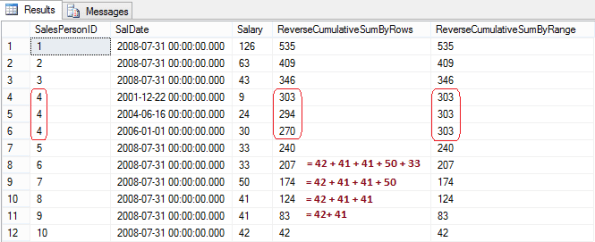
OUTPUT:
SQL2012_OVER_Enhanced_Clause_2_2

In the Output above we can see that the Running totals are now in reverse order, compared to the 1st example.
Also, the ROWS & RANGE difference can be seen for the SalesPersonID=4 similar to the 1st example.


#3. Using ROWS/RANGE PRECEDING & FOLLOWING with OVER() clause, without UNBOUNDED:
Now, if you want to calculate the SUM only of those values that are just adjacent to a current row. Here we will use combination of row numbers with CURRENT/PRECEDING & FOLLOWING keywords.
Let’s us check this by following example:

-- To Calculate Moving SUM, by taking 3 moving rows:
;WITH CTE AS (
	SELECT BusinessEntityID AS SalesPersonID, CAST([Rate] AS DECIMAL(10,0))AS Salary, [ModifiedDate] AS SalDate
	FROM [HumanResources].[EmployeePayHistory]
	WHERE BusinessEntityID <= 10
	)
SELECT SalesPersonID, SalDate, Salary
   ,SUM(Salary) OVER (ORDER BY SalesPersonID ROWS BETWEEN 1 PRECEDING AND 1 FOLLOWING) AS MovingSumByRowsPrevCurrentNext
   ,SUM(Salary) OVER (ORDER BY SalesPersonID ROWS BETWEEN CURRENT ROW AND 2 FOLLOWING) AS MovingSumByRowsCurrentNext2
FROM CTE
ORDER BY SalesPersonID, SalDate

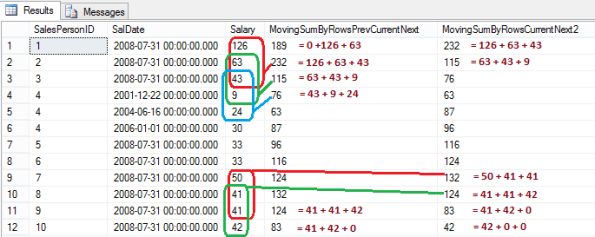
OUTPUT:
SQL2012_OVER_Enhanced_Clause_2_3

In the output above for:
– Column MovingSumByRowsPrevCurrentNext: it calculates the SUM of just one Previous, Current & one Next row.
– Column MovingSumByRowsCurrentNext2: it calculates the SUM of Current and next two rows.


So, by above 3 examples we saw how to use new ROWS & RANGE clauses with a mix of UNBOUNDED PRECEDING, UNBOUNDED FOLLOWING, CURRENT ROW, etc. Similarly there could be many different cases and scenarios where we can use there clauses and options.

I will try to post more on these features as I see anything new and exciting around this.

For more info on OVER() Clause check MS BOL: http://msdn.microsoft.com/en-us/library/ms189461.aspx

Using FullText search with FileTables in SQL Server 2012

December 21, 2012 5 comments

In my previous post sometime back I talked about FILETABLES, [link]. This is a new feature introduced in SQL Server 2012, which is built on top of FILESTREAM.

I also talked about how we can use them to store files and retrieve the information from them.

Here, in this post we will see how we can search in the files stored in FileTables using an existing feature i.e. “FullText Search”.

So, let’s check this by an example. I’ll be using the same code from my previous post to create a new Database and Filetables.

–> You will need to create a directory to allocate a location in any of your drive, lets’s create it in D: Drive, D:\SQL_Server2012\FileTables
Now execute the code below, which will create a new DataBase and a FileTable to store documents:

USE [master]
GO

-- Create a new Database with Filestream enabled:
CREATE DATABASE [newFileStreamDB]
 CONTAINMENT = NONE
 ON  PRIMARY ( 
	NAME = N'newFileStreamDB', 
	FILENAME = N'D:\SQL_Server2012\DATA\newFileStreamDB.mdf' , 
	SIZE = 5120KB , 
	MAXSIZE = UNLIMITED, 
	FILEGROWTH = 1024KB 
	),
 FILEGROUP newFileStreamGroup CONTAINS FILESTREAM DEFAULT (
	NAME = newFileStreamGroupFiles,
	FILENAME= 'D:\SQL_Server2012\FileTables\Files', 
	MAXSIZE = UNLIMITED 
	)
 LOG ON ( 
	NAME = N'newFileStreamDB_log', 
	FILENAME = N'D:\SQL_Server2012\DATA\newFileStreamDB_log.ldf' , 
	SIZE = 1024KB , 
	MAXSIZE = 2048GB , 
	FILEGROWTH = 10% 
	)
 WITH FILESTREAM (
	NON_TRANSACTED_ACCESS = FULL,
	DIRECTORY_NAME = N'FileTables' 
	)
GO

-- Use the new Database:
USE [newFileStreamDB]
GO

-- Creating a new FileTable
CREATE TABLE [dbo].[firstFileTable] 
	AS FILETABLE ON [PRIMARY] 
	FILESTREAM_ON [newFileStreamGroup]
WITH (
	FILETABLE_DIRECTORY = N'myfirstFileTable', 
	FILETABLE_COLLATE_FILENAME = Latin1_General_CI_AI
)
GO

To check the FileTables link with Drive:
– Goto database in Object Explorer, Right click on the FileTable and click on “Explore FileTable Directory” option. This will open up a shared folder which is on the Virtual Network Name of you computer.
– Copy-Paste some documents/files in the folder above where FileTable is configured.

Check details of files maintained in the FileTable:

SELECT * FROM [firstFileTable]

–> Now we will see how we can search inside those files stored in Folder and in the FileTables:
We will be using the FullText feature of SQL Server to configure it.

-- Creating FullText Catalog:
CREATE FULLTEXT CATALOG CATG_firstFileTable AS DEFAULT;

-- Creating FullText Index on the table and column:
CREATE FULLTEXT INDEX ON dbo.firstFileTable
    (name LANGUAGE 2057,
    file_stream TYPE COLUMN file_type LANGUAGE 2057)
    KEY INDEX PK__firstFil__5A5B77D5C6F38A8E				-- REPLACE this with new PK created
    ON CATG_firstFileTable
    WITH
        CHANGE_TRACKING AUTO,
        STOPLIST = SYSTEM;

Now let’s search inside those files by using FullText Search Functions:

-- Using FREETEXT() function:
SELECT *
FROM dbo.firstFileTable
WHERE
FREETEXT (file_stream, '<Search_String>') -- Put the search string here, which is in your document/file.

-- Using CONTAINS() function:
SELECT *
FROM dbo.firstFileTable
WHERE
CONTAINS (file_stream, '<Search_String>') -- Put the search string here, which is in your document/file.
-- Final Cleanup
USE [master]
GO

DROP DATABASE [newFileStreamDB]
GO

NOTE: You also might need to check what all Document-Filters are currently supported in your SQL Server.
If not, then you can also download some filters from following [link].

-- Check existing Document-Filters:
select * from sys.fulltext_document_types

-- Load Services after installing missing Document-Filters
EXEC sp_fulltext_service @action='load_os_resources', @value=1;
EXEC sp_fulltext_service 'restart_all_fdhosts';

For more on FullText Search check following MSDN link: http://msdn.microsoft.com/en-us/library/ms142571.aspx


