Archive
SQL Error – The operation cannot be performed on a database with database snapshots or active DBCC replicas
Today while restoring a Database and Dropping it I came across following errors:
Error #1. The first error was while I was trying to RESTORE an existing database from a backup file:
Msg 5094, Level 16, State 2, Line 1
The operation cannot be performed on a database with database snapshots or active DBCC replicas.
Msg 3013, Level 16, State 1, Line 1
RESTORE DATABASE is terminating abnormally.
Error #2. The second error came while I tried to DROP that existing database, to ignore the previous error:
Cannot drop the database while the database snapshot “dbStaging_ss_20160607” refers to it.
Drop that database first. (Microsoft SQL Server, Error: 3709)
By both the above errors its obvious that a Database Snapshot is associated with the Database that I’m going to Restore or Drop. So first try to identify and DROP that Snapshot. You can do this by checking in SSMS under Object Explorer –> Databases –> Database Snapshot, or running the following query:
USE [master]
GO

SELECT *
FROM sys.databases
WHERE source_database_id IS NOT NULL
GO
The above query will list all the Snapshots created for existing Databases. Just check the Snapshot that is associated with the Database you were trying to Restore.
Before dropping the respective Snapshot, script out the DDL to create the Database Snapshot back, by Right Clicking on the Database Snapshot –> Script database as –> CREATE To –> Clipboard. The script will look like below DDL Script:
USE [master]
GO

CREATE DATABASE [dbStaging_ss_20160607]
ON (
	NAME = N'dbStagingDB',
	FILENAME = N'E:\dbStaging\dbStaging_Primary.mdf'
)
AS SNAPSHOT OF [dbStagingDB]
GO
After you are done by scripting the Database Snapshot DDL, just DROP the Database Snapshot, just like you drop any other Database:
USE [master]
GO

DROP DATABASE [dbStaging_ss_20160607]
GO
After you are done with this, try Restoring back the Database that you were trying initially.
T-SQL Query solution to SSGAS2015 2nd Question/Challenge – SQL Server Geeks
The 2nd Challenge in SQL Server Geeks Facebook Page goes like this:
For the #SSGAS2015 attendees are leaving comments with their email ids. These comments gets saved into a table COMMENTS. You as an SQL Developer, need to extract all the email ids from the COMMENTS table.
–> Sample records in the table:
ID	Comment
1	Can I pay using PayUMoney. Please revert on ahmad.osama1984@gmail.com.
        Also send details to manusqlgeek@gmail.com
2	I would like to get updates on SQLServerGeeks summit. Please send details
        to myemailid@yahoo.com
–> Expected Answer:
ID	Emails
1	ahmad.osama1984@gmail.com, manusqlgeek@gmail.com
2	myemailid@yahoo.com
–> Initially this looked very tricky and tough question, but when you think by dividing the problem it looked very simple and here it goes:
1. First split the sentence into columns containing individual words by the whitespace separator.
2. Then Transpose all the columns as rows.
3. Then filter out the rows that contains email ID values.
4. Now for every ID column Transpost back the filtered rows into a single comma separated column value.
–> Here is the full solution:
-- Create the Table (DDL):
CREATE TABLE COMMENTS (
	ID INT,
	Comment VARCHAR(1000)
)

-- Insert the 2 test rows:
INSERT INTO COMMENTS
SELECT 1, 'Can I pay using PayUMoney. Please revert on ahmad.osama1984@gmail.com. Also send details to manusqlgeek@gmail.com'
UNION ALL
SELECT 2, 'I would like to get updates on SQLServerGeeks summit. Please send details to myemailid@yahoo.com'

-- Check the rows:
select * from COMMENTS

-- Final solution as a single T-SQL Query:
;with CTE AS (
	SELECT A.ID, Split.a.value('.', 'VARCHAR(100)') AS Email
	FROM (SELECT ID, CAST ('<M>' + REPLACE(REPLACE(Comment,'. ', ' '), ' ', '</M><M>') + '</M>' AS XML) AS String
		FROM  COMMENTS) AS A
	CROSS APPLY String.nodes ('/M') AS Split(a)
)
, CTE2 AS (
	SELECT ID, Email
	FROM CTE
	WHERE Email like '%@%'
)
SELECT DISTINCT ID, (SELECT STUFF((SELECT ', ' + Email
 FROM CTE2
 WHERE ID  = t.ID
 FOR XML PATH('')),1,1,'')) AS Emails
FROM CTE2 t

-- Drop the table finally:
DROP TABLE COMMENTS
GO
Waiting for the coming challenges. Thanks!
See Execution Plans running with Live Query Statistics – SQL Server 2016
In SQL Server 2016 Live Query Statistics is going to be the most used feature among Developers & DBAs to check the live Execution Plan of an active Query running in parallel.
The Live Query/Execution Plan will provide Real-time insights into the Query Execution process as the Control flows from one Operator to the another. It will display the overall Query Progress and Operator-level Run-time Execution Stats such as:
1. Number of Rows processed
2. Completion Estimate
3. Operator progress – Elapsed time & Percentage done for each Operator
4. Elapsed time & Percentage done for overall Query progress
–> The feature can be enable from the Toolbar, just besides the “Actual Execution Plan” icon:

–> The Live Execution plan running can be seen in below animated image:
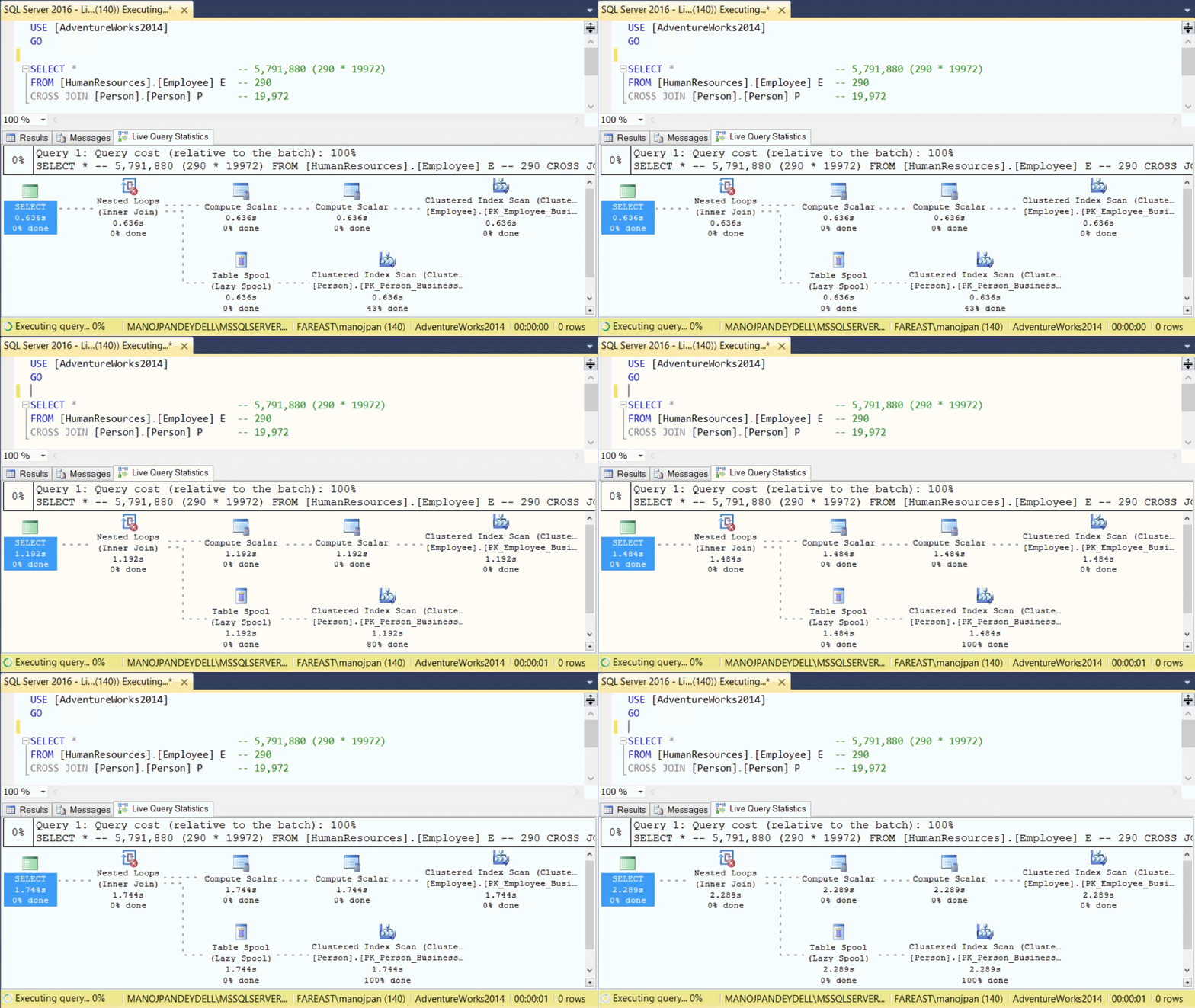
The dotted moving lines above shows the Operators currently in execution. As soon as the Operator finishes execution these dotted lines will change to solid lines.
Thus, by using this feature the user will not have to wait for a Query to complete its execution and then see the Execution plan stats. As soon as the user will run the Query, the Live Execution Plan will also start showing all the Operators and their progress. This will help users in checking the long running queries where actually they are taking time, and help debugging Query performance issues.
You can also check the full demo here in this video:
Enable Query Store on a Database – SQL Server 2016
… continuing from my [previous post] on Query Store.
Here we will see how can we enable it on a Database:
–> Right click on the Database you want to enable Query Store and select Properties. Now select the new feature Query Store at the bottom left side as shown below:

Set the Enable option to True, and click OK.
–> Alternative: You can also enable the Query Store by this simple ALTER DATABASE Statement:
USE [TestManDB]
GO

ALTER DATABASE [TestManDB] SET QUERY_STORE = ON
GO
–> After enabling the Query Store you can check the Database, expand it in Object Explorer, you will see a new folder with the same name “Query Store”, on expanding it you will see 4 reports, as shown in below snapshot:

–> You can check more about Query Store on MSDN BoL [here] with more coverage on what information/stats it captures and how you can Query them.
Export/Convert Table or SQL Query data to JSON string format | SQL Server 2016 – Part 1
In my [previous post] we saw JOSN added as a new feature in SQL Server 2016.
–> Just like XML now you can also:
1. Store JSON data in SQL Server in table columns as NVARCHAR datatype.
2. Export SQL tables rows to JSON data.
3. Query external JSON data and store back in SQL tables.
–> Note:
– With this CTP2 release you can only export data as JSON string.
– But with the release of CTP3 you will also be able to read JSON data by T-SQL query and convert it into tabular (row/column) format, and will support indexes.
–> Just like XML for exporting JSON data you can use FOR JSON [AUTO | PATH] syntax:
1. FOR JSON AUTO: option automatically creates a nested JSON data with sub arrays based on the table hierarchy used in the Query. The AUTO option must have a FROM clause.
2. FOR JSON PATH: option enables you to define the structure of output of JSON data using the column names with aliases by using a dot separator.
–> Let’s see how export to JSON works:
– I’ll create a sample table and insert few rows in it:
CREATE TABLE Students (
	ID INT IDENTITY(1,1) NOT NULL,
	FirstName VARCHAR(255),
	LastName VARCHAR(255),
	Class INT,
	Marks DECIMAL(3,1)
)

INSERT INTO Students (FirstName, LastName, Class, Marks)
SELECT 'Manoj',   'Pandey', 10, 80.5
UNION ALL
SELECT 'Saurabh', 'Sharma', 11, 82.7
UNION ALL
SELECT 'Kanchan', 'Pandey', 10, 90.5
1. Let’s check the “FOR JSON AUTO” option:
SELECT ID, FirstName, LastName, Class, Marks
FROM Students
FOR JSON AUTO -- here
– Output with AUTO option:

– Output with AUTO and ROOT() option:
SELECT ID, FirstName, LastName, Class, Marks
FROM Students
FOR JSON AUTO, ROOT('StudList') -- here
– This is how a formatted JSON looks like:
{
  "StudList": [
    {
      "ID": 1,
      "FirstName": "Manoj",
      "LastName": "Pandey",
      "Class": 10,
      "Marks": 80.5
    },
    {
      "ID": 2,
      "FirstName": "Gaurav",
      "LastName": "Pandey",
      "Class": 11,
      "Marks": 82.7
    },
    {
      "ID": 3,
      "FirstName": "Garvit",
      "LastName": "Pandey",
      "Class": 10,
      "Marks": 90.5
    }
  ]
}
This option as mentioned previously formats the JSON document automatically based upon the columns provided in the Query.
2. Now let’s check the “FOR JSON PATH” option: with this option you can use the dot syntax as used in below Query to form a nested output.
SELECT
	ID,
	FirstName AS "StudentName.FirstName",
	LastName AS "StudentName.LastName",
	Marks
FROM Students
FOR JSON PATH -- here
– Output with PATH option:
[
   {
      "ID":1,
      "StudentName":{
         "FirstName":"Manoj",
         "LastName":"Pandey"
      },
      "Marks":80.5
   },
   {
      "ID":2,
      "StudentName":{
         "FirstName":"Saurabh",
         "LastName":"Sharma"
      },
      "Marks":82.7
   },
   {
      "ID":3,
      "StudentName":{
         "FirstName":"Kanchan",
         "LastName":"Pandey"
      },
      "Marks":90.5
   }
]
As you can see with PATH option you can create wrapper objects (here “StudentName”) and nest properties (here “FirstName” & “LastName”).
–> You can also check this demo in this video:
With the current release of CTP2 here you saw how we can export a SQL Table rows to JSON data. As soon as CTP3 will release we will see how can we read data back from from JSON string and convert it to tabular (row/column) format.
–> Check my [next post] on how to Import/Read JSON string and convert it in rational-tabular format in form of rows/columns.
Check more about JSON support on [MSDN BoL].



Current Visitors

StatCounter …since April 2012


 Leisure blog: Creek & Trails
- NMDC Hyderabad Marathon – My first 42k FM, cramps, training and fuelling
- Singapore (Part 2) – 6 days itinerary, sightseeing & attractions
- Singapore (Part 1) – Tickets, Visa, Hotel, Forex Card/Cash, Metro/Bus cards
- I got full refund of my flight tickets during COVID lockdown (AirIndia via MakeMyTrip)
- YouTube – Your Google Ads account was cancelled due to no spend
- YouTube latest update on its YPP (YouTube Partner Program) which may affect your channel
- Starting your own blog !!!
- How to file ITR (Income Tax Return) online AY 2017-18 (for simple salaried)
- Scam – Become a kin/hier and earn a fortune – via LinkedIn and Email
- Places to visit in and around Vizag (aka Visakhapatnam)
 SQL with Manoj