Archive
SQL basics – Temporary Tables vs Table Variables
I see lot of people debating on usage of Temporary Tables & Table Variables. And everyone cites their own definition and examples, and most of them conflicts with each other. So I thought to put the differences & points that are valid and tested:
–> Temporary Tables:
1. Syntax: CREATE TABLE #T (..)
2. A Temporary Table or Temp-Table is created on disk in the tempDB system database. The name of this Temp-Table is suffixed with a session-specific ID so that it can be differentiated with other similar named tables created in other sessions. The name is limited to 116 chars.
3. The Scope of this Temp-Table is limited to its session, like a Stored Procedure, or a set of nested Stored Procedures.
4. The Temp-Table gets Dropped automatically when the session ends or the Stored Procedure execution ends or goes out of scope.
5. One of the main benefits of using a #temp table, as opposed to a permanent table, is the reduction in the amount of locking required (since the current user is the only user accessing the table), and also there is much less logging involved.
6. Global Temporary Tables (##) operate much like Local Temporary Tables; they are also created in tempdb and cause less locking and logging than permanent tables. However, they are visible to all the sessions, until the creating session goes out of scope.
7. One can create desired Indexes on Temporary Tables (like permanent tables) and these make use of Statistics, thus resulting in better query plan compared to Table variables.
–> Table Variables:
1. Syntax: DECLARE @T TABLE (…)
2. A Table Variable is also created on disk in the tempDB system database. But the name of this Table Variable is generated completely by the SQL engine and it also differs with other similar named tables created in same or other sessions.
3. The Scope of Table Variables is limited to its BATCH only like other variables. Contrary to the temporary tables, they are not visible in nested stored procedures and in EXEC(@SQLstring) statements.
4. The Table Variable gets Dropped automatically when the BATCH ends (after the GO batch separator) or the Stored Procedure or Function execution ends or goes out of scope.
5. A Table Variable is created in memory, this is a myth. They are also treated as Temp-Tables and created in tempdb, but they performs slightly better than Temp-Tables because there is even less locking and logging in a Table Variable.
6. Table variables are the only way you can use DML statements (INSERT, UPDATE, DELETE) on temporary data within a UDF (User Defined Function). You can create a Table Variable within a UDF, and modify the data using one of the DML statements, this is not possible with Temp-Tables.
7. A Table Variable will always have a cardinality of 1, thus statistics are not tracked for them and may result in bad query plan.
–> Limitations with Table variables:
8. Table Variables do not participate in TRANSACTIONS and locking.
9. You cannot use a Table Variable in either of the following situations:
a. INSERT @table EXEC spSomeProcedure (Starting in SQL Server 2005, this limitation was removed and table variables can now be used as the destination for INSERT EXEC commands.)
b. SELECT * INTO @table FROM someTable
10. You cannot Truncate a Table Variable.
11. Table Variables cannot be Altered after they have been declared.
12. You cannot explicitly add an index to a Table Variable, however you can create an inline index through a PRIMARY KEY CONSTRAINT, and multiple indexes via UNIQUE CONSTRAINTs.
13. You cannot create a named Constraint on Table Variables. You cannot use a user-defined function (UDF) in a CHECK CONSTRAINT, computed column or DEFAULT CONSTRAINT.
14. You cannot use a user-defined type (UDT) in a column definition.
15. Unlike a #temp table, you cannot DROP a Table Variable when it is no longer necessary, you just need to let it go out of scope.
16. You can’t build the Table Variable inside Dynamic SQL. This is because the rest of the script knows nothing about the temporary objects created within the dynamic SQL. Like other local variables, table variables declared inside of a dynamic SQL block (EXEC or sp_executeSQL) cannot be referenced from outside, and vice-versa. So you would have to write the whole set of statements to create and operate on the table variable, and perform it with a single call to EXEC or sp_executeSQL.
17. Table variables are not visible to the calling procedure in the case of nested Stored Procs. It is possible with temp tables.
18. You cannot insert explicit values into an IDENTITY column of a Table variable (the Table Variables does not support the SET IDENTITY_INSERT ON).
–> Now the question is when to use either of them?
– Temporary Tables: When you are dealing with large volume of data sets use Temp-Tables, as you can create Indexes on them and they use Statistics for accurate cardinality estimations, thus providing a better query plan.
– Table Variables: When you are dealing with smaller data sets, use Table Variables, as they would not acquire locks and are Transaction free, and may not be affected by the absence of Indexes and Stats.
–> Check the full demo here:
SQL Basics – Working with Foreign Key (FK) constraints
A foreign key (FK) is a column or combination of columns that is used to establish and enforce a link between the data in two tables, as per MSDN BoL.
–> Foreign Key (FK) Constraint
1. We can create a FK by defining a FOREIGN KEY constraint while Creating or modifying (Altering) a table.
2. We can define a FK in a table that points to a PK or UK in another table.
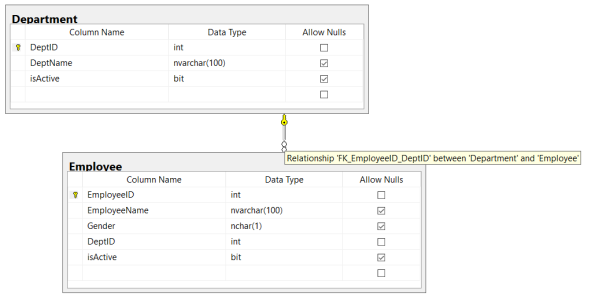
– Like Employee & Department, shown in video-demo below.
3. A FK constraint can reference columns within the same table, these are called self-referencing tables. For example: Employee & Manager Relationship.
–> Referential Integrity:
1. The FK constraint enforces Referential Integrity by not allowing values in the Child table outside form the domain of the Parent table.
2. This also disallows any changes to the Parent table, like deleting any row or modifying PK value in the Parent table.
–> Check the video on Foreign Key:
–> Department and Employee table FK relationship:
–> SQL Code used in above video:
-- 1. Parent table:

CREATE TABLE [dbo].[Department](
	 [DeptID]	int IDENTITY (101, 1) PRIMARY KEY
	,[DeptName]	nvarchar(100)
	,[isActive]	bit DEFAULT(1)
)
GO

INSERT INTO [dbo].[Department] ([DeptName])
SELECT 'HR'
UNION ALL
SELECT 'Finance'
UNION ALL
SELECT 'Admin'
UNION ALL
SELECT 'IT'

select * from [dbo].[Department]
GO


-- 2. Child Table:

-- Method #1.a : with Column inline
CREATE TABLE [dbo].[Employee](
	 [EmployeeID]	int IDENTITY (100, 1) PRIMARY KEY
	,[EmployeeName]	nvarchar(100)
	,[Gender]		nchar(1)
	,[DeptID]		int NOT NULL FOREIGN KEY REFERENCES Department(DeptID)
	,[isActive]		bit DEFAULT(1)
)
GO

-- Method #1.b : with Column inline & Named FK
DROP TABLE [dbo].[Employee]
GO
CREATE TABLE [dbo].[Employee](
	 [EmployeeID]	int IDENTITY (100, 1) PRIMARY KEY
	,[EmployeeName]	nvarchar(100)
	,[Gender]		nchar(1)
	,[DeptID]		int NOT NULL CONSTRAINT FK_EmployeeID_DeptID FOREIGN KEY REFERENCES Department(DeptID)
	,[isActive]		bit DEFAULT(1)
)
GO

-- Method #2.a : with Explicit
DROP TABLE [dbo].[Employee]
GO
CREATE TABLE [dbo].[Employee](
	 [EmployeeID]	int IDENTITY (100, 1) PRIMARY KEY
	,[EmployeeName]	nvarchar(100)
	,[Gender]		nchar(1)
	,[DeptID]		int NOT NULL
	,[isActive]		bit DEFAULT(1)
		FOREIGN KEY ([DeptID]) REFERENCES Department(DeptID)
)
GO

-- Method #2.b : with Explicit & Named FK
DROP TABLE [dbo].[Employee]
GO
CREATE TABLE [dbo].[Employee](
	 [EmployeeID]	int IDENTITY (100, 1) PRIMARY KEY
	,[EmployeeName]	nvarchar(100)
	,[Gender]		nchar(1)
	,[DeptID]		int NOT NULL
	,[isActive]		bit DEFAULT(1)
		CONSTRAINT FK_EmployeeID_DeptID FOREIGN KEY ([DeptID]) REFERENCES Department(DeptID)
)
GO

-- Method #3 : with ALTER Table Named FK
DROP TABLE [dbo].[Employee]
GO
CREATE TABLE [dbo].[Employee](
	 [EmployeeID]	int IDENTITY (100, 1) PRIMARY KEY
	,[EmployeeName]	nvarchar(100)
	,[Gender]		nchar(1)
	,[DeptID]		int NOT NULL
	,[isActive]		bit DEFAULT(1)
)
GO

-- SSMS or ALTER Table stmt:

-- Generated by SSMS - Table Designer:
ALTER TABLE dbo.Employee ADD CONSTRAINT
	FK_Employee_Department FOREIGN KEY
	(
	DeptID
	) REFERENCES dbo.Department
	(
	DeptID
	)

-- OR --

ALTER TABLE [dbo].[Employee]
ADD CONSTRAINT FK_EmployeeID_DeptID FOREIGN KEY ([DeptID]) REFERENCES Department(DeptID)
GO


INSERT INTO Employee ([EmployeeName], [Gender], [DeptID])
VALUES ('Manoj Pandey', 'M', 101)

INSERT INTO Employee ([EmployeeName], [Gender], [DeptID])
VALUES ('Deepak B', 'M', 102)

INSERT INTO Employee ([EmployeeName], [Gender], [DeptID])
VALUES ('Jhon B', 'M', 103)

INSERT INTO Employee ([EmployeeName], [Gender], [DeptID])
VALUES ('Mariya Y', 'F', 104)

select * from [dbo].[Employee]
GO


-- REFERENTIAL INTEGRITY:

INSERT INTO Employee ([EmployeeName], [Gender], [DeptID])
VALUES ('Mary J', 'F', 105)
--Msg 547, Level 16, State 0, Line 115
--The INSERT statement conflicted with the FOREIGN KEY constraint "FK_EmployeeID_DeptID". The conflict occurred in database "TestManDB", table "dbo.Department", column 'DeptID'.
--The statement has been terminated.

DELETE FROM [dbo].[Department]
WHERE DeptID = 102
--Msg 547, Level 16, State 0, Line 118
--The DELETE statement conflicted with the REFERENCE constraint "FK_EmployeeID_DeptID". The conflict occurred in database "TestManDB", table "dbo.Employee", column 'DeptID'.
--The statement has been terminated.

DROP TABLE [dbo].[Department]
--Msg 3726, Level 16, State 1, Line 121
--Could not drop object 'dbo.Department' because it is referenced by a FOREIGN KEY constraint.

GO


-- Allowed updates:

select * from [dbo].[Department]

UPDATE [dbo].[Department]
SET DeptName = 'Human Resource'
WHERE DeptID = 101

select * from [dbo].[Department]

GO


-- Final Cleanup:

DROP TABLE [dbo].[Employee]
GO
DROP TABLE [dbo].[Department]
GO
Check Primary Key & Unique Key constraints
To know about more on Constraints and their types check this blog post.
DB Basics – Difference between Primary Key & Unique Key
Primary Key & Unique Key are nothing but Constraints that can be set at column level of a table, to maintain Uniqueness in the table and thus not allowing duplicate entries.
–> Primary Key (PK) Constraint:
1. A PRIMARY KEY uniquely identifies every row in a database table.
2. The PK constraint on a Table’s COLUMN enforces:
– – UNIQUE values and
– – NOT NULL values
3. Every table can have only one PK defined on a particular column (or more than 1 columns).
4. You can create PK on a Table with:
– – CREATE TABLE statement (in two ways)
– – or later with ALTER TABLE … ADD CONSTRAINT statement.
5. You can create a PK with an IDENTITY column.
6. PK can be Composite Key, containing more than one column.
PRIMARY Key and INDEXes:
7. In SQL Server on creating a Primary Key on a table, a Clustered Index is created with PK column as the Clustering Key.
8. You can also create a Primary Key with a Non-Clustered Index, check this blog post.
Check the video on Primary Keys:
–> Unique Key (PK) Constraint:
1. A UNIQUE KEY just like PK uniquely identifies every row in a database table.
2. The UK constraint on a Table’s COLUMN enforces:
– – UNIQUE values (no duplicate values)
– – Allow single NULL value (But PK do not allow NULL values)
3. A table can have one or more than one UK defined on many columns (or more than 1 columns). But only 1 PK.
4. You can create UK on a Table with:
– – CREATE TABLE statement (in two ways)
– – or later with ALTER TABLE … ADD CONSTRAINT statement.
6. UK can be Composite Key, containing more than one column.
7. A UNIQUE constraint can be referenced by a FOREIGN KEY constraint.
Unique Key and INDEXes:
8. In SQL Server on creating a Unique Key on a table, a Non-Clustered Index is created with the column(s) as the Index Key.
Check the video on Unique Keys:
To know about more on Constraints and their types check this blog post.
SQL Basics – Persisted and Non-Persisted Computed columns in SQL Server
In SQL Server you have an option to create Calculated Columns in a table other than normal columns. By saying Normal columns I meant that their values are stored physically with the table. But with Calculated Columns their values are not stored physically, instead they are re-calculated every time whenever they are referenced.
A Computed Column is nothing but an expression, which can be a:
1. Non Computed column
2. Constant
3. Function
4. or any combination of above of these by using operators.
These type of Computed Columns are Non-Persisted in nature.
Persisted Computed Columns: You can also make Computed columns values stored physically by using the PERSISTED keyword. This will calculate the column values initially while inserting a row, or later if there is any change made to the column that is part of its expression.
Finally a Computed Column:
– is computed from an expression that can use other columns in the same table.
– can be a noncomputed column name, constant, function with one or more operators.
– cannot be a subquery.
– cannot be used as a DEFAULT or FOREIGN KEY constraint definition or with a NOT NULL constraint definition.
– used as CHECK, FOREIGN KEY, or NOT NULL constraints must be marked PERSISTED.
– can be used in SELECT list, WHERE clause, ORDER BY clause, etc.
– cannot be the target of an INSERT or UPDATE statement.
Check video on how to create Calculated Columns in a Table:

–> SQL Script used in the above demo:
CREATE TABLE [dbo].[Employee] (
	[EmployeeID]	int,
	[EmployeeName]	nvarchar(100),
	[Gender]		nchar(1),
	[DOB]			datetime,
	[DOJ]			datetime,
	[DeptID]		int
)
GO

INSERT INTO [dbo].[Employee] (EmployeeName, Gender, DOB, DOJ, DeptID)
VALUES ('MANOJ PANDEY', 'M', '1990-01-01', '2010-01-01', 101)

INSERT INTO [dbo].[Employee] (EmployeeName, Gender, DOB, DOJ, DeptID)
VALUES ('JHON K', 'M', '1970-03-03', NULL, NULL)

INSERT INTO [dbo].[Employee] (EmployeeName, DOB)
VALUES ('Brock H', '1980-02-02')
GO

SELECT * FROM [dbo].[Employee]
GO

ALTER TABLE [dbo].[Employee]
ADD AGE AS (DATEDIFF(YY, DOB, GETDATE()))
GO

ALTER TABLE [dbo].[Employee]
ADD XYZ AS 'nothing'
GO

SELECT * FROM [dbo].[Employee]
GO


CREATE TABLE dbo.Products (
    ProductID	int IDENTITY (1,1),
	Qty			smallint,
	Price		money,
	TotalValue AS (Qty * Price)
)

INSERT INTO dbo.Products (Qty, Price)
VALUES (5, 200)

INSERT INTO dbo.Products (Qty, Price)
VALUES (3, 150)

select * from dbo.Products
GO


ALTER TABLE dbo.Products
DROP COLUMN TotalValue

ALTER TABLE dbo.Products
ADD TotalValue AS (Qty * Price) PERSISTED
GO

-- Final Cleanup
DROP TABLE [dbo].[Employee]
DROP TABLE dbo.Products
GO
SQL Basics – Rename or Change DataType of a Column in SQL Server
In my [previous post] we saw how to create a new Database and a new Table. We also saw how to [ADD/DROP] columns in a table.
Today we will see how to Rename a Column and Change its datatype.
–> To Rename an existing column in a table you can use the system Stored Procedure sp_rename, and the syntax is:
EXECUTE sp_rename 'schema.Table.ColumnName', 'NewColumnName', 'COLUMN'
–> And to change column datatype use simple ALTER TABLE statement, like:
ALTER TABLE table_name

ALTER COLUMN ColumnName new_Datatype
Check video on how to Rename and Change column datatype in a Table:
–> SQL Script used in the above demo:
USE [Demo]
GO

-- Create a sample table:
CREATE TABLE [dbo].[Employee](
	[EmployeeID]	int				NOT NULL,
	[EmployeeName]	nvarchar(100)	NOT NULL,
	[Gender]		nchar(1)		NULL,
	[DOB]			datetime		NULL,
	[DOJ]			datetime		NULL,
	[DeptID]		int				NULL
)

INSERT INTO [dbo].[Employee]
VALUES (1, 'MANOJ PANDEY', 'M', '1990-01-01', '2010-01-01', 101)

INSERT INTO [dbo].[Employee]
VALUES (2, 'JHON K', 'M', NULL, '2010-01-01', NULL)

INSERT INTO [dbo].[Employee] ([EmployeeID], [EmployeeName])
VALUES (3, 'Brock H')
GO

SELECT * FROM [dbo].[Employee]
GO

-- Rename a column:
EXECUTE sp_rename N'dbo.Employee.MgrID', N'ManagerID', 'COLUMN'
GO

-- Change datatype of column:
ALTER TABLE [dbo].[Employee]
ALTER column ManagerID BIGINT
GO



Current Visitors

StatCounter …since April 2012


 Leisure blog: Creek & Trails
- NMDC Hyderabad Marathon – My first 42k FM, cramps, training and fuelling
- Singapore (Part 2) – 6 days itinerary, sightseeing & attractions
- Singapore (Part 1) – Tickets, Visa, Hotel, Forex Card/Cash, Metro/Bus cards
- I got full refund of my flight tickets during COVID lockdown (AirIndia via MakeMyTrip)
- YouTube – Your Google Ads account was cancelled due to no spend
- YouTube latest update on its YPP (YouTube Partner Program) which may affect your channel
- Starting your own blog !!!
- How to file ITR (Income Tax Return) online AY 2017-18 (for simple salaried)
- Scam – Become a kin/hier and earn a fortune – via LinkedIn and Email
- Places to visit in and around Vizag (aka Visakhapatnam)
 SQL with Manoj