SQL Server 2019 released, awesome new features – download now !!!
Today on 4th November 2019 Microsoft in MSIgnite2019 event announced the release of new version of SQL Server i.e. SQL Server 2019.
New stuff in SQL Server 2019 is all about Big Data Clusters for SQL Server, which will allow you to:
– Deploy scalable clusters of SQL Server, Spark, HDFS on Kubernetes
– Read, write, and process big data from Transact-SQL or Spark
– With Polybase query data from external SQL Server, Oracle, Teradata, MongoDB, and ODBC data sources with external tables
– and many more, we will check below…
–> Download SQL Server (evaluation version):
To download SQL Server 2019 you can Register and Download the Full or Evaluation version (180 days) here.
Or you can directly download the installer SQL2019-SSEI-Eval.exe
–> Free Developer Version:
Back in March 2016 Microsoft announced that going forward the Developer version of SQL Server any release will be free for Developers and Learning purpose. Register and Download the Developer version.
This Developer version is meant for development and testing only, and not for production environments or for use with production data. For more info please check my previous blog post.
–> Download SSMS (separate install):
Microsoft starting with SQL Server 2016 decoupled SSMS from SQL Server setup and is available as a separate installer. This is basically to support the move to make a universal version of SSMS for both SQL Server on-Prem & Azure SQL Database, that will ship every month or so. The SSMS setup is available separately as free download.
–> Download SSRS (Reporting Services):
Just like SSMS, now SSRS is also separately available for install from Microsoft Download Center, link.
–> Check new features in SQL Server 2019:
1. Big data clusters with scalable compute and storage composed of SQL Server, Spark, and HDFS. It provides key elements of a data lake – Hadoop Distributed File System (HDFS), Spark, and analytics tools deeply integrated with SQL Server. [more info]
2. A complete Data Science & AI platform to train and operationalize models in SQL Server ML Services or Spark ML using Azure Data Studio notebooks.
3. Data virtualization allows queries across relational and non-relational data without movement or replication. PolyBase enabled you to run a T-SQL query inside SQL Server to pull data from Hadoop and return it in a structured format—all without moving or copying the data.
4. Intelligent Query Processing improves scaling of queries and Automatic Plan Correction resolves performance problems. [more info]
– Table variable deferred compilation
– Batch mode on row store
– T-SQL Scalar UDF inlining
– Approximate QP (Approximate COUNT DISTINCT)
– Memory grant feedback, row mode
5. In-memory improvements for analytics on operational data using HTAP. Higher concurrency and scale through persistent memory (PMEM). [more info]
– Hybrid buffer pool
– Memory-optimized TempDB
– In-Memory OLTP support for Database Snapshots
6. Greater uptime with more online indexing operations. [more info]
7. Data Discovery & Classification labeling for GDPR and Vulnerability Assessment tool to track compliance.
8. Support for your choice of Windows, Linux, and containers. SQL Server on Linux for Docker Engine [link].
9. High Availability with, five synchronous replica pairs, Secondary to primary replica connection redirection, Run Always On availability groups on containers using Kubernetes. [more info]
10. Accelerated Database Recovery [more info]
11. SQL Graph enhancements, support of MATCH predicates in a MERGE statement, SHORTEST_PATH inside MATCH, and support for derived tables or view aliases in graph match query.
Check all the above and many more new features of SQL Server 2019 in MSDN Blogs.
Spark/Scala: Convert or flatten a JSON having Nested data with Struct/Array to columns (Question)
The following JSON contains some attributes at root level, like ProductNum and unitCount.
It also contains a Nested attribute with name “Properties”, which contains an array of Key-Value pairs.
Now, what I want is to expand this JSON, and have all the attributes in form of columns, with additional columns for all the Keys in Nested array section, like in the “Expected Output” section below:
{
   "ProductNum":"6000078",
   "Properties":[
      {
         "key":"invoice_id",
         "value":"923659"
      },
      {
         "key":"job_id",
         "value":"296160"
      },
      {
         "key":"sku_id",
         "value":"312002"
      }
   ],
   "unitCount":"3"
}
Expected output, as described above:
+-------------------------------------------------------+
| ProductNum | invoice_id | job_id | sku_id | unitCount |
+-------------------------------------------------------+
| 6000078    | 923659     | 296160 | 312002 | 3         |
+-------------------------------------------------------+
Solution:
val DS_Products = spark.createDataset("""{
   "ProductNum":"6000078",
   "Properties":[
      {
         "key":"invoice_id",
         "value":"923659"
      },
      {
         "key":"job_id",
         "value":"296160"
      },
      {
         "key":"sku_id",
         "value":"312002"
      }
   ],
   "UnitCount":"3"
}""" :: Nil)

val DF_Products = spark.read.json(DS_Products)

val df_flatten = DF_Products
  .select($"*", explode($"Properties") as "SubContent")
  .drop($"Properties")

df_flatten.show()

val df_flatten_pivot = df_flatten
  .groupBy($"ProductNum",$"UnitCount")
  .pivot("SubContent.key")
  .agg(first("SubContent.value"))

df_flatten_pivot.show()
Output:
+----------+---------+--------------------+
|ProductNum|UnitCount|          SubContent|
+----------+---------+--------------------+
|   6000078|        3|[invoice_id, 923659]|
|   6000078|        3|    [job_id, 296160]|
|   6000078|        3|    [sku_id, 312002]|
+----------+---------+--------------------+

+----------+---------+----------+------+------+
|ProductNum|UnitCount|invoice_id|job_id|sku_id|
+----------+---------+----------+------+------+
|   6000078|        3|    923659|296160|312002|
+----------+---------+----------+------+------+
2018 blogging in review (Happy New Year – 2019 !!!)
Happy New Year 2019… from SQL with Manoj !!!
As WordPress.com stats helper monkeys have stopped preparing annual report for any of their blogs, so I’ve prepared my own Annual Report for this year again.
–> Here are some Crunchy numbers from 2018
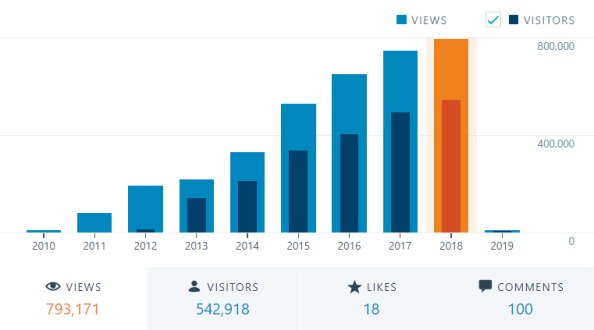
SQL with Manoj 2018 Stats
The Louvre Museum has 8.5 million visitors per year. This blog was viewed about 793,171 times by 542,918 unique visitors in 2018. If it were an exhibit at the Louvre Museum, it would take about 17 days for that many people to see it.
There were 68 pictures uploaded, taking up a total of ~6 MB. That’s about ~6 pictures every month.
This blog also got its highest ever hits/views per day (i.e. 3,552 hits) on Sept 25th this year.
–> All-time posts, views, and visitors

SQL with Manoj all time views
–> Posting Patterns
In 2018, there were 26 new posts, growing the total archive of this blog to 546 posts.
LONGEST STREAK: 6 post in Feb 2018
–> Attractions in 2018
These are the top 5 posts that got most views in 2018:
1. Download & Install SQL Server Management Studio (SSMS) 2016 (62,101 views)
2. SQL Server 2016 RTM full & final version available – Download now (31,705 views)
3. Getting started with SQL Server 2014 | Download and Install Free & Full version (20,443 views)
4. SQL Basics – Difference b/w WHERE, GROUP BY and HAVING clause (16,113 views)
5. SQL Basics – Difference b/w TRUNCATE, DELETE and DROP? (13,189 views)
–> How did they find me?
The top referring sites and search engines in 2018 were:
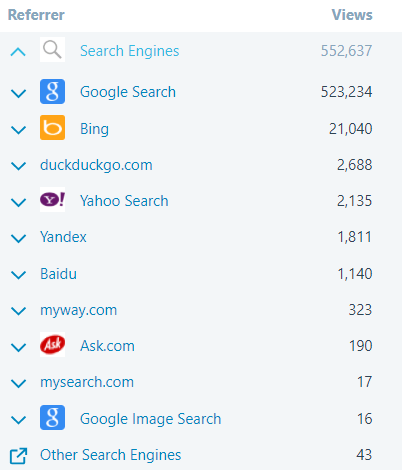
SQL with Manoj 2018 Search Engines referrers
–> Where did they come from?
Out of 210 countries, top 5 visitors came from India, United States, United Kingdom, Canada and Australia:
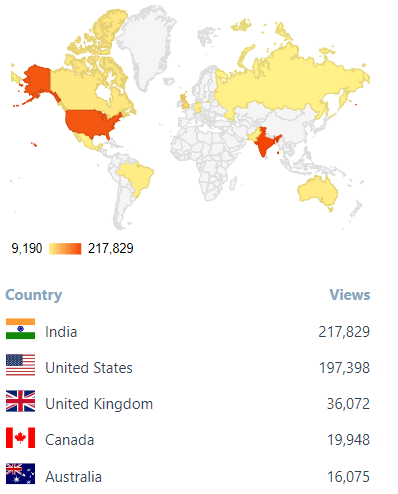
SQL with Manoj 2018 top Countries visitors
–> Followers: 407
WordPress.com: 160
Email: 247
Facebook Page: 1,358
–> Alexa Rank (lower the better)
Global Rank: 221,534
US Rank: 139,012
India Rank: 46,758
Estimated Monthly Revenue: $1,320
Actual Monthly Revenue: $300
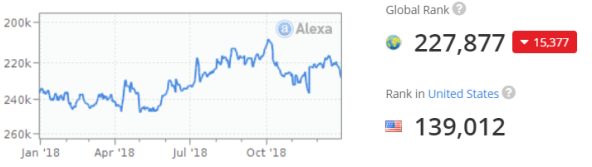
SQL with Manoj 2018 Alexa ranking
Alexa history shows how the alexa rank of sqlwithmanoj.com has varied in the past, which in turn also tells about the site visitors.
–> 2019 New Year Resolution
– Write at least 1 blog post every week
– Write on new feaures in SQL Server 2017 & 2019
– Also explore and write blog post on Azure Data Platform
– Post at least 1 video every week on my YouTube channel
That’s all for 2018, see you in year 2019, all the best !!!
Connect me on Facebook, Twitter, LinkedIn, YouTube, Google, Email
Hadoop/HDFS storage types, formats and internals – Text, Parquet, ORC, Avro
HDFS or Hadoop Distributed File System is the distributed file system provided by the Hadoop Big Data platform. The primary objective of HDFS is to store data reliably even in the presence of node failures in the cluster. This is facilitated with the help of data replication across different racks in the cluster infrastructure. These files stored in HDFS system are used for further data processing by different data processing engines like Hadoop Map-Reduce, Hive, Spark, Impala, Pig etc.
–> Here we will talk about different types of file formats supported in HDFS:
1. Text (CSV, TSV, JSON): These are the flat file format which could be used with the Hadoop system as a storage format. However these format do not contain the self inherited Schema. Thus with this the developer using any processing engine have to apply schema while reading these file formats.
2. Parquet: file format is the Columnar oriented format in the Hadoop ecosystem. Parquet stores the binary data column wise, which brings following benefits:
– Less storage, efficient Compression resulting in Storage optimization, as the same data type is residing adjacent to each other. That helps in compressing the data better hence provide storage optimization.
– Increased query performance as entire row needs not to be loaded in the memory.
Parquet file format can be used with any Hadoop ecosystem like: Hive, Impala, Pig, Spark, etc.
3. ORC: stands for Optimized Row Columnar, which is a Columnar oriented storage format. ORC is primarily used in the Hive world and gives better performance with Hive based data retrievals because Hive has a vectorized ORC reader. Schema is self contained in the file as part of the footer. Because of the column oriented nature it provide better compression ratio and faster reads.
4. Avro: is the Row oriented storage format, and make a perfect use case for write heavy applications. The schema is self contained with in the file in the form of JSON, which help in achieving efficient schema evolution.
–> Now, Lets take a deep dive and look at these file format through a series of videos below:
Author/Speaker Bio: Viresh Kumar is a v-blogger and an expert in Big Data, Hadoop and Cloud world. He has an experience of ~14 years in the Data Platform industry.
Book: Hadoop – The Definitive Guide: Storage and Analysis at Internet Scale
Powershell – Restart Azure VM and log off Users remotely
1. Open RUN by pressing Windows + R keys, type powershell command and hit Enter.
2. Now on Powershell window first connect to the Azure VM that you want to remotely restart:
PS C:\Users\manojp> Enter-PSSession -ComputerName MyAzureVMName
[MyAzureVMName]: PS C:\Users\manojp\Documents>
3. Now try issuing the Restart command:
[MyAzureVMName]: PS C:\Users\manojp\Documents> Restart-Computer
Restart-Computer : Failed to restart the computer MyAzureVMName with the following error message: The system shutdown
cannot be initiated because there are other users logged on to the computer.
+ CategoryInfo : OperationStopped: (MyAzureVMName:String) [Restart-Computer], InvalidOperationException
+ FullyQualifiedErrorId : RestartcomputerFailed,Microsoft.PowerShell.Commands.RestartComputerCommandSo, this gave us error as few users are still logged in, thus can’t restart the VM.
4. Let’s check who all are logged in on this VM:
[MyAzureVMName]: PS C:\Users\manojp\Documents> quser
USERNAME SESSIONNAME ID STATE IDLE TIME LOGON TIME
charlesl rdp-tcp#0 2 Active 1:07 12/21/2018 08:26 AM
5. Let’s try kicking users out by specifying the ID which is “2”:
[MyAzureVMName]: PS C:\Users\manojp\Documents> logoff 2
6. We will check if that user is kicked out or anybody is still remaining:
[MyAzureVMName]: PS C:\Users\manojp\Documents> quser
quser : No User exists for *
+ CategoryInfo : NotSpecified: (No User exists for *:String) [], RemoteException
+ FullyQualifiedErrorId : NativeCommandError
7. Let’s finally restart the VM:
[MyAzureVMName]: PS C:\Users\manojp\Documents> Restart-Computer
PS>



Current Visitors

StatCounter …since April 2012


 Leisure blog: Creek & Trails
- NMDC Hyderabad Marathon – My first 42k FM, cramps, training and fuelling
- Singapore (Part 2) – 6 days itinerary, sightseeing & attractions
- Singapore (Part 1) – Tickets, Visa, Hotel, Forex Card/Cash, Metro/Bus cards
- I got full refund of my flight tickets during COVID lockdown (AirIndia via MakeMyTrip)
- YouTube – Your Google Ads account was cancelled due to no spend
- YouTube latest update on its YPP (YouTube Partner Program) which may affect your channel
- Starting your own blog !!!
- How to file ITR (Income Tax Return) online AY 2017-18 (for simple salaried)
- Scam – Become a kin/hier and earn a fortune – via LinkedIn and Email
- Places to visit in and around Vizag (aka Visakhapatnam)
 SQL with Manoj