Archive
Limitations of SQL Server Express Edition
SQL Server Express version is a free SQL Server database system that you can Download, Distribute and use for Development, Training & Study purpose. This Express version is targeted for Small scale Applications/Companies, Students, etc.
This Express version provides almost all major features of the full, paid version of the SQL Server, but is limited to the Database Engine itself.
–> Here are some of its Limitations:
1. Max size of a DataBase is set to 10 GB (but you can create multiple databases)
2. No SQL Agent
3. Single CPU utilization (can have multi cores)
4. Max 1 GB RAM allocation
5. Max 16 number of instances per server
6. MS BI features are not available for designing DW/BI workloads (SSIS/AS/RS)
Video: Download SQL Server Express version
You can also directly download the Express bits from here:
– SQL Server 2014 Express and Tools (DB Engine with SSMS): x64 | x86
– SQL Server Management Studio (SSMS only) 2014: x64 | x86
– SQL Server 2014 Express and Tools with Advanced Services: x64 | x86
Now truncate “Table Partitions” with TRUNCATE TABLE statement – SQL Server 2016
TRUNCATE TABLE has got a new definition now!!!
Now with SQL Server 2016 as per MSDN BoL: “TRUNCATE TABLE removes all rows from a Table or Specified Partitions of a Table, without logging the individual row deletions”.
This is kind of a filtration to TRUNCATE TABLE statement at a Partition level, just like a WHERE clause option with DELETE TABLE statement at a Row level.
With previous versions ( SQL Server 2014 and back) you could only Truncate a whole Table, but not its Partition.
–> You can now use a WITH PARTITIONS() option with TRUNCATE TABLE statement to truncate Table Partition(s) like:
TRUNCATE TABLE dbo.PartitionedTable
WITH (PARTITIONS (2, 4, 6 TO 8))
MSDN reference for [TRUNCATE TABLE]
Check my [previous post] on differences between TRUNCATE & DELETE statements.
See Execution Plans running with Live Query Statistics – SQL Server 2016
In SQL Server 2016 Live Query Statistics is going to be the most used feature among Developers & DBAs to check the live Execution Plan of an active Query running in parallel.
The Live Query/Execution Plan will provide Real-time insights into the Query Execution process as the Control flows from one Operator to the another. It will display the overall Query Progress and Operator-level Run-time Execution Stats such as:
1. Number of Rows processed
2. Completion Estimate
3. Operator progress – Elapsed time & Percentage done for each Operator
4. Elapsed time & Percentage done for overall Query progress
–> The feature can be enable from the Toolbar, just besides the “Actual Execution Plan” icon:

–> The Live Execution plan running can be seen in below animated image:
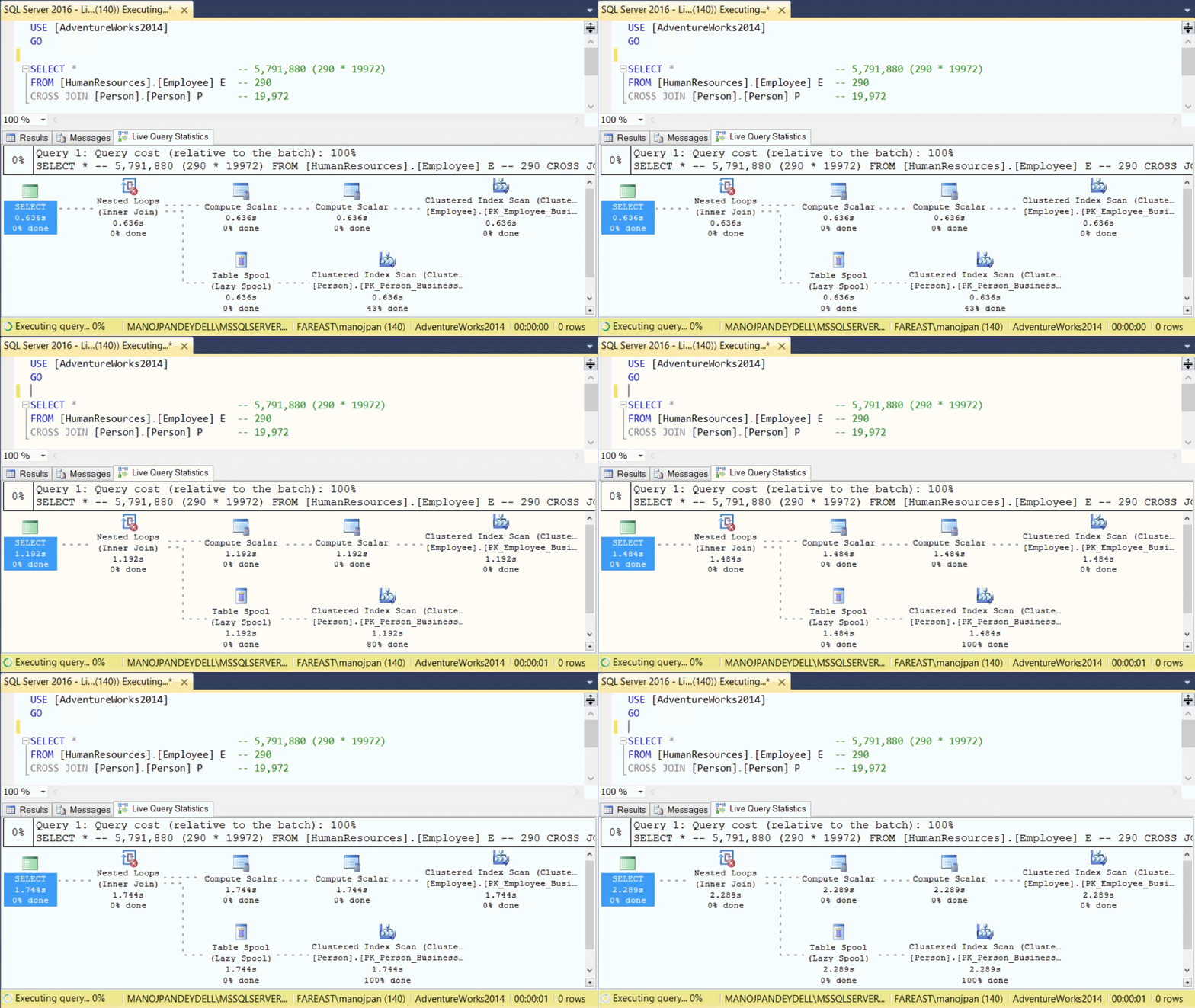
The dotted moving lines above shows the Operators currently in execution. As soon as the Operator finishes execution these dotted lines will change to solid lines.
Thus, by using this feature the user will not have to wait for a Query to complete its execution and then see the Execution plan stats. As soon as the user will run the Query, the Live Execution Plan will also start showing all the Operators and their progress. This will help users in checking the long running queries where actually they are taking time, and help debugging Query performance issues.
You can also check the full demo here in this video:
Enable Query Store on a Database – SQL Server 2016
… continuing from my [previous post] on Query Store.
Here we will see how can we enable it on a Database:
–> Right click on the Database you want to enable Query Store and select Properties. Now select the new feature Query Store at the bottom left side as shown below:

Set the Enable option to True, and click OK.
–> Alternative: You can also enable the Query Store by this simple ALTER DATABASE Statement:
USE [TestManDB]
GO

ALTER DATABASE [TestManDB] SET QUERY_STORE = ON
GO
–> After enabling the Query Store you can check the Database, expand it in Object Explorer, you will see a new folder with the same name “Query Store”, on expanding it you will see 4 reports, as shown in below snapshot:

–> You can check more about Query Store on MSDN BoL [here] with more coverage on what information/stats it captures and how you can Query them.
Export/Convert Table or SQL Query data to JSON string format | SQL Server 2016 – Part 1
In my [previous post] we saw JOSN added as a new feature in SQL Server 2016.
–> Just like XML now you can also:
1. Store JSON data in SQL Server in table columns as NVARCHAR datatype.
2. Export SQL tables rows to JSON data.
3. Query external JSON data and store back in SQL tables.
–> Note:
– With this CTP2 release you can only export data as JSON string.
– But with the release of CTP3 you will also be able to read JSON data by T-SQL query and convert it into tabular (row/column) format, and will support indexes.
–> Just like XML for exporting JSON data you can use FOR JSON [AUTO | PATH] syntax:
1. FOR JSON AUTO: option automatically creates a nested JSON data with sub arrays based on the table hierarchy used in the Query. The AUTO option must have a FROM clause.
2. FOR JSON PATH: option enables you to define the structure of output of JSON data using the column names with aliases by using a dot separator.
–> Let’s see how export to JSON works:
– I’ll create a sample table and insert few rows in it:
CREATE TABLE Students (
	ID INT IDENTITY(1,1) NOT NULL,
	FirstName VARCHAR(255),
	LastName VARCHAR(255),
	Class INT,
	Marks DECIMAL(3,1)
)

INSERT INTO Students (FirstName, LastName, Class, Marks)
SELECT 'Manoj',   'Pandey', 10, 80.5
UNION ALL
SELECT 'Saurabh', 'Sharma', 11, 82.7
UNION ALL
SELECT 'Kanchan', 'Pandey', 10, 90.5
1. Let’s check the “FOR JSON AUTO” option:
SELECT ID, FirstName, LastName, Class, Marks
FROM Students
FOR JSON AUTO -- here
– Output with AUTO option:

– Output with AUTO and ROOT() option:
SELECT ID, FirstName, LastName, Class, Marks
FROM Students
FOR JSON AUTO, ROOT('StudList') -- here
– This is how a formatted JSON looks like:
{
  "StudList": [
    {
      "ID": 1,
      "FirstName": "Manoj",
      "LastName": "Pandey",
      "Class": 10,
      "Marks": 80.5
    },
    {
      "ID": 2,
      "FirstName": "Gaurav",
      "LastName": "Pandey",
      "Class": 11,
      "Marks": 82.7
    },
    {
      "ID": 3,
      "FirstName": "Garvit",
      "LastName": "Pandey",
      "Class": 10,
      "Marks": 90.5
    }
  ]
}
This option as mentioned previously formats the JSON document automatically based upon the columns provided in the Query.
2. Now let’s check the “FOR JSON PATH” option: with this option you can use the dot syntax as used in below Query to form a nested output.
SELECT
	ID,
	FirstName AS "StudentName.FirstName",
	LastName AS "StudentName.LastName",
	Marks
FROM Students
FOR JSON PATH -- here
– Output with PATH option:
[
   {
      "ID":1,
      "StudentName":{
         "FirstName":"Manoj",
         "LastName":"Pandey"
      },
      "Marks":80.5
   },
   {
      "ID":2,
      "StudentName":{
         "FirstName":"Saurabh",
         "LastName":"Sharma"
      },
      "Marks":82.7
   },
   {
      "ID":3,
      "StudentName":{
         "FirstName":"Kanchan",
         "LastName":"Pandey"
      },
      "Marks":90.5
   }
]
As you can see with PATH option you can create wrapper objects (here “StudentName”) and nest properties (here “FirstName” & “LastName”).
–> You can also check this demo in this video:
With the current release of CTP2 here you saw how we can export a SQL Table rows to JSON data. As soon as CTP3 will release we will see how can we read data back from from JSON string and convert it to tabular (row/column) format.
–> Check my [next post] on how to Import/Read JSON string and convert it in rational-tabular format in form of rows/columns.
Check more about JSON support on [MSDN BoL].



Current Visitors

StatCounter …since April 2012


 Leisure blog: Creek & Trails
- NMDC Hyderabad Marathon – My first 42k FM, cramps, training and fuelling
- Singapore (Part 2) – 6 days itinerary, sightseeing & attractions
- Singapore (Part 1) – Tickets, Visa, Hotel, Forex Card/Cash, Metro/Bus cards
- I got full refund of my flight tickets during COVID lockdown (AirIndia via MakeMyTrip)
- YouTube – Your Google Ads account was cancelled due to no spend
- YouTube latest update on its YPP (YouTube Partner Program) which may affect your channel
- Starting your own blog !!!
- How to file ITR (Income Tax Return) online AY 2017-18 (for simple salaried)
- Scam – Become a kin/hier and earn a fortune – via LinkedIn and Email
- Places to visit in and around Vizag (aka Visakhapatnam)
 SQL with Manoj