Tabular Model Project does not load in Visual Studio – need SSDT
Today one of my colleague started got one Change Request to add few attributes to a Tabular Model already deployed from a previous project. He installed Visual Studio and connected the Repository. But when he tried to load the Project it was giving following error:

Unsupported
This version of Visual Studio is unable to open the following projects. The project types may not be installed or this version of Visual Studio may not support them.
For more information on enabling these project types or otherwise migrating your assets, please see the details in the “Migration Report” displayed after clicking OK.
– abcTabularCube, “D:\VSO\abcTabularCube\xyz.smproj”No changes required
These projects can be opened in Visual Studio 2015, Visual Studio 2013, Visual Studio 2012, and Visual Studio 2010 SP1 without changing them.
– abcTabularCube, “D:\VSO\abcTabularCube\xyz.sln”
I checked his Visual studio, opened a new Project and checked if the MS BI templates for SSAS, SSRS and SSIS are showing or not. You can check them below:
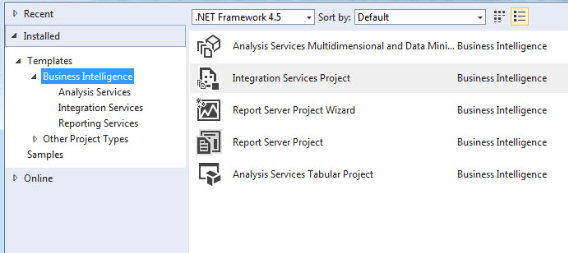
If those won’t show up then you need SQL Server Data Tools (SSDT), which you can install from here.
SQL Server 2016 Certification Path
Microsoft has made few changes to its Certification path for the new version of SQL Server i.e. SQL Server 2016.
And with this post I’m trying to collate and put all exams and certifications in concise and clear manner. Would be happy to accept any comments, changes and suggestions !!!
–> The MCSA i.e. “Microsoft Certified Solution Associate” level now contains the new “MCSA: SQL Server 2016” certification, and this replaces the older “MCSA: SQL Server 2012/14” one.
–> And the top MCSE i.e. “Microsoft Certified Solutions Expert” level now contains the new “MCSE: Data Management and Analytics” certification. This also replaces the following 2 existing certifications (but retains the underlying exams to earn this MCSE level, which I’ve explained below):
– MCSE: Data Platform
– MCSE: Business Intelligence

–> Here are the details of exams at both the levels.
Level 1. “MCSA: SQL Server 2016”: Now to earn this level you need to give either of the following certifications:
1. MCSA: SQL 2016 Database Development certification
– Exam [70-761], Querying Data with Transact-SQL [check details here]
– Exam [70-762], Developing SQL Databases
2. MCSA: SQL 2016 Database Administration certification
– Exam [70-764], Administering a SQL Database Infrastructure
– Exam [70-765], Provisioning SQL Databases
3. MCSA: SQL 2016 Business Intelligence Development certification
– Exam [70-767], Implementing an SQL Data Warehouse
– Exam [70-768], Developing SQL Data Models
Level 2. “MCSE: Data Management and Analytics”: Now to earn this level you need to first get an MCSA on either of the above 3 certifications, or “MCSA: Data Science”. Then need to pass anyone of the below exam:
– Exam [70-473], Designing and Implementing Cloud Data Platform Solutions
– Exam [70-475], Designing and Implementing Big Data Analytics Solutions
– Exam [70-464], Developing Microsoft SQL Server Databases
– Exam [70-465], Designing Database Solutions for Microsoft SQL Server
– Exam [70-466], Implementing Data Models and Reports with Microsoft SQL Server
– Exam [70-467], Designing Business Intelligence Solutions with Microsoft SQL Server
Microsoft released SQL Server 2017 CTP 2.0 – new features, enhancements & what’s new for Linux
Today on 19th April 2017 Microsoft released the CTP 2.0 version of SQL Server 2017.
As announced earlier with the first CTP release, the new SQL Server 2017 will run both on Windows & Linux. Not only Linux, but it will be supported on Docker, and macOS (via Docker) too.
–> Download SQL Server 2017 bits:
To download the SQL Server 2017 you can Register and Download the Full version or Free evaluation version (180 days).
Or, directly download the ISO (~1.7 GB): SQLServerVnextCTP2.0-x64-ENU.iso
–> Check version and SQL build:
select @@version
Microsoft SQL Server vNext (CTP2.0) – 14.0.500.272 (X64)
Apr 13 2017 11:44:40
Copyright (C) 2017 Microsoft Corporation. All rights reserved.
Enterprise Evaluation Edition (64-bit) on Windows 10 Enterprise 10.0 (Build 14393: ) (Hypervisor)
–> New Features & Enhancements:
1. Support for Graph Data to model many-to-many relationship, with Nodes and Edges Table types.
2. Resumable online index rebuild, allows you to resume an online index rebuild operation from where it stopped after a failure. You can also Pause and later Resume an Online index rebuild operation.
3. IDENTITY_CACHE option for ALTER DATABASE SCOPED CONFIGURATION, to avoid gaps in the values of identity columns in case a server restarts unexpectedly or fails over to a secondary server.
4. Batch Mode Adaptive Join to improve plan quality.
5. Interleaved Execution for multi-statement T-SQL TVFs to improve plan quality.
6. Adaptive Query Processing, for automatically running database queries efficiently.
7. SQL Server Machine Learning Services (till now, SQL Server R Services), added support for the Python language with existing ‘R’.
8. Run the Python language in-database to scale and accelerate machine learning, predictive analytics and data science scripts
9. And for SQL Server with Linux:
– Additional SQL Server Agent capabilities
– Listener for Always On availability groups
… I’ll discuss about all these features in my coming posts.
–> Feature Selection Page:

–> You can check other features released in CTP 1.x here.
–> References:
>> SQL Server 2017 official Page
SQL Trivia – Return every Nth row from Table or a result set
So few days back I got a ping from one of my reader, he was asked one question in a SQL Interview and he had a hard time to answer that:
How do you return every Nth row from Table or a result set?
He told he knew how to get top 2nd or top Nth record from a table, but was not able to come up with the logic for this problem.
I told him this can be done easily done by using Modulus “%” (percentage) operator.
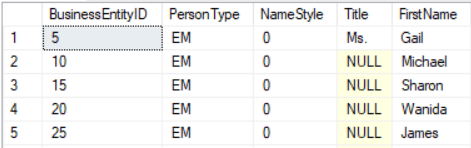
–> Below is the simple logic by using Modulus logic to get consecutive 5th position in the below record-set. Below every row with “0” value (highlighted yellow) is the 5th consecutive position:
select BusinessEntityID % 5 AS [5thPosition], *
from [Person].[Person]

–> And by simply moving the above Modulus logic to the WHERE clause will give to filtered rows:
select *
from [Person].[Person]
where BusinessEntityID % 5 = 0
Get Row Count of Insert/Update/Delete records in MERGE Statement – MSDN TSQL forum
–> Question:
How can I get the numbers of records affected in the Merge statement, INSERT,UPDATE,DELETE separately and store it in a variable so I can get it in the application side?
Thanks !
–> My Answer:
You need to use OUTPUT clause with MERGE statement, try this:
DECLARE @SummaryOfChanges TABLE(Change VARCHAR(20));

MERGE tblTarget AS Target
USING (SELECT Col1,Col2 FROM tblSource) AS Source
ON (Target.Col1 = Source.Col1)

WHEN MATCHED THEN
	UPDATE SET target.Col2 = source.Col2 -- Need to get affected rows here

WHEN NOT MATCHED BY TARGET THEN
	INSERT (Col1,Col2) VALUES (Col1,Col2); -- Need to get affected rows here

OUTPUT $action INTO @SummaryOfChanges; --< check here

-- Get the count of Insert/Update/Delete'd records from the below table variable
SELECT Change, COUNT(*) AS CountPerChange
FROM @SummaryOfChanges
GROUP BY Change;
For more info on MERGE and OUTPUT clause statement check this link: http://technet.microsoft.com/en-us/library/bb510625.aspx



Current Visitors

StatCounter …since April 2012


 Leisure blog: Creek & Trails
- NMDC Hyderabad Marathon – My first 42k FM, cramps, training and fuelling
- Singapore (Part 2) – 6 days itinerary, sightseeing & attractions
- Singapore (Part 1) – Tickets, Visa, Hotel, Forex Card/Cash, Metro/Bus cards
- I got full refund of my flight tickets during COVID lockdown (AirIndia via MakeMyTrip)
- YouTube – Your Google Ads account was cancelled due to no spend
- YouTube latest update on its YPP (YouTube Partner Program) which may affect your channel
- Starting your own blog !!!
- How to file ITR (Income Tax Return) online AY 2017-18 (for simple salaried)
- Scam – Become a kin/hier and earn a fortune – via LinkedIn and Email
- Places to visit in and around Vizag (aka Visakhapatnam)
 SQL with Manoj