SQL Error – The server may be running out of resources, or the assembly may not be trusted with PERMISSION_SET = EXTERNAL_ACCESS or UNSAFE
Today after setting up a new Database environment I ran into a small issue. While running a Stored Procedure I was getting following error:
Sql Severity : 16
Sql Message ID : 10314
Message
Executed as user: XYZdomain\XYZaccount. An error occurred in the Microsoft .NET Framework while trying to load assembly id 65536. The server may be running out of resources, or the assembly may not be trusted with PERMISSION_SET = EXTERNAL_ACCESS or UNSAFE. Run the query again, or check documentation to see how to solve the assembly trust issues. For more information about this error: System.IO.FileLoadException: Could not load file or assembly ‘XYZAssemblyName, Version=0.0.0.0, Culture=neutral, PublicKeyToken=null’ or one of its dependencies. An error relating to security occurred. (Exception from HRESULT: 0x8013150A) System.IO.FileLoadException: at System.Reflection.RuntimeAssembly._nLoad(AssemblyName fileName, String codeBase, Evidence assemblySecurity, RuntimeAssembly locationHint, StackCrawlMark& stackMark, IntPtr pPrivHostBinder, Boolean throwOnFileNotFound, Boolean forIntrospection, Boolean suppressSecurityChecks) at System.Reflection.RuntimeAssembly.InternalLoadAssemblyName(AssemblyName assemblyRef, Evidence assemblySecurity, RuntimeAssembly reqAssembly, StackCrawlMark& stackMark, IntPtr pPrivHostBinder, Boolean throwOnFileNotFound, Boolean forIntrospection, Boolean suppressSecurityChecks) at System.Reflection.RuntimeAssembly.InternalLoad(String assemblyString, Evidence assemblySecurity, StackCrawlMark& stackMark, IntPtr pPrivHostBinder, Boolean forIntrospection) at System.Reflection.RuntimeAssembly.InternalLoad(String assemblyString, Evidence assemblySecurity, StackCrawlMark& stackMark, Boolean forIntrospection) at System.Reflection.Assembly.Load(String assemblyString) [SQLSTATE 42000] (Error 10314). The step failed.
I checked online and found that after restoring the Databases on DEV from PROD environment, the Stored Procedure that I was executing on DEV was CLR enabled thus it has the external_access or unsafe permission set from the database. And the login that was use to create the database on PROD was not same as in the instance of DEV DB. Thus it was not allowing to execute the CLR SP and resulting into error due to safety concerns.
Thus you can either use the Windows login or the SQL Server login which is common on both the environments (PROD & DEV, in my case), so:
1. First Enable Trustworthy database property
2. And change the database owner to ‘sa’
ALTER DATABASE [DatabaseName] SET TRUSTWORTHY ON;
GO

USE [DatabaseName]
GO

EXEC sp_changedbowner 'sa'
GO
This issue could also occur when you are Creating a new Assembly that has the external_access or unsafe permission set in the same database.
Server: Msg 10327, Level 14, State 1, Line 1
CREATE ASSEMBLY for assembly ‘XYZAssemblyName’ failed because assembly ‘XYZAssemblyName’ is not authorized for PERMISSION_SET = EXTERNAL_ACCESS. The assembly is authorized when either of the following is true: the database owner (DBO) has EXTERNAL ACCESS ASSEMBLY permission and the database has the TRUSTWORTHY database property on; or the assembly is signed with a certificate or an asymmetric key that has a corresponding login with EXTERNAL ACCESS ASSEMBLY permission.
SQL Error – SSMS, ‘-120’ is not a valid value for property ‘Width’ or ‘Height’
Today I came across a weird error as my colleague was trying to open SSMS (SQL Server Management Studio), and it was throwing following error:
‘-120’ is not a valid value for property ‘Width’
… in the dialogue box shown below:
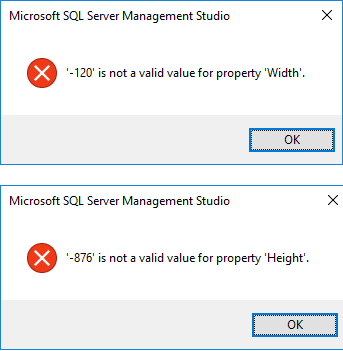
… a similar error can also occur for Height also (2nd image).
By checking the error its obvious that there is something wrong with Width or Height of SSMS Query-Editor window.
So, I went to REGEDIT (In RUN, type regedit.exe) and after navigating here n there got the location where to update this property.
Navigate to folder: HKEY_CURRENT_USER\SOFTWARE\Microsoft\SQL Server Management Studio\13.0\
Here check the MainWindow property value (image below), it was showing: 0 451 109 -120 876 1
Change it to a positive value considering the width of your SSMS editor window, I replaced -120 with 1400

Click OK and close the Registry Editor window and re-open SSMS, it will not show this error again !
New Sample database “WideWorldImporters” for SQL Server 2016 and Azure SQL Database
So now as SQL Server 2016 is released (on 1-June-2016) and is in market for few days, so Microsoft team has released a new Sample Database “WideWorldImporters” specially for learning and working with new features of SQL Server 2016 and Azure SQL Database.
Till now AdventureWorks was quiet popular Sample Database since SQL Server 2005 to SQL Server 2014, and still will be. And prior to this we had Northwind and Pubs sample databases to work with SQL Server 2000 version.
–> WideWorldImporters:
You can download both the OLTP and OLAP (DW/BI) databases from this GitHub link.
1. WideWorldImporters (OLTP): contains sample tables for OnLine Transaction Processing (OLTP) workloads, as well as Real-time Operation Analytics.
2. WideWorldImportersDW (OLAP, DW/BI): contains sample tables for OnLine Analytical Processing (OLAP) workloads, in Dimensional Model, like Fact and Dimension tables.
3. For Azure SQL Database: you can download the bacpac for both the editions OLTP/OLAP.
–> These Sample Databases are designed in such a way that these can be used to check and evaluate the new Features of SQL Server 2016, like:
1. Temporal Database and Tables
2. Native JSON support
3. ColumnStore Index
4. In-Memory OLTP
5. Row Level Security, Dynamic Data Masking and Always Encrypted
6. Partitioning
7. Query Store
8. Polybase
–> The MSDN Documentation of these sample databases provides you more information on:
1. Installation and Configuration
2. The Database Catalog
3. Use of SQL Server features and capabilities (mentioned in above points)
4. Some Sample Queries (zip file)
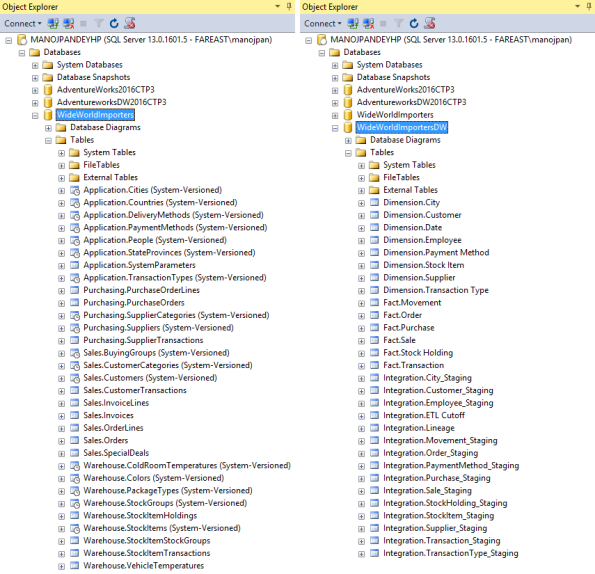
–> After Downloading and Restoring the sample tables looks like this in Object Explorer:
Polybase error in SQL Server 2016 : Row size exceeds the defined Maximum DMS row size, larger than the limit of [32768 bytes]
I got an email form one of my reader regarding issues while working with SQL Server 2016 and Polybase, and it is as follows:
I am able to successfully install SQL with Polybase and able to query data in Azure storage but for a table I am getting error.
I am trying to pull data by creating External Data Source connection in SQL enabled Polybase features. I am getting below error as:
Cannot execute the query “Remote Query” against OLE DB provider “SQLNCLI11” for linked server “(null)”. 107093;Row size exceeds the defined Maximum DMS row size: [40174 bytes] is larger than the limit of [32768 bytes]
With the error description its quiet evident that the External tables does not support row size more than 32768 bytes. But still I take a look online and found in Azure Documentation that this is a limitation right now with Polybase. The Azure document mentions:
Wide rows support is not supported yet, “If you are using Polybase to load your tables, define your tables so that the maximum possible row size, including the full length of variable length columns, does not exceed 32,767 bytes. While you can define a row with variable length data that can exceed this figure, and load rows with BCP, you will not be be able to use Polybase to load this data quite yet. Polybase support for wide rows will be added soon. Also, try to limit the size of your variable length columns for even better throughput for running queries.”
link: https://azure.microsoft.com/en-us/documentation/articles/sql-data-warehouse-develop-table-design/
SQL Server 2016 RTM full and final version available – Download it now !!!
Its 1st June 2016 and finally Microsoft has released SQL Server 2016 full and final version, and is available for download!
Exactly a year back the first CTP version of SQL Server 2016 was released and we got a chance to get a glimpse of the new features coming in. Then after every month or two Microsoft kept rolling out the CTP versions with more new features, enhancements, and bug fixes on the previous CTP builds.
–> Download SQL Server:
To download SQL Server 2016 you can Register and Download the SQL Server 2016 Full or free Evaluation version (180 days) here.
Or you can Direct download the DVD ISO file image (~2.1 GB) SQLServer2016-SSEI-Eval.exe
–> Free Developer Version:
Microsoft on March 2016 announced that going forward the Developer version of SQL Server any release will be free for Developers and Learning purpose. Register and Download the Developer version.
Or you can Directly download the DVD ISO image (~2.1 GB): en_sql_server_2016_developer_x64_dvd_8777069.iso
This Developer version is meant for development and testing only, and not for production environments or for use with production data. For more info please check my previous blog post.
–> One big Update on SSMS:
From now onward SSMS i.e. SQL Server Management Studio will not be part of SQL Server installation. This has to be installed separately via the SSMS download page, or from the Installation Center which will download SSMS from online.
As per Microsoft, this is basically to support the move to make a universal version of SSMS for both SQL Server on-Prem & Azure SQL Database, that will ship every month or so.
Check my previous post on installing SSMS separately.
–> Check new features in SQL Server 2016: https://sqlwithmanoj.com/sql-server-2016-articles/
1. Native JSON Support, Part1, Part2, Part3, Part4, Part5
2. Temporal Data/Tables, Part1, Part2
3. Row Level Security, Part1, Part2
4. Dynamic Data Masking, Link
5. Stretch Database, Link
6. Query Store, Link
7. Live Query Statistics, Link
8. Enhanced In-Memory OLTP, Link
9. Enhanced ColumnStore Indexes, Link
10. Truncate Table partition
11. Other features like, IF EXIST with DROP stmt, STRING_SPLIT fn, COMPRESS & DECOMPRESS fn, etc.



Current Visitors

StatCounter …since April 2012


 Leisure blog: Creek & Trails
- NMDC Hyderabad Marathon – My first 42k FM, cramps, training and fuelling
- Singapore (Part 2) – 6 days itinerary, sightseeing & attractions
- Singapore (Part 1) – Tickets, Visa, Hotel, Forex Card/Cash, Metro/Bus cards
- I got full refund of my flight tickets during COVID lockdown (AirIndia via MakeMyTrip)
- YouTube – Your Google Ads account was cancelled due to no spend
- YouTube latest update on its YPP (YouTube Partner Program) which may affect your channel
- Starting your own blog !!!
- How to file ITR (Income Tax Return) online AY 2017-18 (for simple salaried)
- Scam – Become a kin/hier and earn a fortune – via LinkedIn and Email
- Places to visit in and around Vizag (aka Visakhapatnam)
 SQL with Manoj