Archive
Preparing for 70-462 Exam : Administering Microsoft SQL Server 2012 Databases | Certification
I’m from a Database development background and working mostly with T-SQL code only. I passed Exam 70-461 back in Nov-2012, and now I’m planing to give 70-462 Exam i.e. Administering Microsoft SQL Server 2012 Databases.
This exam is intended for Database Administrators who perform:
– Installation
– Maintenance
– Configuration tasks
– and other responsibilities like:
– – setting up Database systems
– – making sure those systems operate efficiently
– – regularly storing, backing up, and securing data from unauthorized access
Thus being a Database Developer (primarily) this exam is going to be the most toughest and trickiest exam in this series as I don’t have DBA experience and haven’t worked on anything in Database Administration yet.
For preparation I’m referring to Training Kit (Exam 70-462) Administering Microsoft SQL Server 2012 Databases book.
–> The Exam is divided into 6 modules:
1. Install and Configure
2. Maintain Instances and Databases
3. Optimize and Troubleshoot
4. Manage Data
5. Implement Security
6. Implement High Availability
You need to brush up on following Skills in the these Modules:
-:Check links with the below items for more information:-
1. Install and Configure | 19%
– Plan installation
– Install SQL Server and related services
– Implement a migration strategy
– Configure additional SQL Server components
– Manage SQL Server Agent
– PREP Links: Understanding surface area configuration | Hardware and software requirements for installing SQL Server 2012 | Quick-start installation of SQL Server 2012
2. Maintain Instances and Databases | 17%
– Manage and configure databases
– Configure SQL Server instances
– Implement a SQL Server clustered instance
– Manage SQL Server instances
– PREP Links: ALTER DATABASE file and filegroup options (Transact-SQL) | Contained databases | Data compression
3. Optimize and Troubleshoot | 14%
– Identify and resolve concurrency problems
– Collect and analyze troubleshooting data
– Audit SQL Server instances
– PREP Links: blocked process threshold server configuration option | Configure login auditing (SSMS) | Data collection
4. Manage Data | 19%
– Configure and maintain a back-up strategy
– Restore databases
– Implement and maintain indexes
– Import and export data
– PREP Links: Back up and restore of SQL Server databases | File restores (full recovery mode) | DBCC INDEXDEFRAG (Transact-SQL)
5. Implement Security | 18%
– Manage logins and server roles
– Manage database permissions
– Manage users and database roles
– Troubleshoot security
– PREP Links: Server-level roles | Permissions (database engine) | Database-level roles
6. Implement High Availability | 12%
– Implement AlwaysOn
– Implement Database Mirroring
– HADR (High Availability and Disaster Recovery)
– PREP Links: AlwaysOn Availability Groups (SQL Server) | Microsoft SQL Server AlwaysOn solutions guide for HADR | AlwaysOn architecture guide: Building a HADR solution by using AlwaysOn Availability Groups
-–> You can visit following Study materials to prepare for this Exam:
Microsoft Link for this Certification: http://www.microsoft.com/learning/en-us/exam-70-462.aspx
Book on AMAZON.com: Training Kit (Exam 70-462) Administering Microsoft SQL Server 2012 Databases
Will try to update this blog post or will put up a new post with my learning while preparing for this exam.
All The Best!!!
Microsoft’s upcoming USCMO Webcasts | Digital Events
Microsoft announced their new and improved USCMO webcast programs!
The USCMO (U.S. Central Marketing Organization) team manages and optimizes programs through the customer lifecycle in order to drive business results of conversion, pipeline, and managed costs.
Each webcast will stream live with interactive Q&A and will be made available on demand.
–> Please check the webcasts below you might be interested to register:
| Webcast Title | Webcast Date | Registration URL |
| Protect Your Business Against Online Fraud | 1/20/2015 | http://aka.ms/protectblog |
| Social in the Enterprise | 1/21/2015 | http://aka.ms/enterpriseblog |
| Windows Server 2003 Migration: Hardware Modernization | 1/22/2015 | http://aka.ms/WS03blog |
| It’s a New Year, Be Ready to Adapt | 1/22/2015 | http://aka.ms/adaptblog |
| HIPAA Compliant Cloud Solutions with Microsoft BAA | 1/23/2015 | http://aka.ms/BAAblog |
| Announcing the Enterprise Cloud Suite | 1/26/2015 | http://aka.ms/suiteblog |
| Get a fresh start in 2015 with new Windows devices | 1/28/2015 | http://aka.ms/windeviceblog |
| Need fast AND affordable? Why not try SQL Server? | 1/29/2015 | http://aka.ms/SQLserverblog |
| Mobile Productivity in the Modern Workplace | 2/4/2015 | http://aka.ms/mobileblog |
| Windows Server 2003: Most Common Application Migration Concerns | 2/5/2015 | http://aka.ms/commonblog |
| Enabling Customer Insights Using Business Analytics | 2/12/2015 | http://aka.ms/customerblog |
| Windows Server 2003: Security Risk and Remediation | 2/18/2015 | http://aka.ms/remeblog |
| The Connected Workforce | 2/18/2015 | http://aka.ms/connectedblog |
| Fine Tune Your Supply Chain with Better Insight | 2/19/2015 | http://aka.ms/fineblog |
Thanks !!!
2014 in review
The WordPress.com stats helper monkeys prepared a 2014 annual report for this blog.

Here's an excerpt:
The Louvre Museum has 8.5 million visitors per year. This blog was viewed about 330,000 times in 2014. If it were an exhibit at the Louvre Museum, it would take about 14 days for that many people to see it.
Self Service BI by using Power BI – Power Pivot (Part 2)
After a long pause I’m back again to discuss on Power BI.
In my previous Power BI Series first part [link] I discussed about the first component of Power BI, i.e. Power Query and how to use it to discover and gather data.
Power Pivot lets you:
1. Create your own Data Model from various Data Sources, Modeled and Structured to fit your business needs.
2. Refresh from its Original sources as often as you want.
3. Format and filter your Data, create Calculated fields, define Key Performance Indicators (KPIs) to use in PivotTables and create User-Defined hierarchies to use throughout a workbook.
And here in second part I will discuss about few of these features.
–> The benefit of creating Data Model in Power Pivot is that Power Pivot Models run in-memory so that users can analyze 100’s of millions of rows of data with lightning fast performance.
All you need is Microsoft Excel 2013 to create your Data Model. Check this [link] to troubleshoot if you don’t see POWERPIVOT option in Excel ribbon.
–> Creating Data Model:
To create a Data Model you need a Data Source, so we will use SQL Server as a Data Source and I’ve setup AdventureWorksDW2012 Database for our hands-on. Click [here] to download AdventureWorksDW2012 DB from CodePlex.
1. Open Excel, and go to POWERPIVOT tab and click on Manage, this will open a new PowerPivot Manager window.

2. Now on this new window, click on From Database icon and select From SQL Server from the dropdown, this will open a Table Import Wizard Popup window.
3. Provide SQL Server Instance name that you want to connect to. Select AdventureWorksDW2012 Database from the Database name dropdown, and click Next.

4. Click Next again and select the required Tables (10 selected), click Finish.

5. Make sure you get Success message finally, click Close.
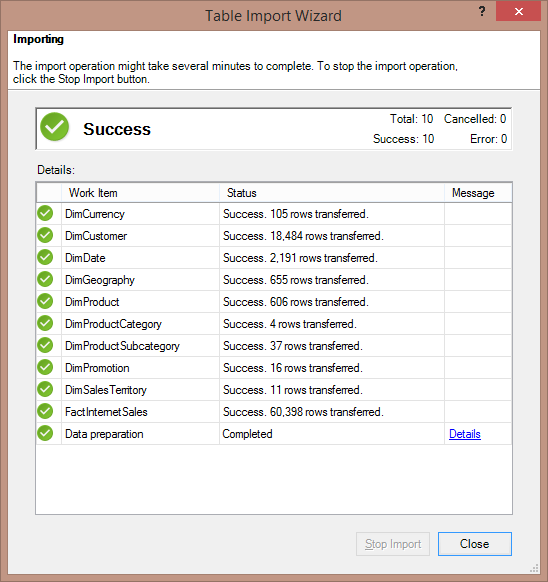
6. In the PowerPivot Manager window you will see many tabs listing records. Click on Diagram View to see all the tabs as tables and relations between them. This is your Power Pivot – Data Model:
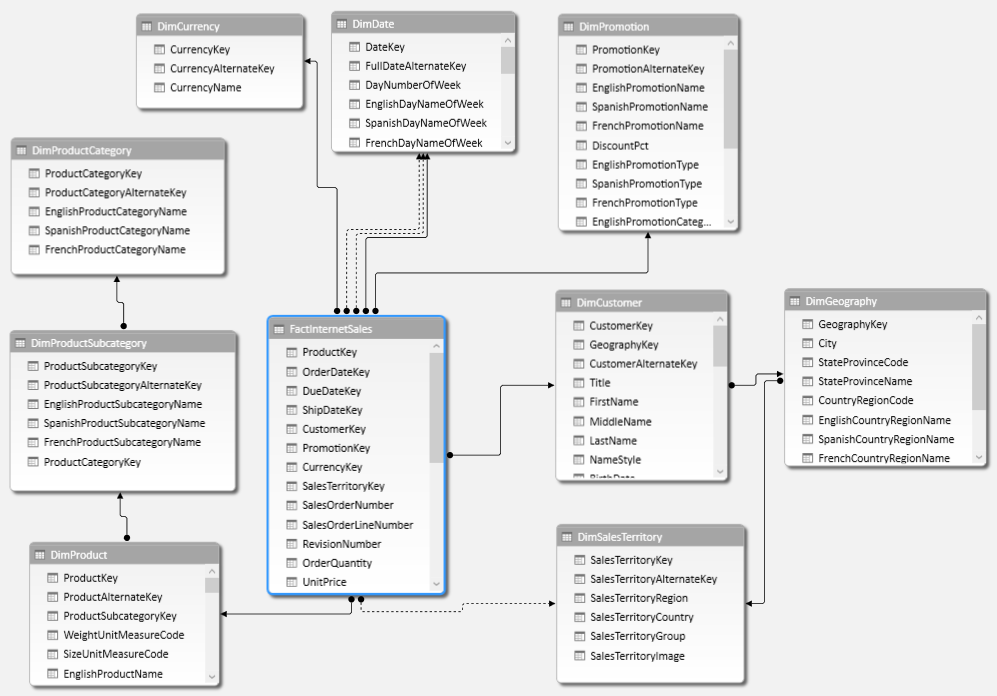
–> Now as your Data Model is ready, you can create Pivot Reports in Excel, let’s see how:
1. Go to the PowerPivot Manager window and click on PivotTable icon and then select PivotTable from the dropdown.
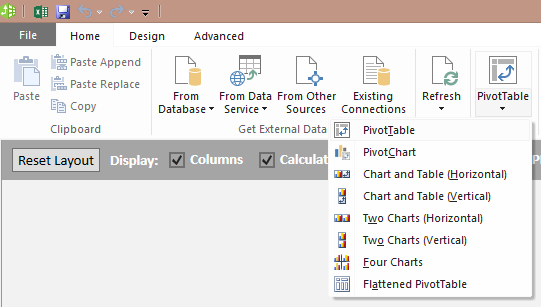
2. The control moves to the Excel sheet, select Existing Worksheet on the Popup.
3. Now select following columns form the PivotTable Fields list:
– DimGeography.EnglighCountryRegionName
– FactInternetSales.SalesAmount
This would give you Total sales across Regions in the Worksheet
4. Let’s add some Slicers to this:
4.a. Click on PIVOTTABLE TOOLS – ANALYZE, here click on Insert Slicer. On ALL tab, select DimDate.FiscalYear column. This will add Year slicer to the report.
4.b. Now again click on the PivotTable Report, you will see the PIVOTTABLE TOOLS on the ribbon bar again. Select Insert Slicer again and select DimProductCategory.EnglighProductCategoryName column.
You can align, move, resize the report, slicers and beautify the report as you want, as shown below:
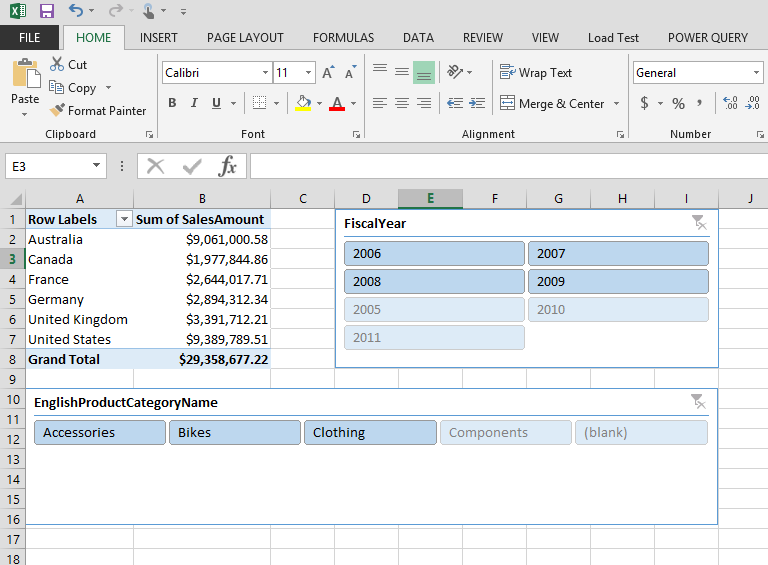
This way you can add Graphs, Charts and create very impressive Reports UI as per your requirements.
This Power Pivot – Data Model can also be used to create Power View Reports, which we will cover in next part of this series.
Thanks!!!
New Microsoft Azure Portal | Mind = Blown
Microsoft recently announced a first-of-its-kind Cloud experience that brings together cross-platform technologies, services and tools, enabling developers and businesses to innovate at startup speed via a new Microsoft Azure Preview Portal.
“Developing for a mobile-first, cloud-first world is complicated, and Microsoft is working to simplify this world without sacrificing speed, choice, cost or quality,” said Scott Guthrie, executive vice president at Microsoft. “Imagine a world where infrastructure and platform services blend together in one seamless experience, so developers and IT professionals no longer have to work in disparate environments in the cloud. Microsoft has been rapidly innovating to solve this problem, and we have taken a big step toward that vision today.”
Windows AZURE is now Microsoft Azure!
New Portal: portal.azure.com
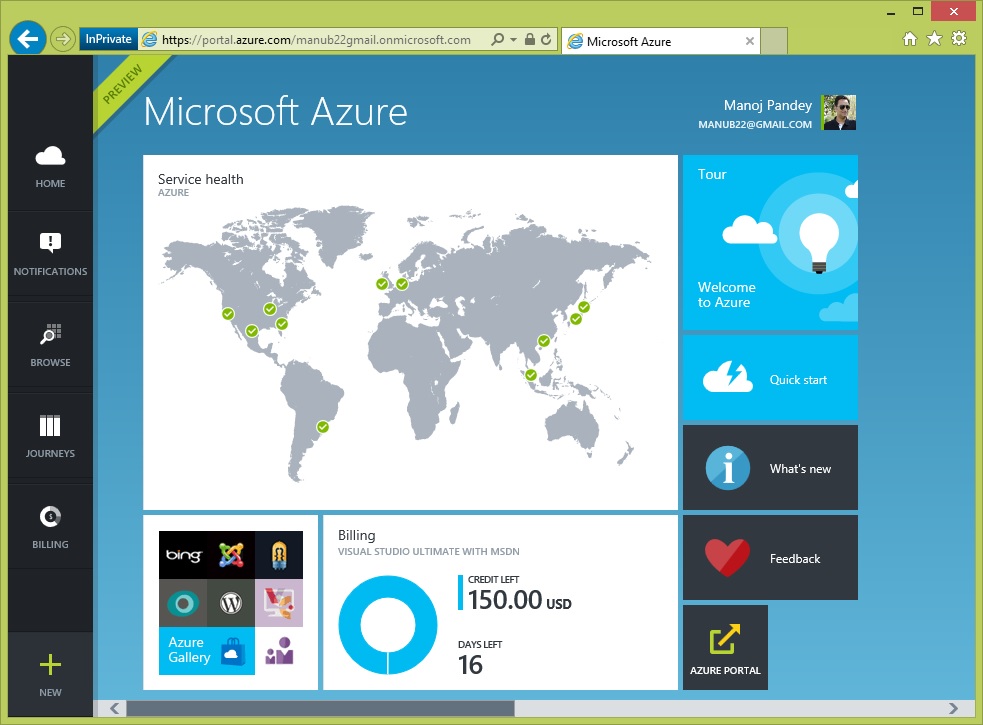
–> Check in this Video the new “AZURE Portal” & how DevOps just got a whole lot more awesome:
The new “Microsoft Azure” Portal provides a fully integrated experience that will enable customers to develop and manage an application in one place, using the platform and tools of their choice. The new portal combines all the components of a cloud application into a single development and management experience.
–> New components include the following:
1. Simplified Resource Management
2. Integrated billing
3. Gallery
4. Visual Studio Online
… for more info visit Microsoft Press, [link].
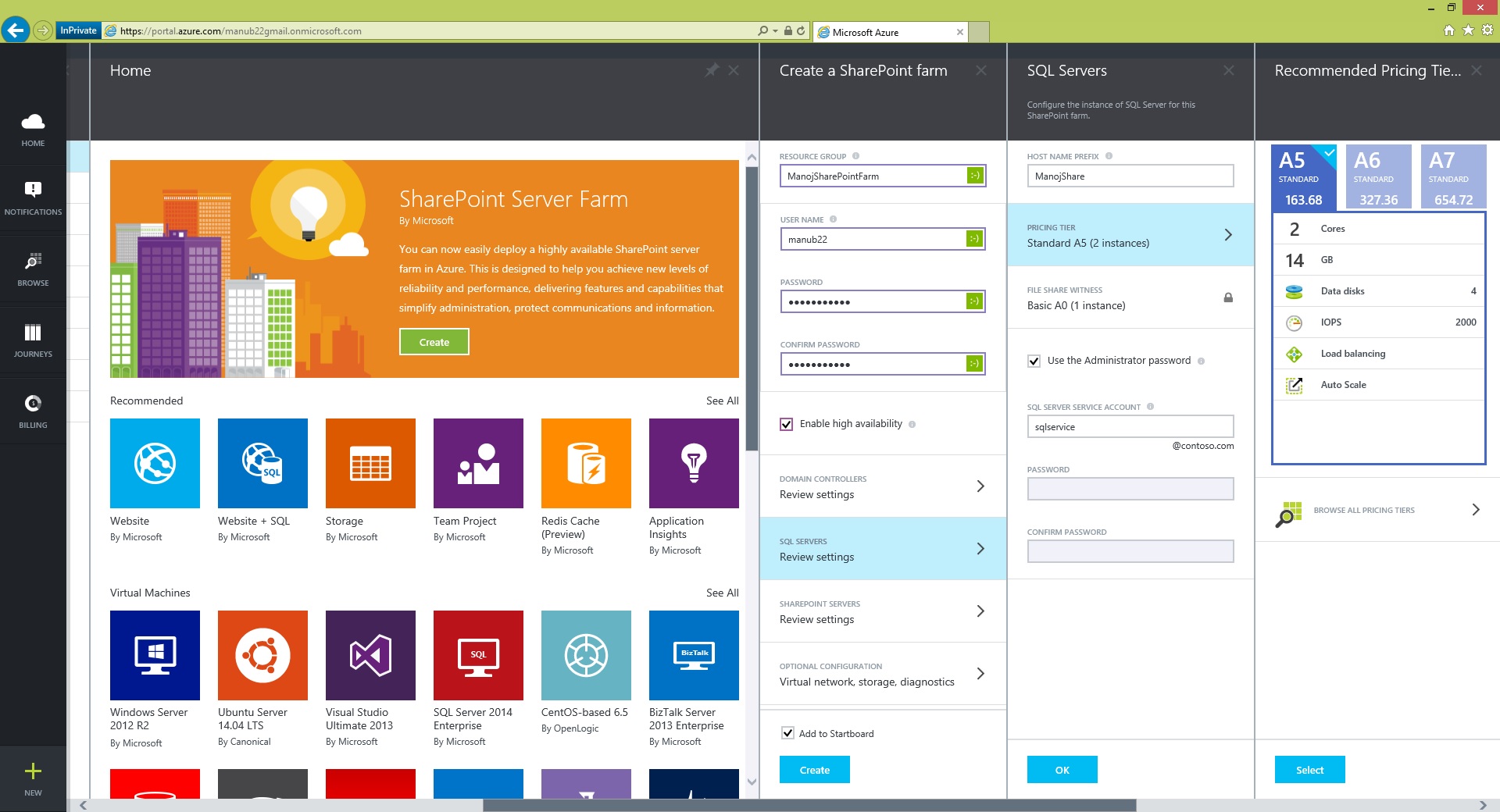
–> Easily Spin-Up a new “SharePoint Farm” in minutes:
You can see here on AZURE cloud how easily and in no time you can Spin-Up a new SharePoint Farm in minutes and few Clicks:
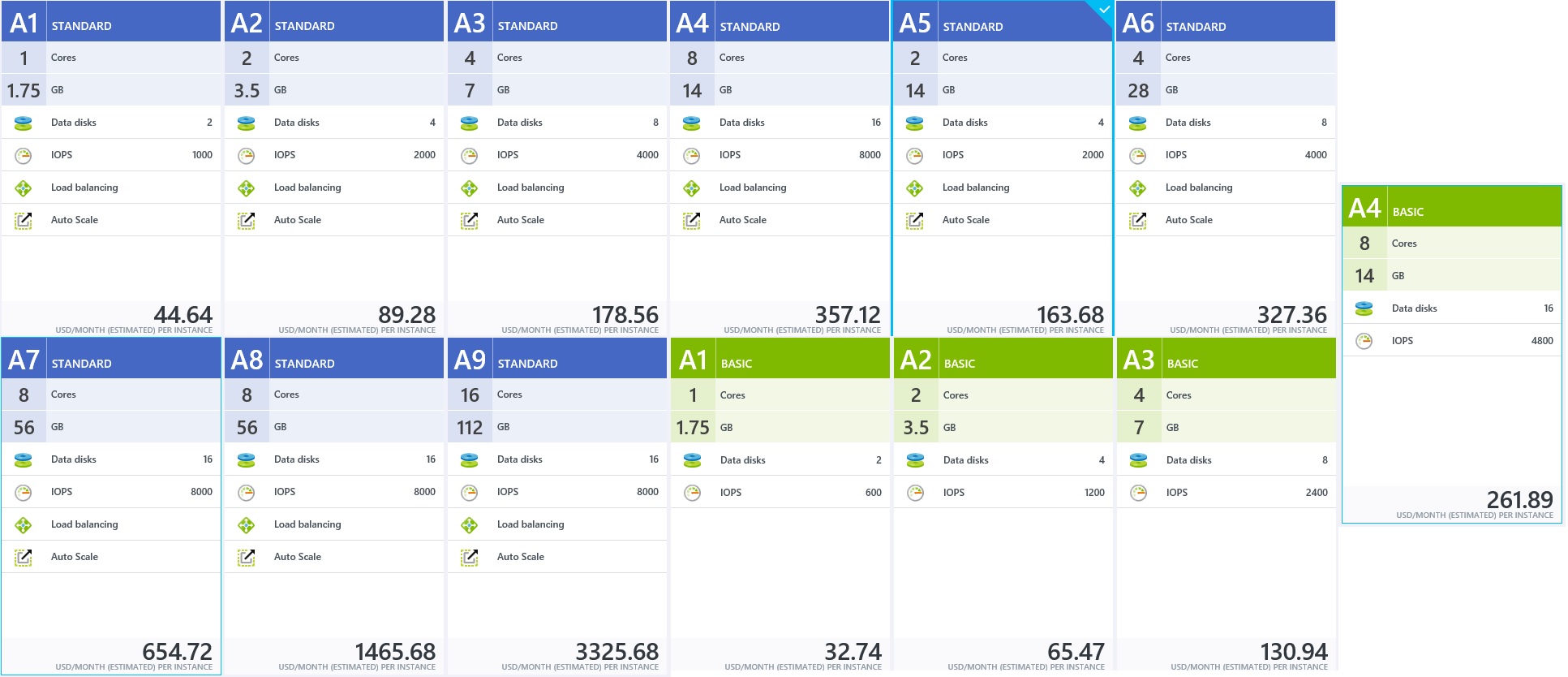
Azure also provides you various options to select SQL Server Plans based upon your preference and budget:
Otherwise in an on-Premise environment or with any other vendor solution this would take days to setup a new Server (Hardware) with Windows Server OS, SharePoint, SQL Server, etc. installed and get things configured.
–> Spin-Up a new “SQL Database” in seconds:
Creating a new SQL Server instance is also very easy where you provide all necessary information in simple steps, like SQL Instance Name:
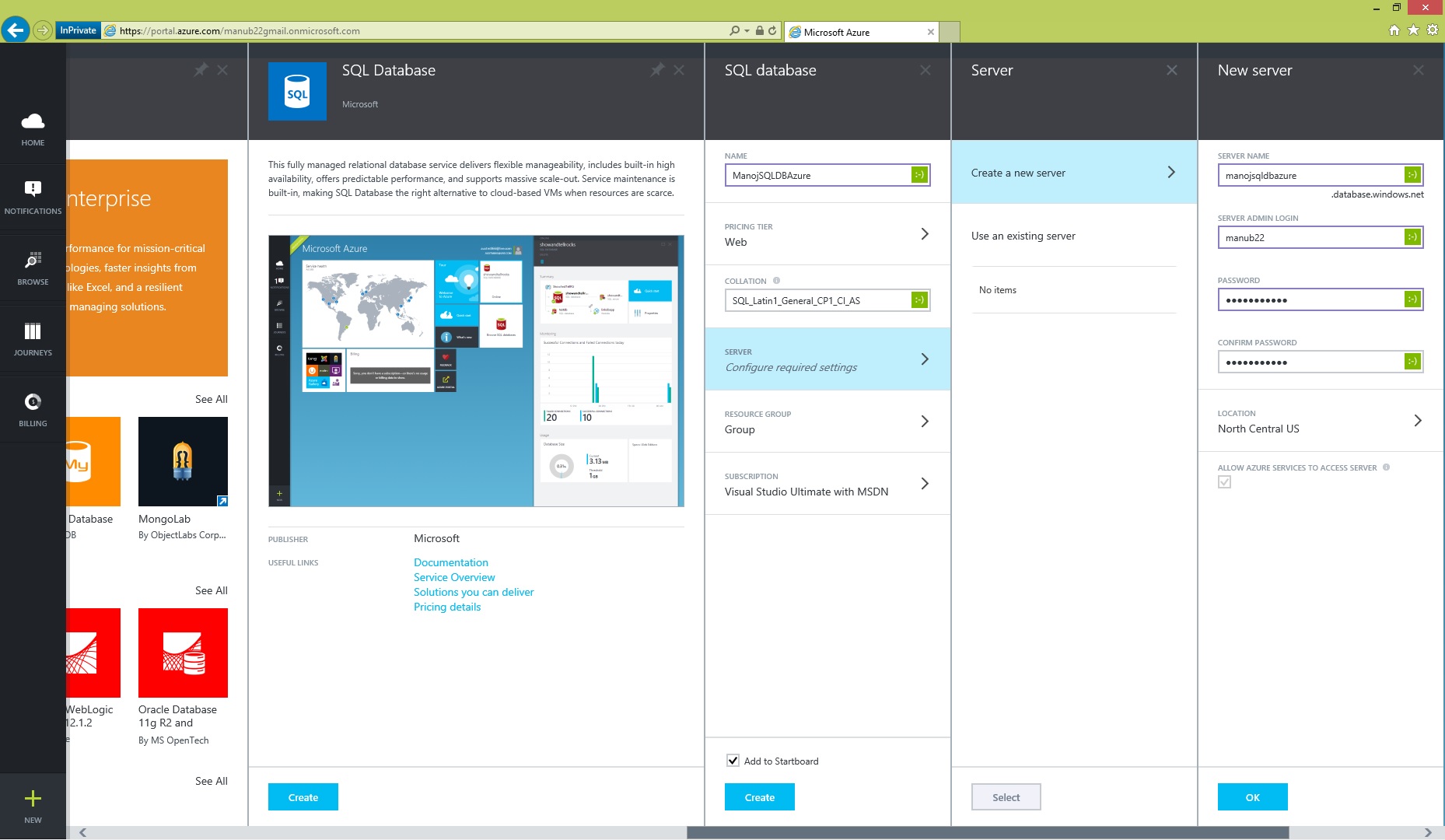
The new instance will be created in seconds and you can access the Instance Create Databases, Tables, Views, other DB Objects and easily Query them via SSMS.
–> Microsoft Azure Offerings:
Apart from these 2 offerings that we saw above, Microsoft Azure provides lot more that you can browse in Azure Gallery:
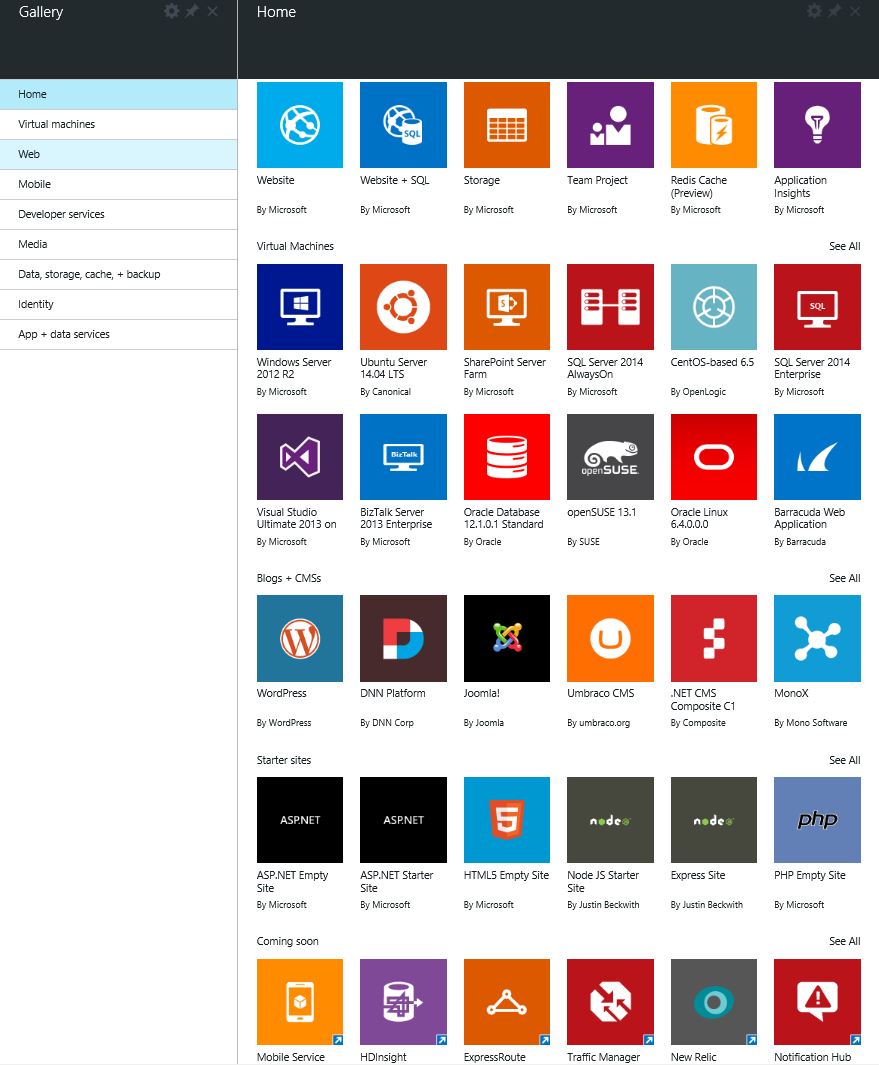
I’ll be exploring the new Portal as per my needs and post my experiences in coming posts, so stay tuned!



Current Visitors

StatCounter …since April 2012


 Leisure blog: Creek & Trails
- NMDC Hyderabad Marathon – My first 42k FM, cramps, training and fuelling
- Singapore (Part 2) – 6 days itinerary, sightseeing & attractions
- Singapore (Part 1) – Tickets, Visa, Hotel, Forex Card/Cash, Metro/Bus cards
- I got full refund of my flight tickets during COVID lockdown (AirIndia via MakeMyTrip)
- YouTube – Your Google Ads account was cancelled due to no spend
- YouTube latest update on its YPP (YouTube Partner Program) which may affect your channel
- Starting your own blog !!!
- How to file ITR (Income Tax Return) online AY 2017-18 (for simple salaried)
- Scam – Become a kin/hier and earn a fortune – via LinkedIn and Email
- Places to visit in and around Vizag (aka Visakhapatnam)
 SQL with Manoj