SSDT – OLE DB or ODBC error: Login failed for user ‘DOMAIN\ComputerName $’ 28000
My colleague was working on a Tabular Model project and while working with the Tables so that they can be deployed to the Cube on Analysis Server, he was getting a weird error. The authentication was failing and in error message it was showing the computer name instead of his actual user name, suffixed with a $ sign.

Failed to save modifications to the server.
Error returned: ‘OLE DB or ODBC error: Login failed for user ‘DOMAIN\ComputerName$‘.; 28000.
A connection could not be made to the data source with the name of ‘CubeConnectionName’.
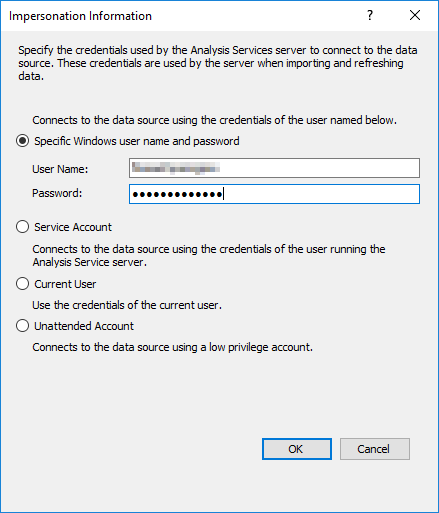
By looking at the above error it seemed that somewhere the authentication is being overridden by some setting. So after some research I found that in Data Source section there is Impersonation setting which can be set to a specific user, service account, current user or an unattended account.
–> Here is the resolution:
1. On Tabular Model Explorer go to the Project and expand Data Sources.
2. Here right click on the connection and click on Edit Data Source, or just double click on it.
3. Click on the Impersonation… button and check what option is selected.
… I found that the selection was defaulted to Service Account, and as my SSAS (Analysis Services) was running under the DOMAIN\ComputerName account which gets sets while installing SSAS. And as it does not have sufficient privileges or access rights, it fails to connect to the Database Server. Thus you need to check impersonation and provide an account which has access to the Database Server.
4. Change the selection from “Service Account” to “Specific Windows user name and password”, and apply the user name and password.
5. Click OK and Save the settings.
6. Now go again to the Table Properties and click on Refresh Preview button and click OK.
Which SQL Server Certification should I take: 98-364, 70-461 or 70-761 ? – MSDN TSQL forum
–> Question:
I just started learning SQL Server, and I want to get certified, I checked internet, but I got confused.
There is exam 98-364, 70-461, 70-761, and i want to get MCSA in SQL
could some one explain to me what should i do …
–> My Answer:
>> MCSA or Microsoft Certified Solutions Associate in SQL Server can be earned on following areas with respective exams:
– Database Development (761, 762)
– Database Administration (764, 765)
– Business Intelligence (767, 768)
>> Exam 98-364 is to get Microsoft Technology Associate (MTA) certification. It is the most basic exam that focuses just on basic SQL, and is for people new to technology, who need to validate their knowledge of fundamental concepts before moving on to more advanced certifications. This exam covers:
1. RDBMS, DBMS concepts and terms, like Normanization, PK, FK, etc.
2. Plain SQL querying knowledge, like DDL, DML, etc. and indexes.
3. Simple DBA stuff, like security, backup/restore, etc.
Link: https://www.microsoft.com/en-in/learning/exam-98-364.aspx
>> Exam 70-761 is also an advanced exam which is based upon SQL Server 2016, which is the latest version of SQL Server as of today. To earn MCSA you have to take 70-762 exam as well as mentioned above, check this link for MCSA SQL Server 2016: https://www.microsoft.com/en-in/learning/mcsa-sql-2016-certification.aspx
>> Exam 70-461 is also an advance level exam but now older based upon SQL Server 2012 or 2014. Check this link for MCSA SQL Server 2012/2014: https://www.microsoft.com/en-in/learning/mcsa-sql-certification.aspx
Please note: Exam 98-364 is not required here, and as mentioned above its just to make sure you have knowledge in working with basic SQL Querying.
Ref link.
SQL Server 2016 Install Error – Rule “Oracle JRE 7 Update 51 (64-bit) or higher is required for Polybase” failed
While installing SQL Server 2016/2017 with Polybase feature, you might have noticed this issue, and some of you would have no idea what to do next.
—————————
Rule Check Result
—————————
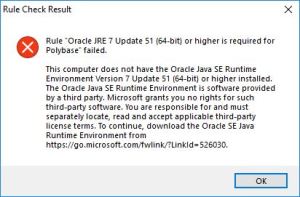
Rule “Oracle JRE 7 Update 51 (64-bit) or higher is required for Polybase” failed.This computer does not have the Oracle Java SE Runtime Environment Version 7 Update 51 (64-bit) or higher installed. The Oracle Java SE Runtime Environment is software provided by a third party. Microsoft grants you no rights for such third-party software. You are responsible for and must separately locate, read and accept applicable third-party license terms. To continue, download the Oracle SE Java Runtime Environment from https://go.microsoft.com/fwlink/?LinkId=526030.
—————————
OK
—————————
–> This is because the new Polybase feature in SQL Server requires Java Runtimes or JRE.
1. You are installing SQL Server and you chose Polybase feature.

2. On the next Feature Rule page you get stuck with following error: Oracle JRE 7 Update 51 or higher is required, Failed.

3. You click on the Failed link it popped up an error box giving you more error details shown below:
-
- Error popup, Click to expand
.
4. You just need to click on the URL provided in the error popup box, or you can directly download it from [here].
5. You will be redirected to the Oracle JRE download page.
– Here you first need to Register/Login
– Accept the License Agreement
– Finally download the JRE EXE file.

6. After JRE installation is completed, just Re-run the Rules and it will be Passed this time, click Next.
–> You can also check this in video here:
This blog just crossed 2 million hits – Thanks !!!
Today this blog crossed 2 million hits !!!

Last time the first [1 million] milestone was achieved at June 2015, and it took almost 5 years to achieve this.
This time in Jan 2017 the 2 million milestone got achieved in just 1 year 6 months (to get extra 1 million hits).
–> Here is the stats of “Year by Year” hits:

I would like to thank all my readers and visitors for your continued support, comments and suggestions !!!
New built-in function CONCAT_WS() in SQL Server 2017
In my previous posts I discussed new Functions introduced in SQL Server vNext (or 2018), like STRING_AGG(), TRIM(), TRANSLATE().
Here in this post I’ll discuss about one more new function i.e. CONCAT_WS(), here “_WS” means “With Separator”.
This is very similar to the existing CONCAT() function introduced back in SQL Server 2012, which concatenates a variable number of arguments or string values.
The difference is the new function CONCAT_WS() accepts a delimiter specified as the 1st argument, and thus there is no need to repeat the delimiter after very String value like in CONCAT() function.
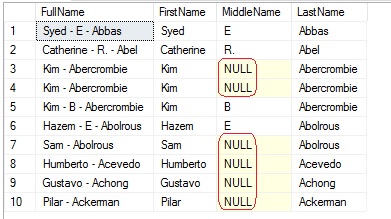
Also the new CONCAT_WS() function takes care of NULL values and do not repeat the delimiter, which you can see in 2nd example below.
Syntax:
CONCAT_WS ( separator, argument1, argument1 [, argumentN]… )
–> Example #1:
With CONCAT_WS() we will use the delimiter just once and it concatenates the names separated by ‘-‘, and do not repeat the hyphen where the middle name is NULL.
USE [AdventureWorks2014]
GO

SELECT TOP 10
	CONCAT_WS(' - ', FirstName, MiddleName, LastName) as FullName,
	FirstName, MiddleName, LastName
FROM [Person].[Person]
–> Example #2:
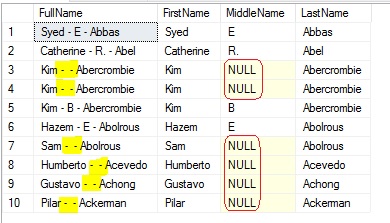
With CONCAT() the delimiter needs to be used after every argument, it concatenates the names separated by ‘-‘, do repeats the hyphen where the middle name is NULL.
SELECT TOP 10
	CONCAT(FirstName, ' - ', MiddleName, ' - ', LastName) as FullName,
	FirstName, MiddleName, LastName
FROM [Person].[Person]



Current Visitors

StatCounter …since April 2012


 Leisure blog: Creek & Trails
- NMDC Hyderabad Marathon – My first 42k FM, cramps, training and fuelling
- Singapore (Part 2) – 6 days itinerary, sightseeing & attractions
- Singapore (Part 1) – Tickets, Visa, Hotel, Forex Card/Cash, Metro/Bus cards
- I got full refund of my flight tickets during COVID lockdown (AirIndia via MakeMyTrip)
- YouTube – Your Google Ads account was cancelled due to no spend
- YouTube latest update on its YPP (YouTube Partner Program) which may affect your channel
- Starting your own blog !!!
- How to file ITR (Income Tax Return) online AY 2017-18 (for simple salaried)
- Scam – Become a kin/hier and earn a fortune – via LinkedIn and Email
- Places to visit in and around Vizag (aka Visakhapatnam)
 SQL with Manoj