Archive
Getting started with SQL Server 2014 | Download and Install Free (Express) or Full version
How to download SQL Server?
What are the available options and versions?
Isn’t there any Free version to play with, learn and practice SQL?
I get emails regarding these question many a times from my readers, sometime from my friends and old colleagues too. So I thought to collate all this information into this single post so that people won’t have to search here and there on internet and finally end up nowhere or to any junk sites.
Currently the latest version of SQL Server from Microsoft is SQL Server 2014 released last year on 1st April 2014, and its first Service Pack (SP1) was released just few days back (15th May 2015). You have following options to choose from:
1. SQL Server Full version contains the Database Engine with whole BI suit and is a paid version and you have to buy license key from your MSDN Subscriptions. It is also available for free download for evaluation of 180 days, but post that you have to buy a license key.
2. SQL Server Express is a Free version that can be used by anyone, like students, small setups and companies, etc. It is a lite version which contains the Database Engine with some limitations like: max size of a DataBase is set to 10GB (but you can create multiple databases), no SQL Agent, single CPU utilization & max 1 GB RAM allocation. I think this is a good package and configuration you are getting it for free. And a best option for students and for beginners in SQL if they want to learn and practice SQL Querying without investing anything.
–> Check this video on how to download SQL Server with above two options:
You can also directly download the Express bits from here:
– SQL Server 2014 Express and Tools (DB Engine with SSMS): x64 | x86
– SQL Server Management Studio (SSMS only) 2014: x64 | x86
– SQL Server 2014 Express and Tools with Advanced Services: x64 | x86
… with the Advanced Services option you get extra tools like Fulltext Search and Reporting Services.
After downloading the bits from Microsoft site you are now ready to install SQL Server.
–> Check this video on how to install SQL Server (its very easy, but just in case):
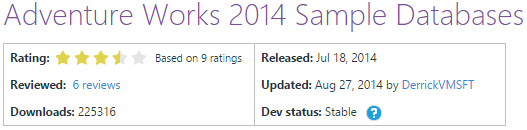
–> After install completes you can download the sample database AdventureWorks2014 for SQL Server 2014 from CodePlex and restore the Backup (.BAK) file to SQL Server, click on the image below:
Microsoft announced SQL Server 2016 – New features and enhancements
On Monday, 4th May 2015 Microsoft at Ignite event announced the new version of SQL Server i.e. SQL Server 2016, which will be available for Public Preview this summer.
>> MSDN Blog announcement: http://blogs.technet.com/b/dataplatforminsider/archive/2015/05/04/sql-server-2016-public-preview-coming-this-summer.aspx
>> Microsoft SQL Server 2016 official page: https://www.microsoft.com/en-us/server-cloud/products/sql-server-2016
This version of SQL Server is going to be a major release with new features and will also overcome some limitations of SQL Server 2014.
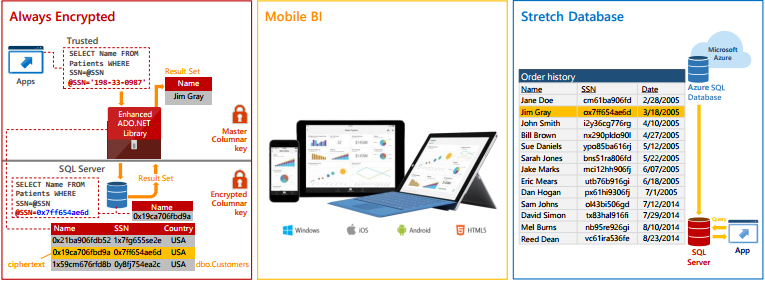
-> New Performance Enhancements:
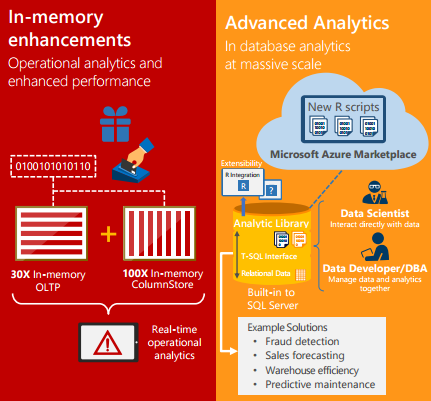
– In-memory OLTP enhancements: Greater T-SQL surface area, terabytes of memory supported and greater number of parallel CPUs, provide up to 30x faster Transactions, more than 100x faster Queries than disk-based relational databases and Real-time Operational Analytics, Demo video.
– Query Data Store: Monitor and optimize query plans with full history of query execution.
– Native JSON: Parsing & storing of JSON as relational data & exporting relational data to JSON, as it is becoming a popular format to store NoSQL/Unstructured data, Demo video.
–> Security Upgrades:
– Always Encrypted: Help protect data at rest and in motion with the master key residing with the application & no application changes required.
– Row Level Security: Customers can implement Row-level Security on databases to enable implementation of fine-grained access control over rows in a database table for greater control over which users can access which data, demo video.
– Dynamic Data Masking: Real-time obfuscation of data to prevent unauthorized access, demo video.
–> Even Higher Availability, with Enhanced AlwaysOn:
– Up to 3 synchronous replicas for auto failover across domains, for more robust High Availability and Disaster Recovery
– Round-robin load balancing of replicas
– DTC & SSIS support
– Automatic failover based on database health
–> Hybrid Cloud Solution:
– Stretch Database: Stretch operational tables in a secure manner into Azure for cost effective historic data availability, that lets you dynamically stretch your warm and cold transactional data to Microsoft Azure, demo video.
– Azure Data Factory integration with SSIS
–> Deeper Insights Across Data
– PolyBase: Manage relational & non-relational data with the simplicity of T-SQL.
– Enhanced SSIS: Designer support for previous SSIS versions and support for Power Query.
– Built-in Advanced Analytics: Bringing predictive analytic algorithms directly into SQL Server.
>> Check the SQL Server 2016 Datasheet here for more information on this: http://download.microsoft.com/download/F/D/3/FD33C34D-3B65-4DA9-8A9F-0B456656DE3B/SQL_Server_2016_datasheet.pdf
–> YouTube Videos on SQL Server 2016:
Preparing for 70-462 Exam : Administering Microsoft SQL Server 2012 Databases | Certification
I’m from a Database development background and working mostly with T-SQL code only. I passed Exam 70-461 back in Nov-2012, and now I’m planing to give 70-462 Exam i.e. Administering Microsoft SQL Server 2012 Databases.
This exam is intended for Database Administrators who perform:
– Installation
– Maintenance
– Configuration tasks
– and other responsibilities like:
– – setting up Database systems
– – making sure those systems operate efficiently
– – regularly storing, backing up, and securing data from unauthorized access
Thus being a Database Developer (primarily) this exam is going to be the most toughest and trickiest exam in this series as I don’t have DBA experience and haven’t worked on anything in Database Administration yet.
For preparation I’m referring to Training Kit (Exam 70-462) Administering Microsoft SQL Server 2012 Databases book.
–> The Exam is divided into 6 modules:
1. Install and Configure
2. Maintain Instances and Databases
3. Optimize and Troubleshoot
4. Manage Data
5. Implement Security
6. Implement High Availability
You need to brush up on following Skills in the these Modules:
-:Check links with the below items for more information:-
1. Install and Configure | 19%
– Plan installation
– Install SQL Server and related services
– Implement a migration strategy
– Configure additional SQL Server components
– Manage SQL Server Agent
– PREP Links: Understanding surface area configuration | Hardware and software requirements for installing SQL Server 2012 | Quick-start installation of SQL Server 2012
2. Maintain Instances and Databases | 17%
– Manage and configure databases
– Configure SQL Server instances
– Implement a SQL Server clustered instance
– Manage SQL Server instances
– PREP Links: ALTER DATABASE file and filegroup options (Transact-SQL) | Contained databases | Data compression
3. Optimize and Troubleshoot | 14%
– Identify and resolve concurrency problems
– Collect and analyze troubleshooting data
– Audit SQL Server instances
– PREP Links: blocked process threshold server configuration option | Configure login auditing (SSMS) | Data collection
4. Manage Data | 19%
– Configure and maintain a back-up strategy
– Restore databases
– Implement and maintain indexes
– Import and export data
– PREP Links: Back up and restore of SQL Server databases | File restores (full recovery mode) | DBCC INDEXDEFRAG (Transact-SQL)
5. Implement Security | 18%
– Manage logins and server roles
– Manage database permissions
– Manage users and database roles
– Troubleshoot security
– PREP Links: Server-level roles | Permissions (database engine) | Database-level roles
6. Implement High Availability | 12%
– Implement AlwaysOn
– Implement Database Mirroring
– HADR (High Availability and Disaster Recovery)
– PREP Links: AlwaysOn Availability Groups (SQL Server) | Microsoft SQL Server AlwaysOn solutions guide for HADR | AlwaysOn architecture guide: Building a HADR solution by using AlwaysOn Availability Groups
-–> You can visit following Study materials to prepare for this Exam:
Microsoft Link for this Certification: http://www.microsoft.com/learning/en-us/exam-70-462.aspx
Book on AMAZON.com: Training Kit (Exam 70-462) Administering Microsoft SQL Server 2012 Databases
Will try to update this blog post or will put up a new post with my learning while preparing for this exam.
All The Best!!!
SQLNCLI11 for linked server “XYZ” returned message “Requested conversion is not supported” | SQL Server 2012 upgrade behavior changes
This was a year long pending post that got lost in my blog posts archives. Today while filtering the Posts on my Dashboard I saw this in Edit mode. So I thought to make it live after doing some edits. So, here it goes 🙂
While upgrading to SQL Server 2012 from SQL Server 2008 R2 on my DEV box, I observed some behavioral changes with SQL 2012, one ETL job that was working fine on SQL 2008 R2 was not running and throwing following error in SQL 2012:
OLE DB provider “SQLNCLI11” for linked server “MyLocal” returned message “Requested conversion is not supported.”.
Msg 7341, Level 16, State 2, Line 1
Cannot get the current row value of column “(user generated expression).Expr1003” from OLE DB provider “SQLNCLI11” for linked server “MyLocal”.
The above error depicts that there is something wrong with the Linked Server. But the same Linked Server was working for other tables, and it was failing for a specific table only. I checked the table and the ETL script where the Linked Server was being used. That script had a SELECT list fetching records from source table via Linked Server. The column list was having a computed column in the end like: CAST(NULL as UNIQUEIDENTIFIER) AS U_ID. I was not sure why anybody would write that code and what was the need to add this computed column. I removed this column and the error was gone. So it was clear that the CASTing of NULL to UNIQUEIDENTIFIER datatype was throwing this error, but the same code was working fine in SQL Server 2008 R2.
(Please check at the bottom of the post for more such behavioral changes)
–> Here is the issue that I’ve reproduced:
This will run fine in previous versions of SQL Server, but will throw error in 2012:
–> CREATE Linked Server
USE [master]
GO

EXEC master.dbo.sp_addlinkedserver
	@server = N'MyLocal',
	@srvproduct=N'MSSQL',
	@provider=N'SQLNCLI',
	@datasrc=N'MANOJPANDEY-PC', -- plz change the server name here.
	@provstr=N'PROVIDER=SQLOLEDB;SERVER=MY-PC' -- plz change the server name here.

EXEC master.dbo.sp_addlinkedsrvlogin @rmtsrvname=N'MyLocal',@useself=N'True',
	@locallogin=NULL,@rmtuser=NULL,@rmtpassword=NULL
GO
–> Create a new table:
USE [AdventureWorks2012]
GO

SELECT
	BusinessEntityID, Title, FirstName, MiddleName, LastName,
	Suffix, EmailPromotion, ModifiedDate
INTO dbo.Person
FROM [AdventureWorks2012].[Person].[Person]
–> Query table via Linked Server:
SELECT
	BusinessEntityID, Title, FirstName, MiddleName, LastName,
	Suffix, EmailPromotion, ModifiedDate
FROM [MyLocal].[AdventureWorks2012].dbo.[Person]
–> Query it after adding a column via Linked Server:
SELECT
	BusinessEntityID, Title, FirstName, MiddleName, LastName,
	Suffix, EmailPromotion, ModifiedDate
	,CAST(NULL as UNIQUEIDENTIFIER) AS U_ID
FROM [MyLocal].[AdventureWorks2012].[dbo].[Person]
OLE DB provider "SQLNCLI11" for linked server "MyLocal" returned message "Requested
conversion is not supported.".
Msg 7341, Level 16, State 2, Line 1
Cannot get the current row value of column "(user generated expression).Expr1003"
from OLE DB provider "SQLNCLI11" for linked server "MyLocal".
–> Creating a View in Remote Server:
CREATE VIEW [dbo].[vwPerson]
AS
SELECT
	BusinessEntityID, Title, FirstName, MiddleName, LastName,
	Suffix, EmailPromotion, ModifiedDate
	,CAST(NULL as UNIQUEIDENTIFIER) AS U_ID
FROM [MyLocal].[AdventureWorks2012].[dbo].[Person]
–> View also fails, as it is also expanded (same error as above):
SELECT
	BusinessEntityID, Title, FirstName, MiddleName, LastName,
	Suffix, EmailPromotion, ModifiedDate, U_ID
FROM [MyLocal].[AdventureWorks2012].[dbo].[vwPerson]
–> Workaround 1:
SELECT
	BusinessEntityID, Title, FirstName, MiddleName, LastName,
	Suffix, EmailPromotion, ModifiedDate
	,CAST(CAST(0 AS BINARY) AS UNIQUEIDENTIFIER) AS U_ID
FROM [MyLocal].[AdventureWorks2012].[dbo].[Person]
–> Workaround 2:
SELECT
	BusinessEntityID, Title, FirstName, MiddleName, LastName,
	Suffix, EmailPromotion, ModifiedDate
	,CAST(0x AS UNIQUEIDENTIFIER) AS U_ID
FROM [MyLocal].[AdventureWorks2012].[dbo].[Person]
–> Final Cleanup:
DROP TABLE dbo.Person
DROP VIEW dbo.vwPerson
GO

USE [master]
GO

EXEC master.dbo.sp_dropserver @server=N'MyLocal', @droplogins='droplogins'
GO
–> I’ve documented more behavioral changes after SQL Server 2012 upgrade, and here is the list:
2. Temp #Tables created with negative IDs
3. No native Linked Server support to SQL Server 2000
Capture multiple errors in TRY CATCH by using THROW statement
This post relates to my earlier post [link] where I mentioned on benefit of using THROW clause with same SQL examples.
The THROW clause was introduced in SQL Server 2012 and may be replacing the RAISERROR function in near future.
Normally the SQL statements returns single error, but some SQL statements returns more than one error message when they go wrong due to some reason or exception.
–> On executing the below BACKUP statement in SSMS we can see we get two errors:
BACKUP DATABASE [AdventureWorks2012]
TO DISK='E:\FOLDER_NOT_EXISTS\test.bak'
The above code throws 2 errors with Error-Message IDs 3201 & 3013, as shown below:
error messages:
Msg 3201, Level 16, State 1, Line 2
Cannot open backup device ‘E:\FOLDER_NOT_EXISTS\test.bak’. Operating system error 3(The system cannot find the path specified.).
Msg 3013, Level 16, State 1, Line 2
BACKUP DATABASE is terminating abnormally.
-> But when we want to track these errors by using RAISERROR function it just returns the last (single) error message and its details, and the previous error message details are not returned by this function.
BEGIN TRY
	BACKUP DATABASE [AdventureWorks2012]
	TO DISK='E:\FOLDER_NOT_EXISTS\test.bak'
END TRY
BEGIN CATCH
	DECLARE @msg VARCHAR(1000) = ERROR_MESSAGE()
	RAISERROR(@msg,16,0)
END CATCH
Here, only 1 error message will be returned:
error messages:
Msg 50000, Level 16, State 0, Line 7
BACKUP DATABASE is terminating abnormally.
–> With the new THROW clause you won’t see any issue of omitting the previous errors, as it returns all error details thrown by the SQL Statement itself.
BEGIN TRY
	BACKUP DATABASE [AdventureWorks2012]
	TO DISK='E:\FOLDER_NOT_EXISTS\test.bak'
END TRY
BEGIN CATCH
	THROW;
END CATCH
The above statement throws both the error details as we saw in the first example:
error messages:
Msg 3201, Level 16, State 1, Line 2
Cannot open backup device ‘E:\FOLDER_NOT_EXISTS\test.bak’. Operating system error 3(The system cannot find the path specified.).
Msg 3013, Level 16, State 1, Line 2
BACKUP DATABASE is terminating abnormally.
Thus, if you are on SQL Server 2012 and above you must consider using THROW clause instead of the RAISERROR function.



Current Visitors

StatCounter …since April 2012


 Leisure blog: Creek & Trails
- NMDC Hyderabad Marathon – My first 42k FM, cramps, training and fuelling
- Singapore (Part 2) – 6 days itinerary, sightseeing & attractions
- Singapore (Part 1) – Tickets, Visa, Hotel, Forex Card/Cash, Metro/Bus cards
- I got full refund of my flight tickets during COVID lockdown (AirIndia via MakeMyTrip)
- YouTube – Your Google Ads account was cancelled due to no spend
- YouTube latest update on its YPP (YouTube Partner Program) which may affect your channel
- Starting your own blog !!!
- How to file ITR (Income Tax Return) online AY 2017-18 (for simple salaried)
- Scam – Become a kin/hier and earn a fortune – via LinkedIn and Email
- Places to visit in and around Vizag (aka Visakhapatnam)
 SQL with Manoj